
-> Go to Data Center/Server documentation
Migrating Adv. Panelboxes to Confluence Cloud? Please read the migration guide.
On Advanced Panelboxes for Confluence
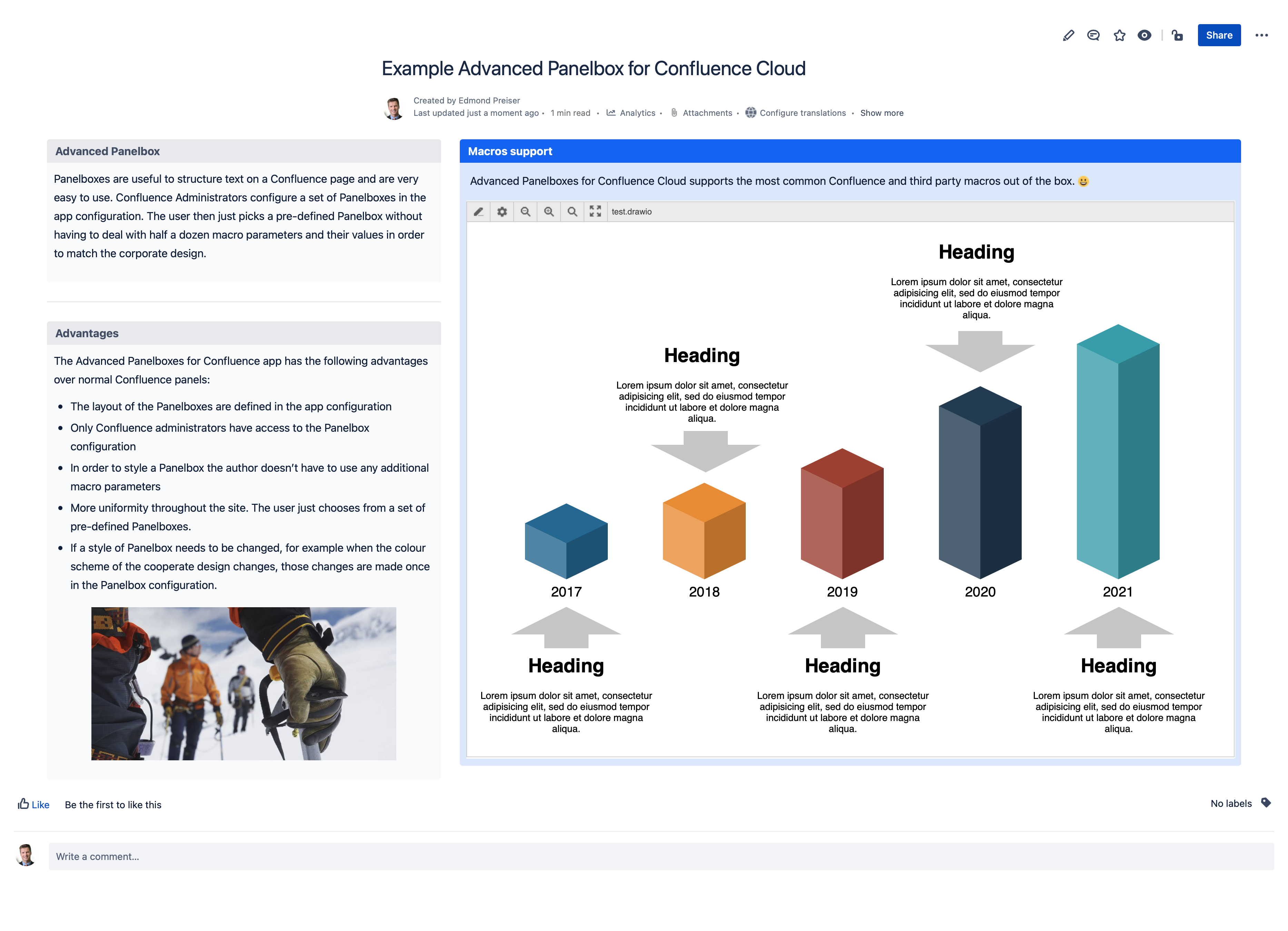
Panel boxes are useful to structure text on a Confluence page.
-
In Cloud, there is no generic panel macro anymore. There are only the standard Confluence panels (info, warning, etc.) that cannot be customised.
-
Using the app Advanced Panelboxes for Confluence, administrators can configure a set of Panelboxes in the app settings that will be available to all editors.
-
Editors can simply pick a predefined box and be sure to match the cooperate design.
-
If the style of a Panelbox needs to be changed, those changes are made once in the app configuration. All the corresponding Panelboxes are changed immediately throughout the whole Confluence instance.
Screenshots
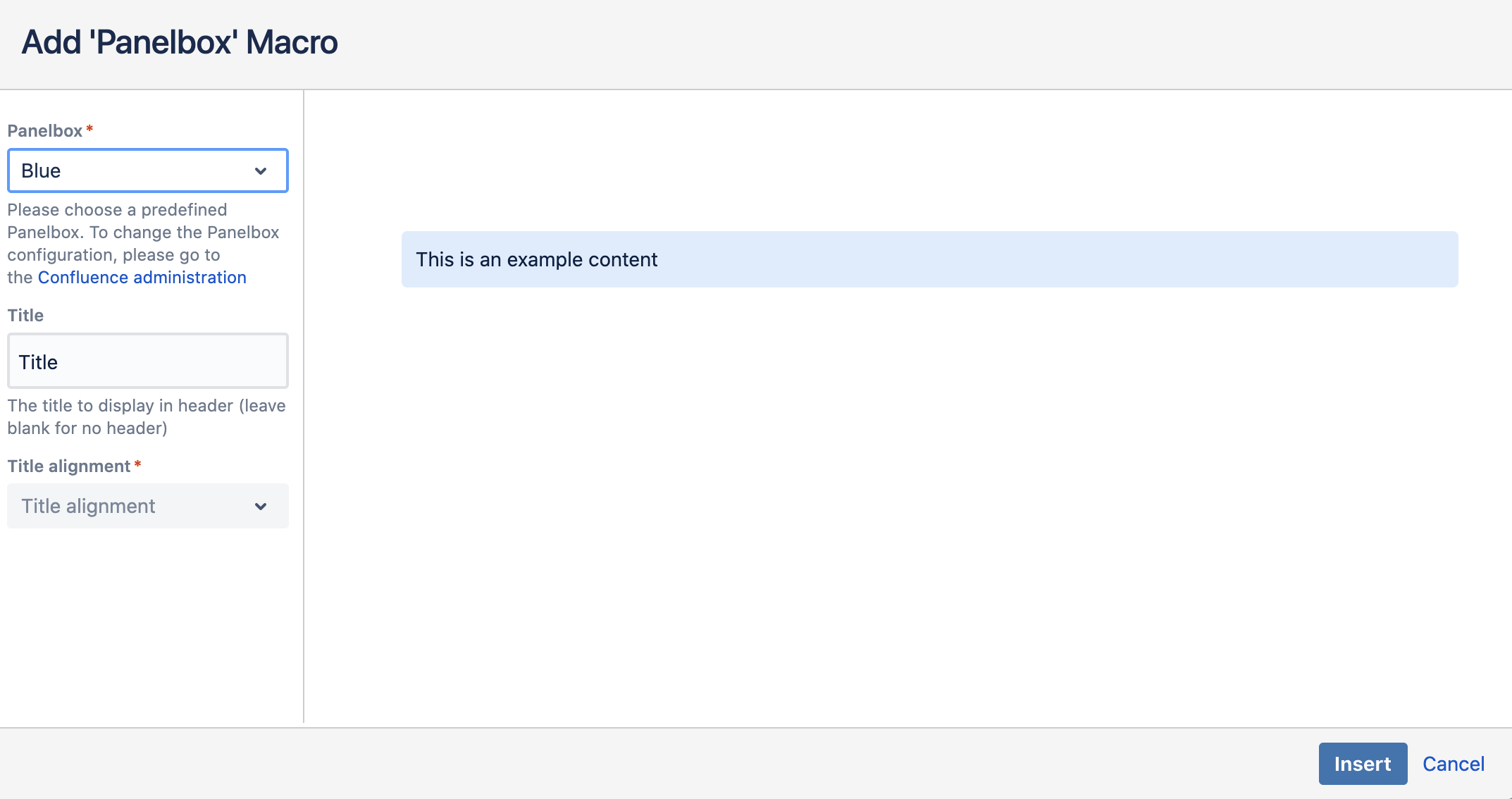
Using Advanced Panelboxes
-
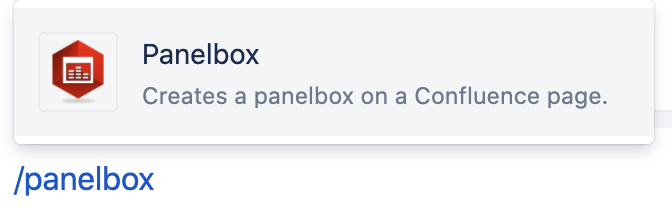
In the Confluence editor, type "/panelbox".
-
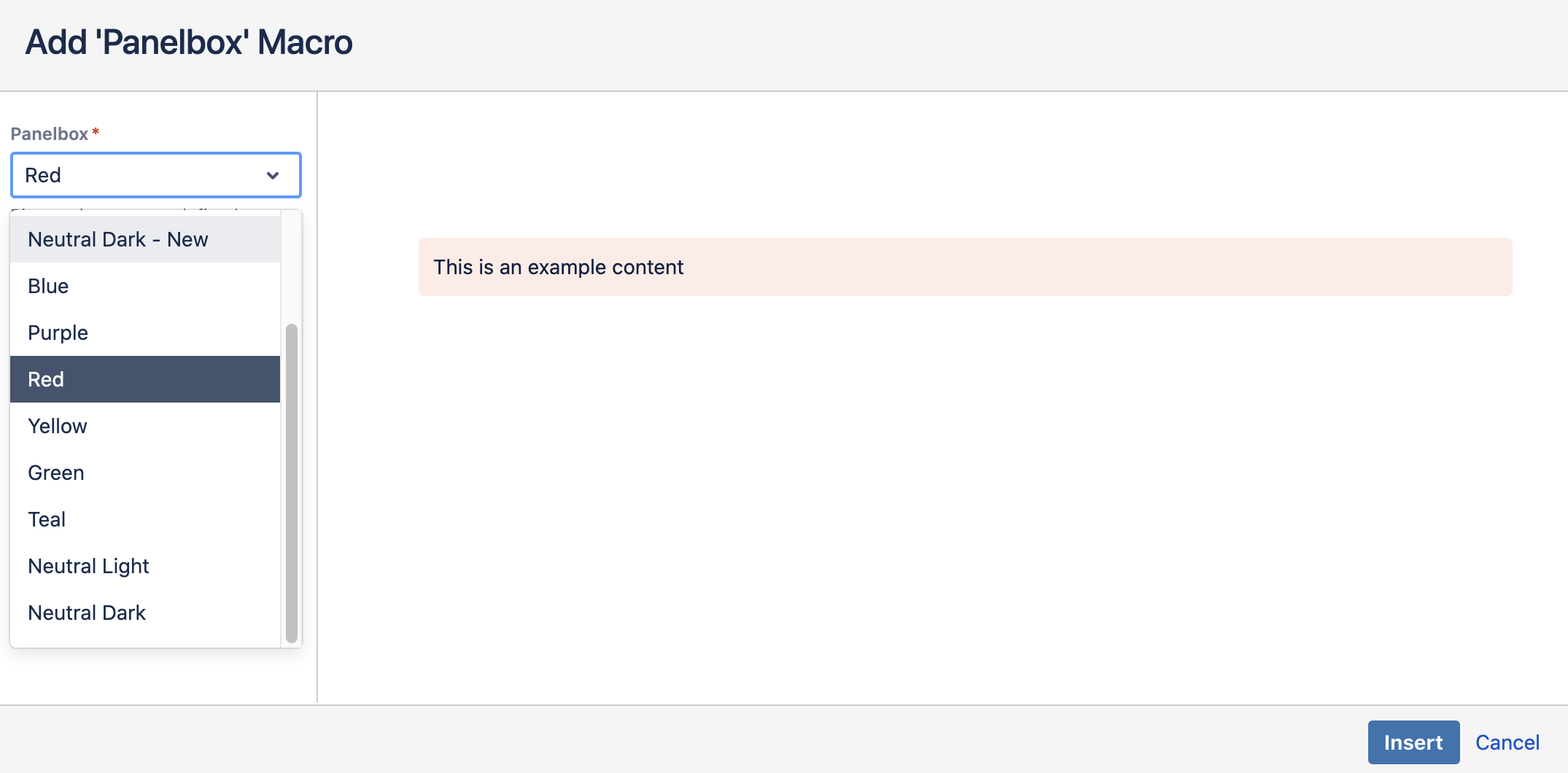
In the overlay, select one of the predefined Panelboxes, for example, "Red".
-
Optionally, give the Panelbox a title and decide on its alignment.
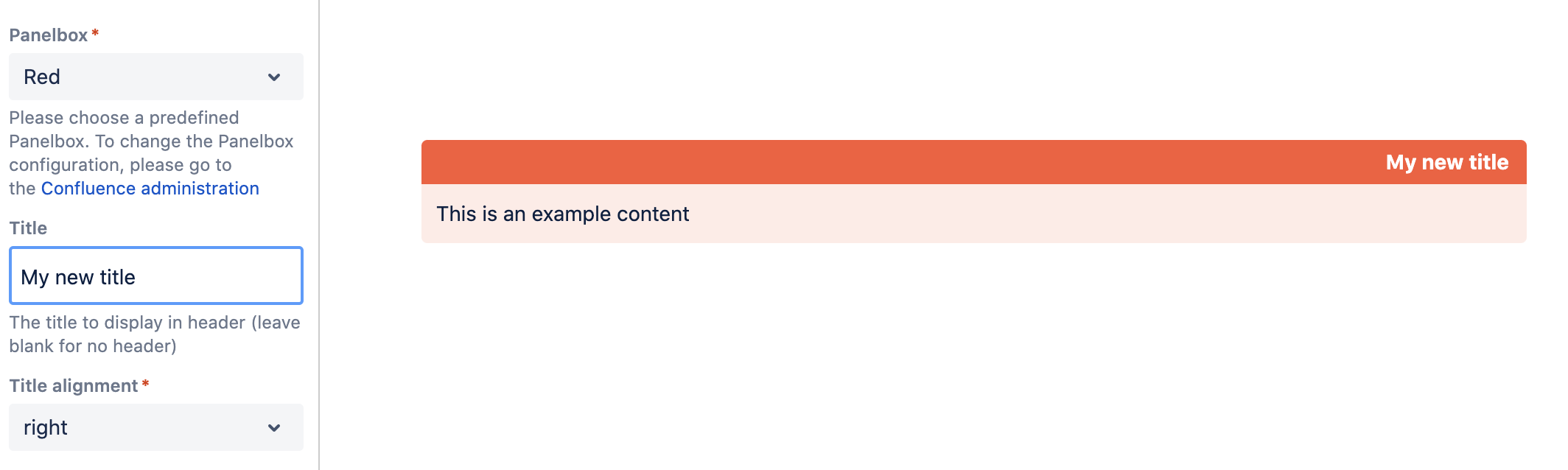
-
Click on the button "Insert".
-
Back in the editor, fill the Panelbox with content.
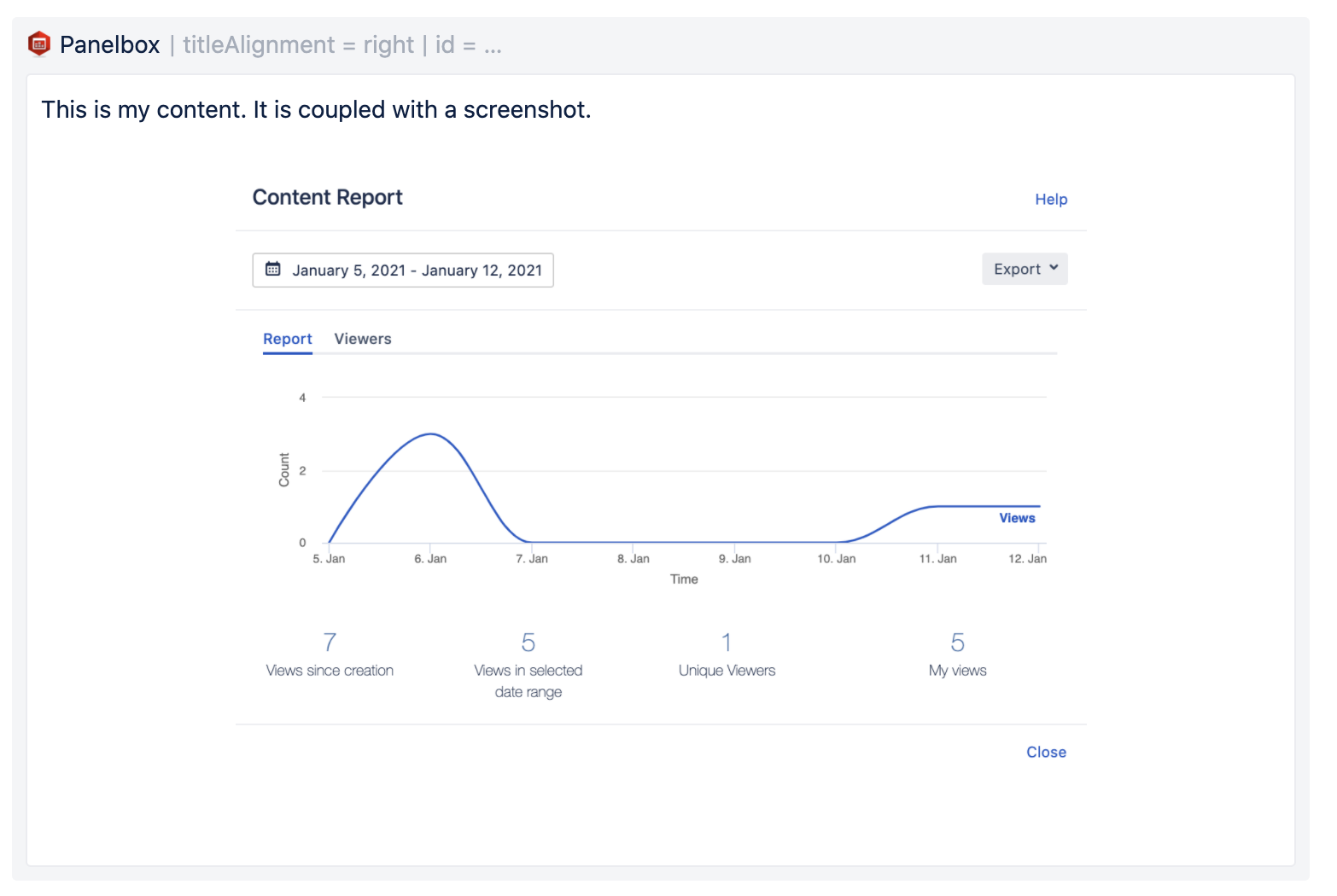
-
Publish/update the page when you are done.
-
The Panelbox "Red" is now part of your page.
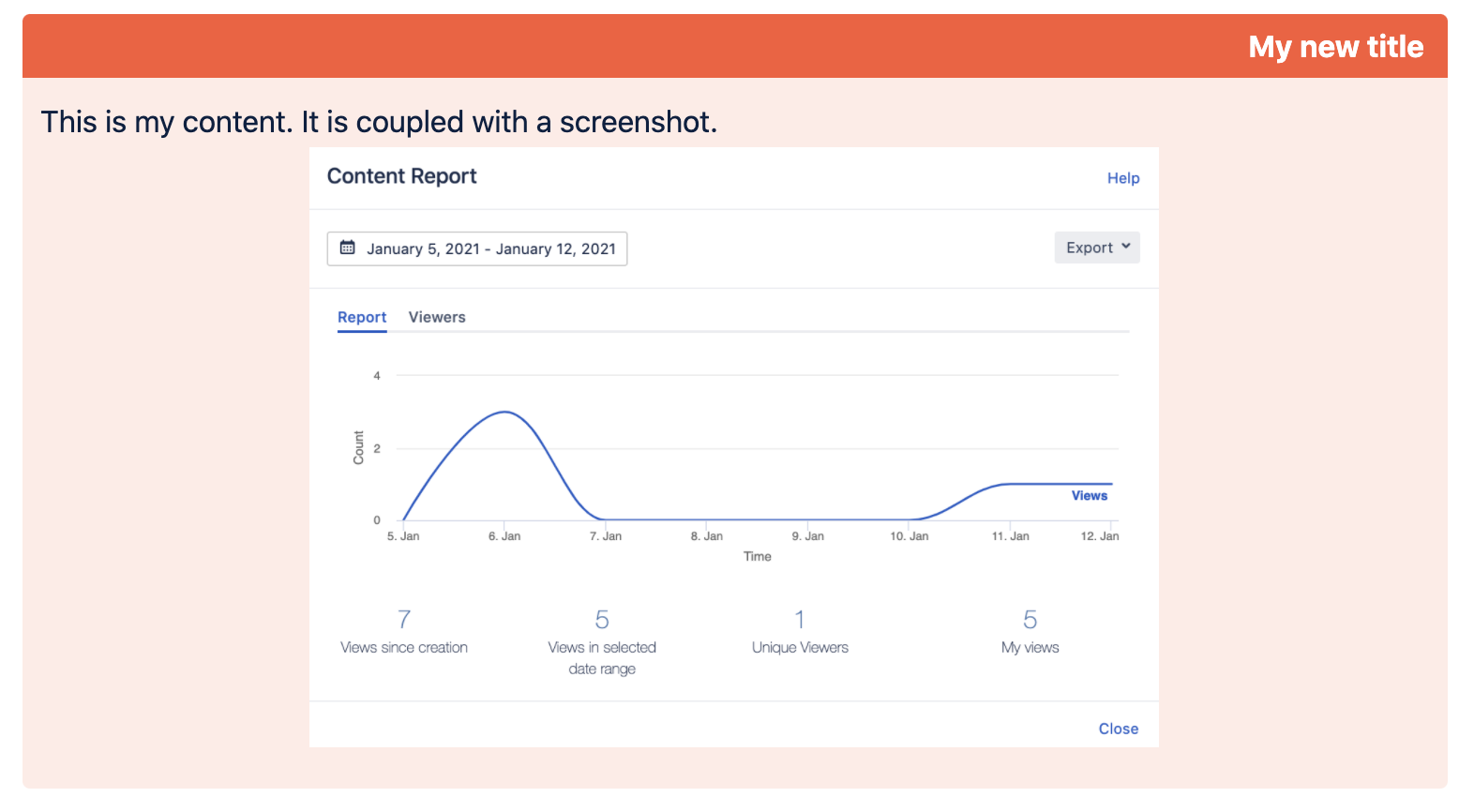
Any changes to existing Panelboxes must be carried out by a Confluence Administrator (guide see below). Changes to the original Panelbox configuration will impact all existing Panelboxes on Confluence pages.
Configuring Advanced Panelboxes
You need to be a Confluence Administrator to configure and add Panelboxes.
-
In the General Settings , select "Settings" under the entry "Advanced Panelboxes".
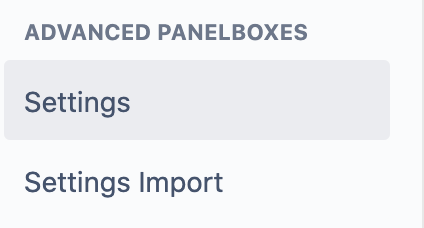
-
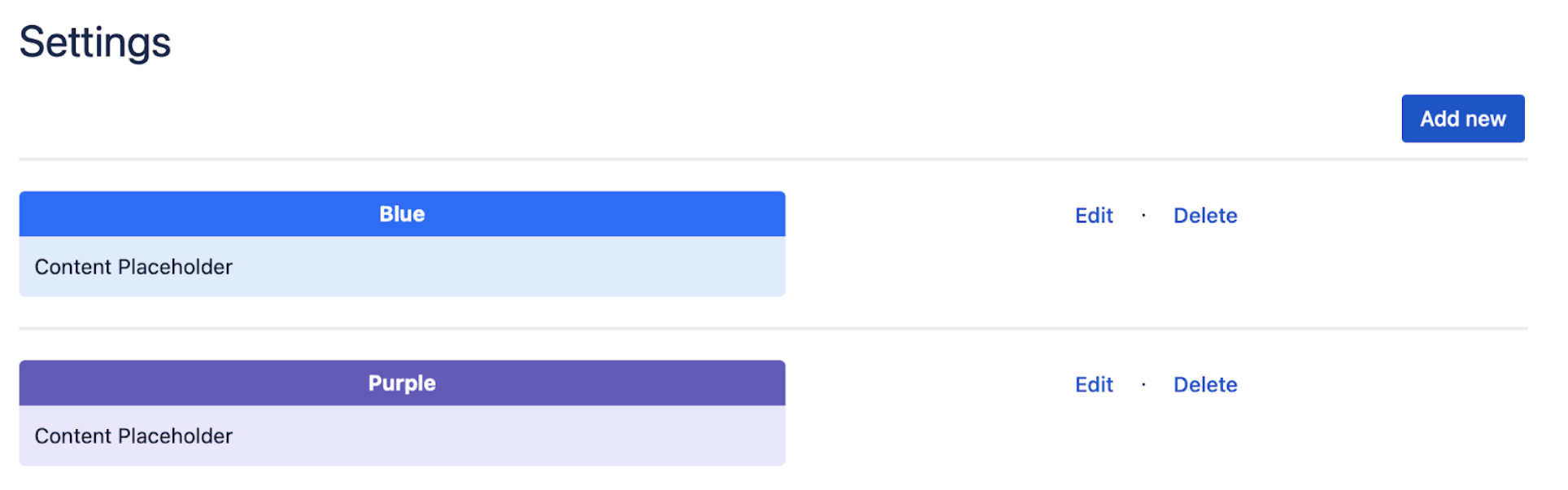
You will now see a list of the existing Panelboxes. These have been created when installing the app.
Configuring an existing Panelbox
-
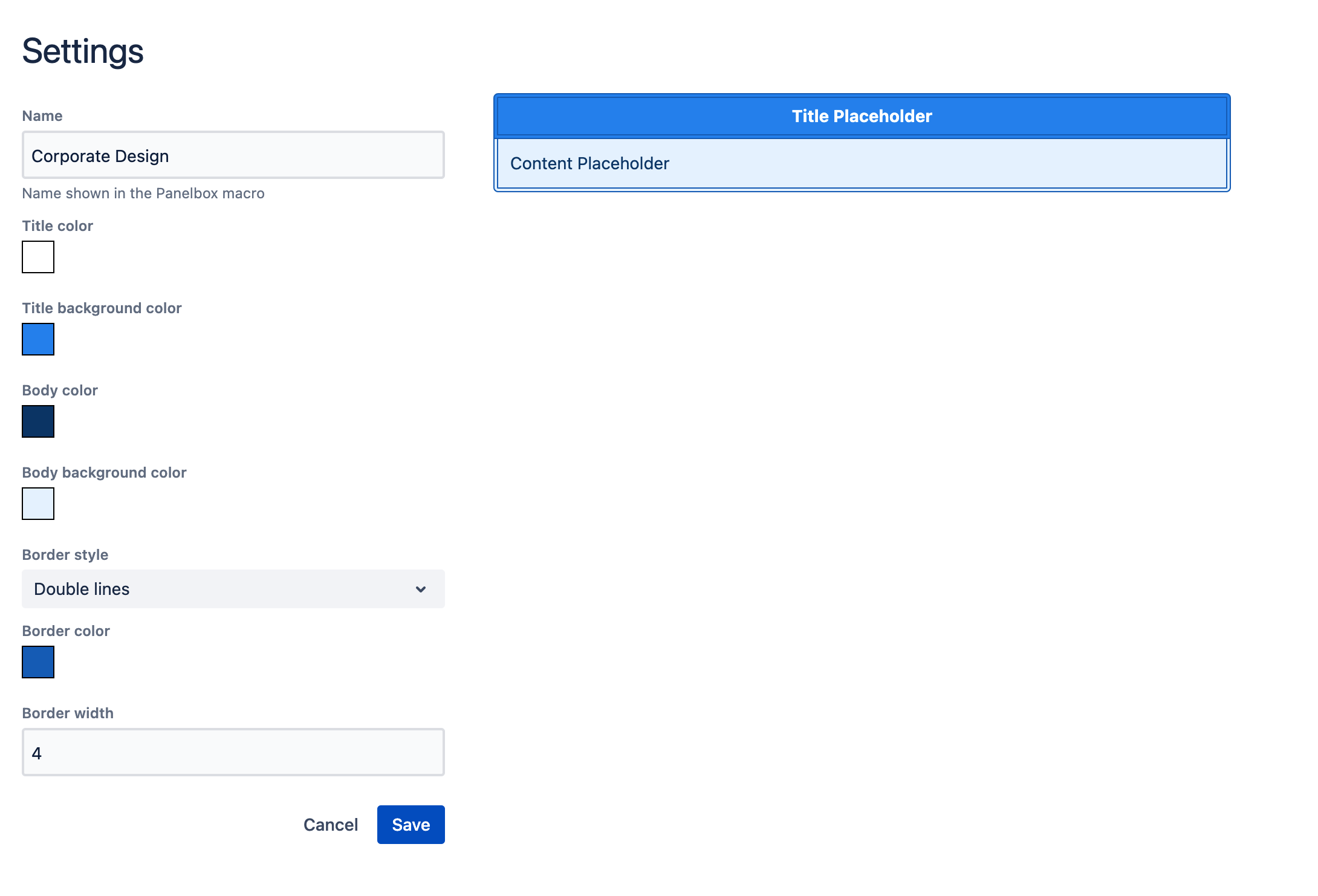
Click on the "Edit" link on the right side of the Panelbox you want to edit:

-
Change any settings you like, then click the "Save" button.
-
The new settings will now be applied to all Panelboxes with the name "blue". No need to edit dozens of pages once a setting changes!
Adding a new Panelbox
-
To create a new Panelbox, click on the button "Add New".
-
Give the Panelbox a name and add properties (colours, border style).
-
When you are happy with the preview, click the "Save" button.
-
Your new Panelbox may now be used anywhere in your Confluence.