You can include Notebooks from different sources (Confluence, Bitbucket Cloud, GitHub Cloud, Dropbox) in order to have an up-to-date version of it in a Confluence page. The macro will feature syntax highlighting for the included Notebook.
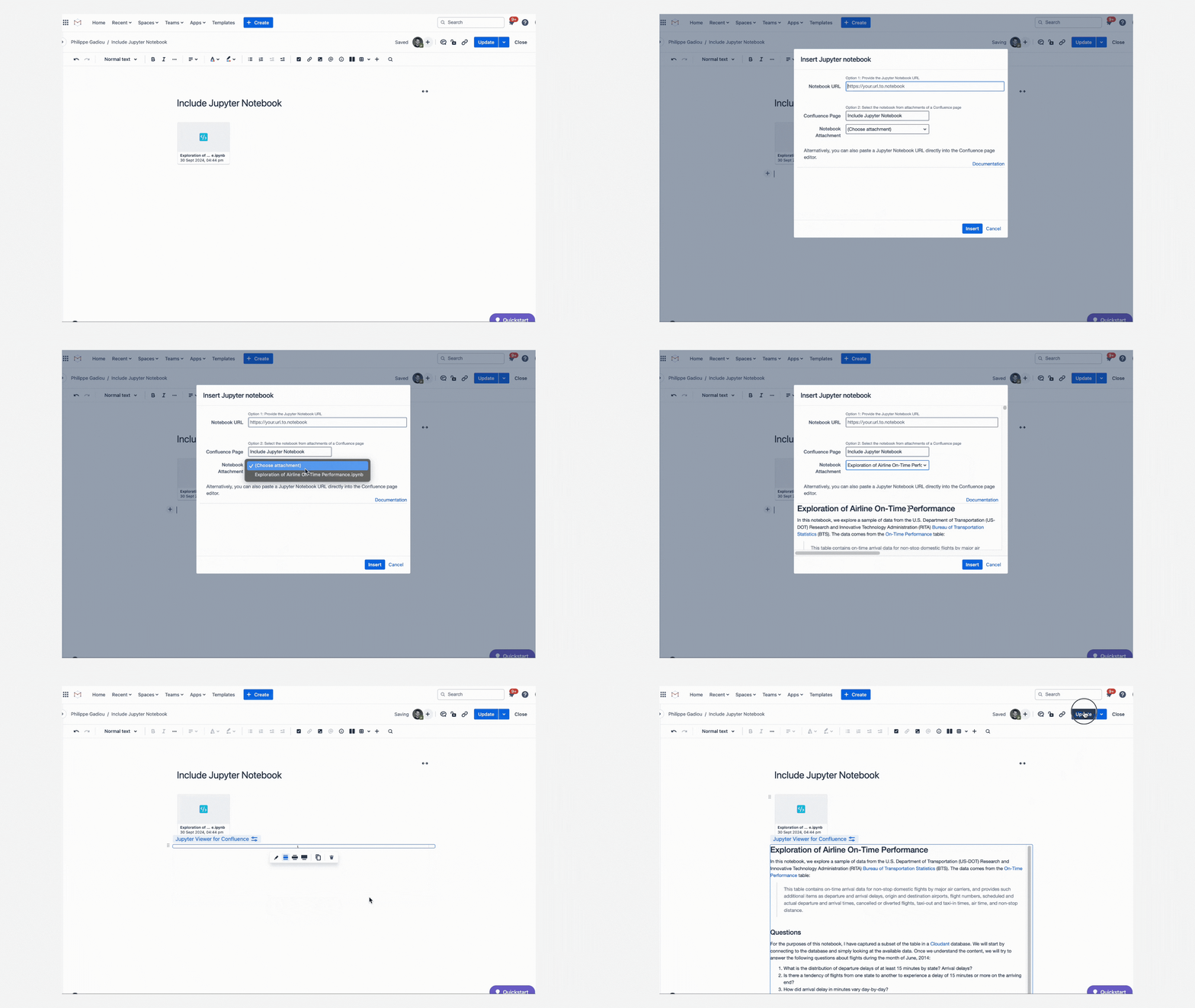
Include notebook from a Confluence page
-
Type directly
/Jupyter Viewer for ConfluenceandENTERto add and edit the macro. Alternatively you can pick the Jupyter Viewer for Confluence macro from the macro browser. -
Type in the field the
Confluence Pagewhere the notebook is located (if the notebook is on the current page, go directly to next step) -
In the field
Notebook Attachmentfield, select the notebook you want to include from the dropdown
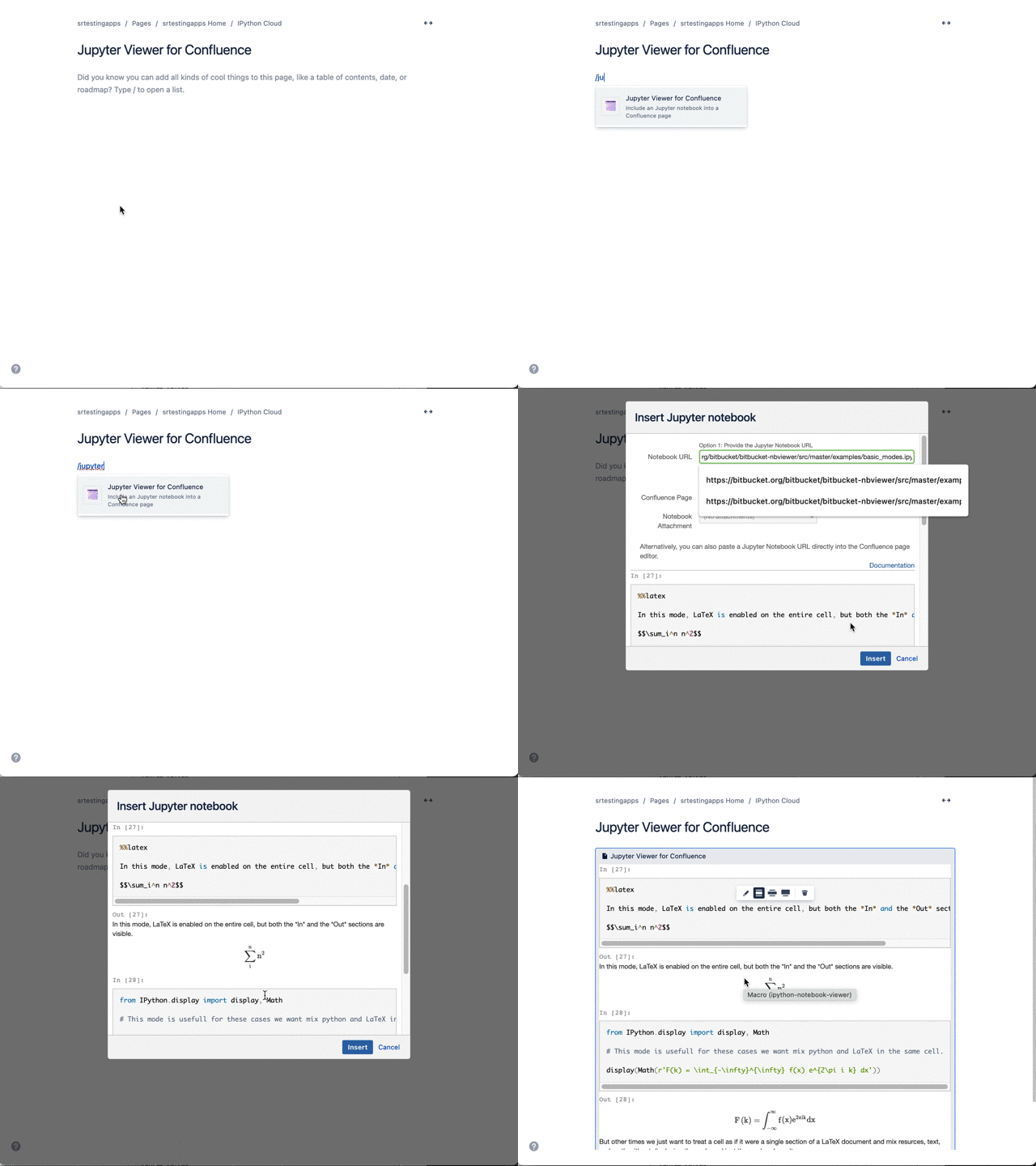
Include notebook from a notebook url (Bitbucket, GitHub, Dropbox)
-
Paste the url of the Jupyter notebook in your Confluence page, the macro will automatically be added to render the notebook
Or
-
Type directly
/Jupyter Viewer for ConfluenceandENTERto add and edit the macro. Alternatively you can pick the Jupyter Viewer for Confluence macro from the macro browser. -
Add the
notebook URL
Notebooks from GitHub private repositories
GitHub authentication is needed for users to view files that are within GitHub private repositories. To authenticate, save a GitHub token in the Jupyter Viewer for Confluence admin configuration (go to Apps > Manage Apps > Jupyter Viewer for Confluence).
The minimum permissions needed for the token are:
-
for classic tokens:
repo -
for fine-grained tokens:
Repository permissions->contents: read-only
Once a token has been saved, the app will use the token for all GitHub requests.
Edit the macro
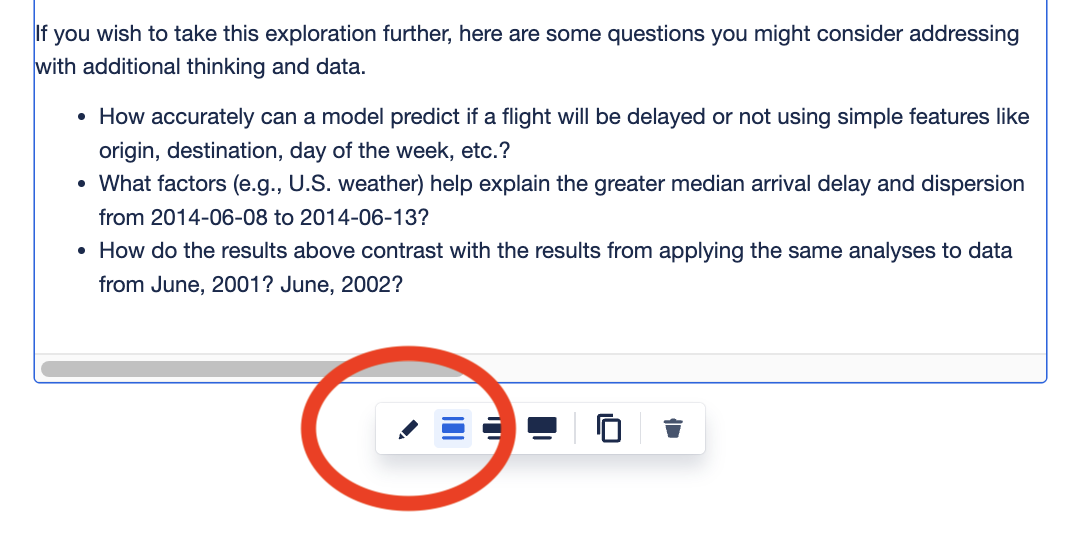
Click the macro placeholder and choose Edit. A macro dialog window will open, where you can edit the parameters of the macro.