
You can include Notebooks from different sources (Confluence, Bitbucket Cloud, Bitbucket DC, GitHub, Dropbox) in order to have an up-to-date version of it in a Confluence page. The macro will feature syntax highlighting for the included Notebook.
Include notebook from a Confluence page
-
Type directly
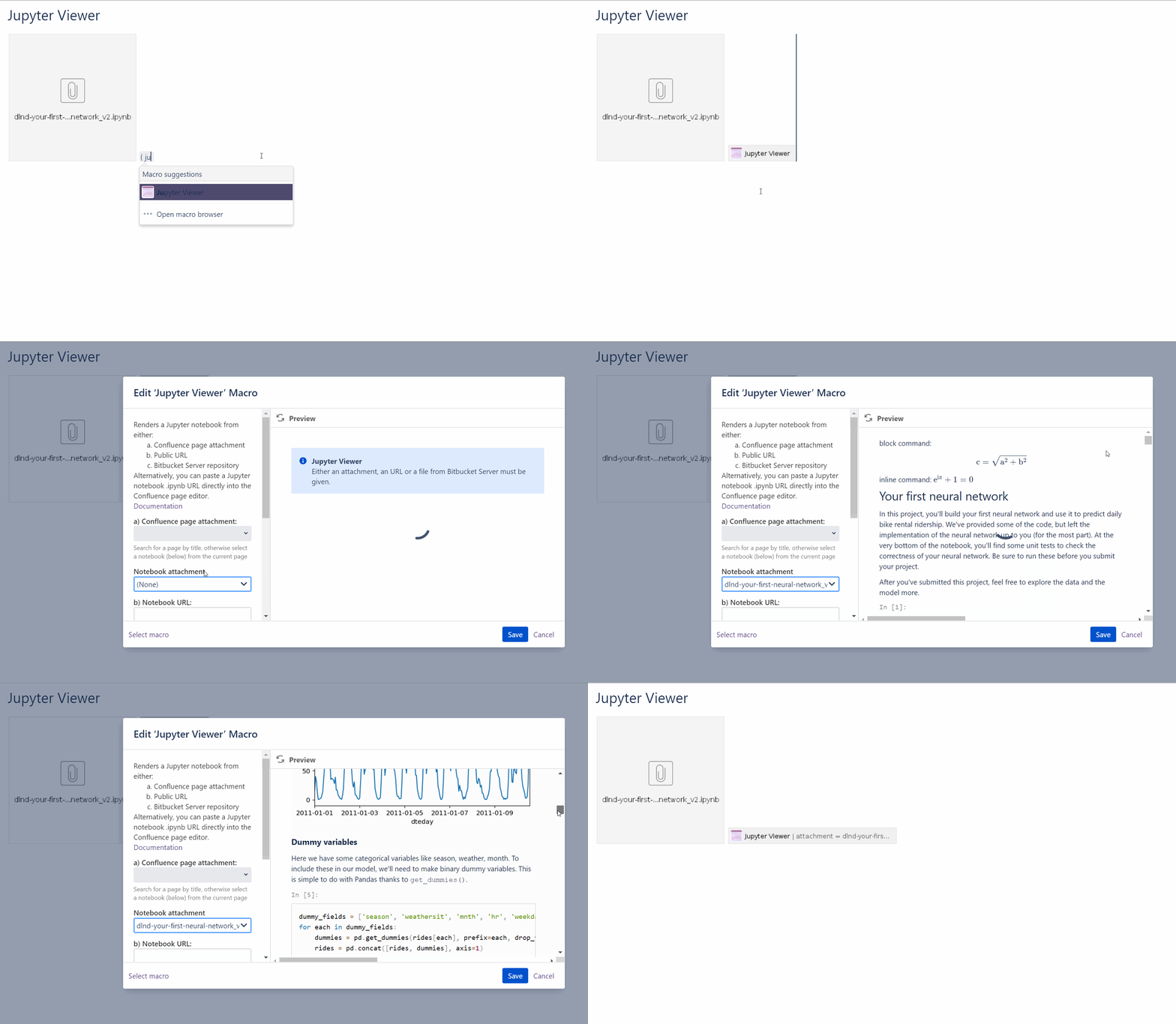
{Jupyter Viewer for ConfluenceandENTERto add and edit the macro. Alternatively you can pick the Jupyter Viewer for Confluence macro from the macro browser. -
Type in the field the
Confluence page attachmentwhere the notebook is located (if the notebook is on the current page, go directly to next step) -
In the field
Notebook Attachmentfield, select the notebook you want to include from the dropdown
Include notebook from a notebook url (Bitbucket Cloud, GitHub, Dropbox)
-
Paste the url of the Jupyter notebook in your Confluence page, the macro will automatically be added to render the notebook
Or
-
Type directly
{Jupyter Viewer for ConfluenceandENTERto add and edit the macro. Alternatively you can pick the Jupyter Viewer for Confluence macro from the macro browser. -
Add the
notebook URL
Include notebook from a Bitbucket Data Center / Server repository
You need to have an application link to your Bitbucket Data Center instance configured to include a notebook hosted on this instance. More details in the installation page.
-
Type directly
{Jupyter Viewer for ConfluenceandENTERto add and edit the macro. Alternatively you can pick the Jupyter Viewer for Confluence macro from the macro browser. -
Under
c) Bitbucket server file, select the relevant:-
Bitbucket instance
-
Bitbucket project
-
Bitbucket repository
-
Repository branch
-
File path
-
Edit the macro
Click the macro placeholder and choose Edit. A macro dialog window will open, where you can edit the parameters of the macro.