
Introduction
Except when filtering via "Expert Filter Criteria (Lucene)", Metadata uses Confluence Query Language (CQL) in all of its features. The filtering via "Expert Filter Criteria (Lucene)" is as the name suggests based on Lucene, however, this feature is deprecated.
You can access metadata which has been configured via Metadata for Confluence as well as default Confluence metadata like "Creator", "Created" and "Label".
Please refer to the next sections for a more detailed explanation how to search for and filter metadata in the Confluence search as well as searching and filtering in Metadata for Confluence macros.
Topics include:
Metadata in Confluence Search and Metadata Macros
Since version 2.0 Since Confluence 5.9
Filtering Confluence Search Results (CQL)
With Metadata for Confluence, you can add filters to your search based on available metadata. This feature uses CQL.
Go to the Confluence search results page, e.g. by clicking in the quick search field at the top-right of every Confluence page and hitting Enter. To filter your search results, perform the following steps:
-
Click on the "Add a filter" link on the bottom left.
-
Start typing to filter the available metadata fields or use your mouse to select the metadata field you want to filter for.
-
After selecting a metadata field, enter the metadata field value(s) you are looking for or select them from the suggestions (if available).
-
Repeat step 2 to 4 until you have added all desired filters.
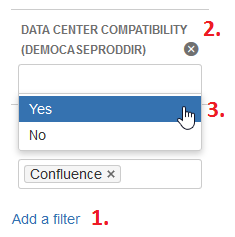
Search results will now show all Confluence pages whose Metadata match the configured filters.
Added filters will work as if connected with an AND operator. Meaning: When using the filter option, it is not possible to for example search for pages that match either filter criteria 1 or filter criteria 2. To build more complex search queries, refer to the next section: Using Confluence Query Language (CQL) Syntax in Macros (Expert Filter Criteria).
CQL search via the "Add a filter" features is also available in the Metadata Overview and Content by Metadata macros. In addition it is also supported by some for the Confluence default macros like "Content by label".
Using Confluence Query Language (CQL) Syntax in Macros (Expert Filter Criteria)
Since version 3.0.4
The macros Macro "Metadata Overview" (v 3.3) and Macro "Content by Metadata" (v 3.3) provide an option "Expert filter criteria (CQL)". This input field accepts a search query in the Confluence Query Language (CQL).
A general description on how to search with CQL can be found in the official Confluence advanced searching documentation.
To integrate a condition into a CQL query which restricts the results to content with Metadata please refer to the table below. There you'll find some examples for the different use cases in the correct syntax.
|
Searching for metadata sets |
For global sets
For space sets (SPACEKEY refers to the key of the space)
|
|---|---|
|
Searching for a metadata field value |
For global metadata fields
For space metadata fields (SPACEKEY refers to the key of the space)
For space metadata fields in a space whose key starts with a number like the space key '123test' (SPACEKEY refers to the key of the space)
For space metadata fields in the personal space of a user. Let's say the personal space of John has the space key '~john', then the CQL condition would look like:
|
Example queries for the Expert filter criteria (CQL) option
1) Show all pages where the "location" (a space Metadata field in space with key "EXAMPLE") is either "Stuttgart" or "Dresden":
EXAMPLE.metadatafield.location = "Stuttgart" OR EXAMPLE.metadatafield.location = "Dresden"
2) Show all pages where the "contact person" (a global Metadata field) is Katherine Smith and the location (the same space Metadata field as in the previous example) is "Dresden". The login name of Katherine is ksmith:
global.metadatafield.contactperson = "ksmith" AND EXAMPLE.metadatafield.location = "Dresden"
3) Show all pages of space "Development" (with space key "DEV") which have the metadata set "projects" assigned:
metadataset = "metadataset.projects" AND space = "DEV"
4) Show all pages of space "Development" (with space key "DEV") which have the space metadata set "projects" or “products” assigned:
(metadataset = "metadataset.projects" OR metadataset = "metadataset.products") AND space = "DEV"
Determining the Key of a Metadata Set/Field
As a User
Confluence users can determine the key of metadata fields or sets by moving their mouse over the metadata set or field title within the metadata overview.
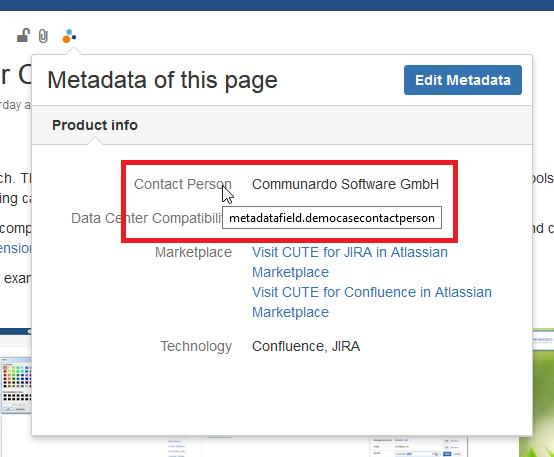
To display the key, go to a page where the metadata field or set has been added. Open the metadata overview by clicking the colorful Metadata icon at the top-left. Now hover your mouse over the metadata set (displayed at the top) or the metadata field (entries below) whose key you want to know. A small tooltip containing the respective key will be shown.
If you cannot find the metadata field, check if you have selected the correct metadata set.
As a Space Administrator
For the following steps, you need Space Administrator permissions.
As a Space Administrator, you can additionally go to a page and open "Space tools" > "Metadata". To find the correct metadata field key, click the tab "Metadata fields" or open the tab "Metadata sets", respectively.
Space metadata fields are displayed at the top, global metadata fields at the bottom.

deprecated Using Lucene Search Syntax in Confluence Search
Note: This feature is deprecated and will be removed in one of the future releases. Please use use Confluence Query Language instead.