
This page describes how to configure a generic AI Provider for use with the AI Review Assistant.
If any of the headers, body content or query parameters require a secret, use the $API_KEY placeholder, and fill the actual value in the API Key section.
As Repository Admin:
-
go the Code Review Assistant repository settings page.
-
open the AI Review Assistant tab on top.
Request section
|
Section |
Instructions |
|---|---|
|
API URL |
Enter the REST API address for your AI Provider. This has to be the endpoint for a chat (message based) completion |
|
API Key |
Enter your API key |
|
Headers |
Add all the key-value Http Headers for your AI Provider. For example, a Basic Authorization or a version controlling header. |
|
Query Parameters |
Add all key-value pairs that you would find after the |
|
Request Body |
Add all members for the JSON content. For example, the model, a stop sequence, a maximum number of tokens… |
Response Section
|
Section |
Instructions |
|---|---|
|
Success Query |
Enter the JSON query to retrieve the content of the chat message completion. For example, if the JSON response from the API is JSON
Then the query will be |
|
Error Query |
Enter the query to retrieve the error message when an error occurs. This is not strictly necessary, but it will help users when an error pops up. |
Test and Save
-
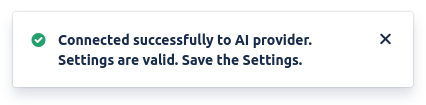
Click on Test and verify that you receive a confirmation message that everything is configured properly.
-
Click on Save.
If you have trouble in configuring our AI Review Assistant, we are happy to help! 🎉
More on JSON Query Language (JQL)
AI Review Assistant uses a custom JSON Query Language (JQL) to extract text information from JSON formatted responses.
A JQL query is a text snippet, describing a path from the root of a JSON document to a single text field.
Format
A JQL query is made of selections joined with a period (.). For example a.b.c is a path made of three selections (a, b, and c). Selections are evaluated from left to right, and each describes how to extract a nested value from a JSON document. For a JQL query to be valid, the final selection must extract a String value.
Each selection can be one of two kinds, a field selection or an array selection.
Field Selection
A field selection extracts a field of a JSON object. For example message requires the current JSON object to have a field message (e.g. {"message":<value>}) and extracts the associated value.
Array Selection
An array selection combines field selection with indexing. For example content[0] requires the current JSON object to have a field content associated with an array, (e.g. {"content":[<values>...]} ) and tries to extract the element of the array at index 0.
Example
Assume the AI provider returns the following JSON document (this example comes from Claude.ai):
{
  "content": [
    {
      "text": "Hi! My name is Claude.",
      "type": "text"
    }
  ],
  "id": "msg_013Zva2CMHLNnXjNJJKqJ2EF",
  "model": "claude-3-5-sonnet-20241022",
  "role": "assistant",
  "stop_reason": "end_turn",
  "stop_sequence": null,
  "type": "message",
  "usage": {
    "input_tokens": 2095,
    "output_tokens": 503
  }
}
To extract the useful response message, i.e. "Hi! My name is Claude." - you would use the JQL query content[0].text. First from the root of the document it selects the value of the "content" field (an array) and selects the object at index 0; next from that object it selects the "text" field, resulting in the string we needed.
Similarly, to extract the model used - you would use the JQL query model. From the root of the JSON document it selects the value of the "model" field and extracts the text, i.e. "claude-3-5-sonnet-20241022".