
Configuration
Use the Sonar™Scanner for dotnet task to analyze
-
.NET 5+ projects
-
.NET Core Global Tool
-
.NET Core 3.1
-
.NET Core 2.1
If you need to analyze a “classic” .NET Framework 4.6+ project, use the MSBuild Sonar™Scanner task.
|
1 |
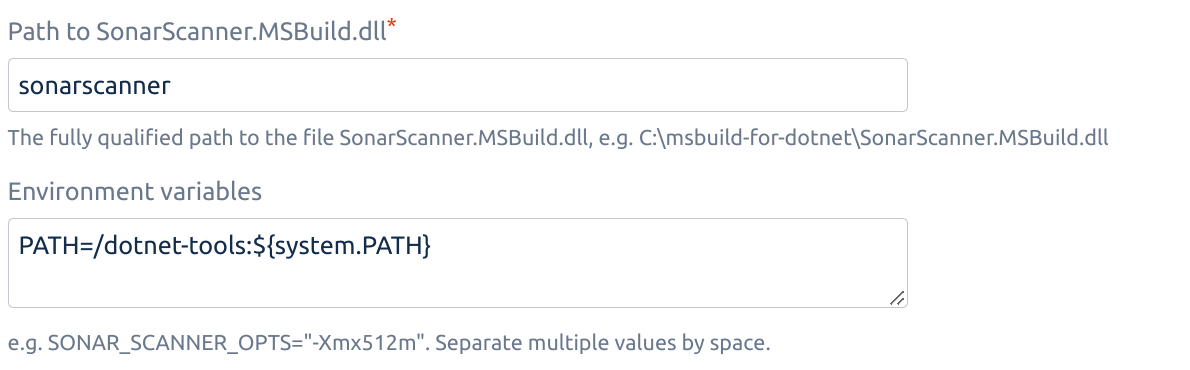
Install and configure the SonarQube™ Scanner as described in https://docs.sonarqube.org/latest/analysis/scan/sonarscanner-for-msbuild/ Make sure to download the appropriate version for your dotnet project. The task works as well with the .NET Core Global Tool, read the note on step 3 and 5. |
|
2 |
Configure Build Agent Capability
|
|
3 |
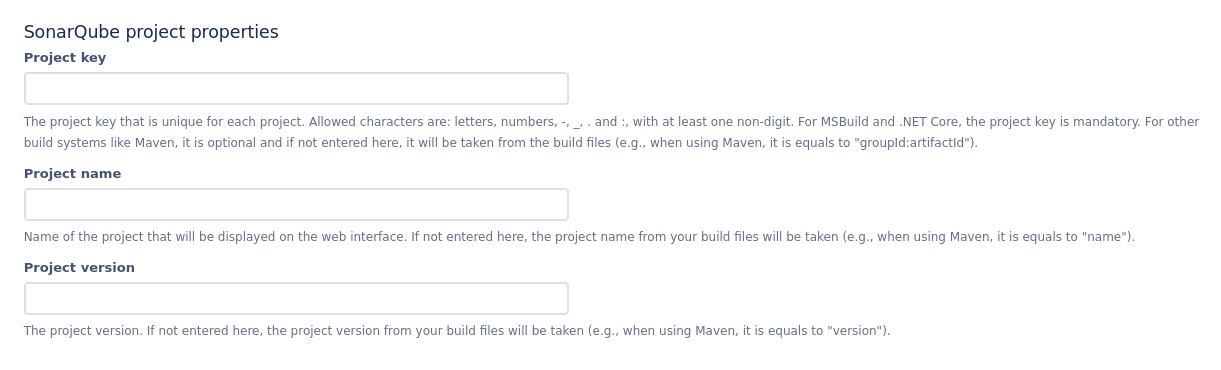
Add a Sonar™ Scanner for dotnet - Begin Analysis task to your build plan
|
|
4 |
Add a Script or Command task to build your build plan. Configure it to build your project. A minimal example may look like: 
|
|
5 |
Add a Sonar™ Scanner for dotnet - End Analysis task to your build plan
|
|
6 |
Setup test coverage:
|

Tips & Troubleshooting
On SonarQube™ versions older than 9.3 you might encounter this error:
-
error 07-Jan-2022 14:50:44 Invalid project key. Allowed characters are alphanumeric, '-', '_', '.' and ':', with at least one non-digit.
Update your tasks and enable option "Override branch character replacement" with the "-" character as value.
SonarQube™ scanners need access to the full git repository. If you encounter issues, e.g. in a containerized build, ensure that you
-
uncheck "Use shallow clones" option (Fetches the shallowest commit history possible. Do not use if your build depends on full repository history)
-
check "Fetch whole repository" option (Fetches whole repository instead of only one branch)
SONAR™, SONARQUBE™ and SONARCLOUD™ are independent and trademarked products and services of SonarSource SA: see sonarsource.com, sonarqube.com and sonarcloud.com.