User Profiles for Confluence Cloud (Microsoft Attributes Sync) needs access to your Microsoft 365 organization to be able to display information from there.
Admin Consent / Permissions
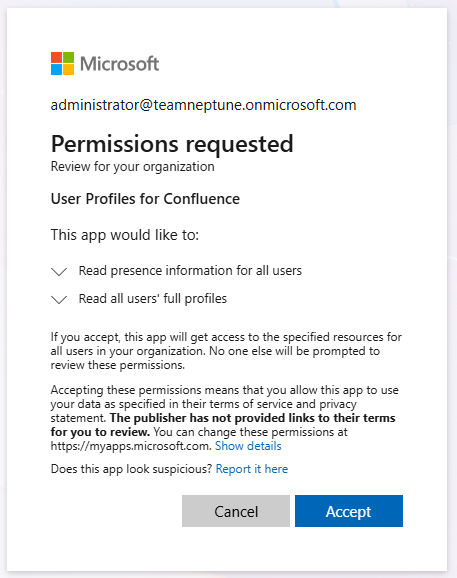
User Profiles for Confluence Cloud (Microsoft Attributes Sync) needs the following permissions:
-
User.Read.All - allows to fetch contact information
-
Presence.Read.All - allows the users to read presence information of all users in the organization
Be aware that the list of permissions may be altered in the future.
Configuring Microsoft 365 Access and giving consent
To enable User Profiles for Confluence Cloud (Microsoft Attributes Sync) to fetch information from Microsoft 365, you (a Microsoft tenant administrator) has to give his consent to our app.
-
go to User Profiles for Confluence Cloud (Microsoft Attributes Sync) configuration page
-
Go to the Confluence settings → Apps and click on User profiles Configuration
-
The tab Connect to Microsoft 365 is now already selected
-
-
follow the instructions on the page there
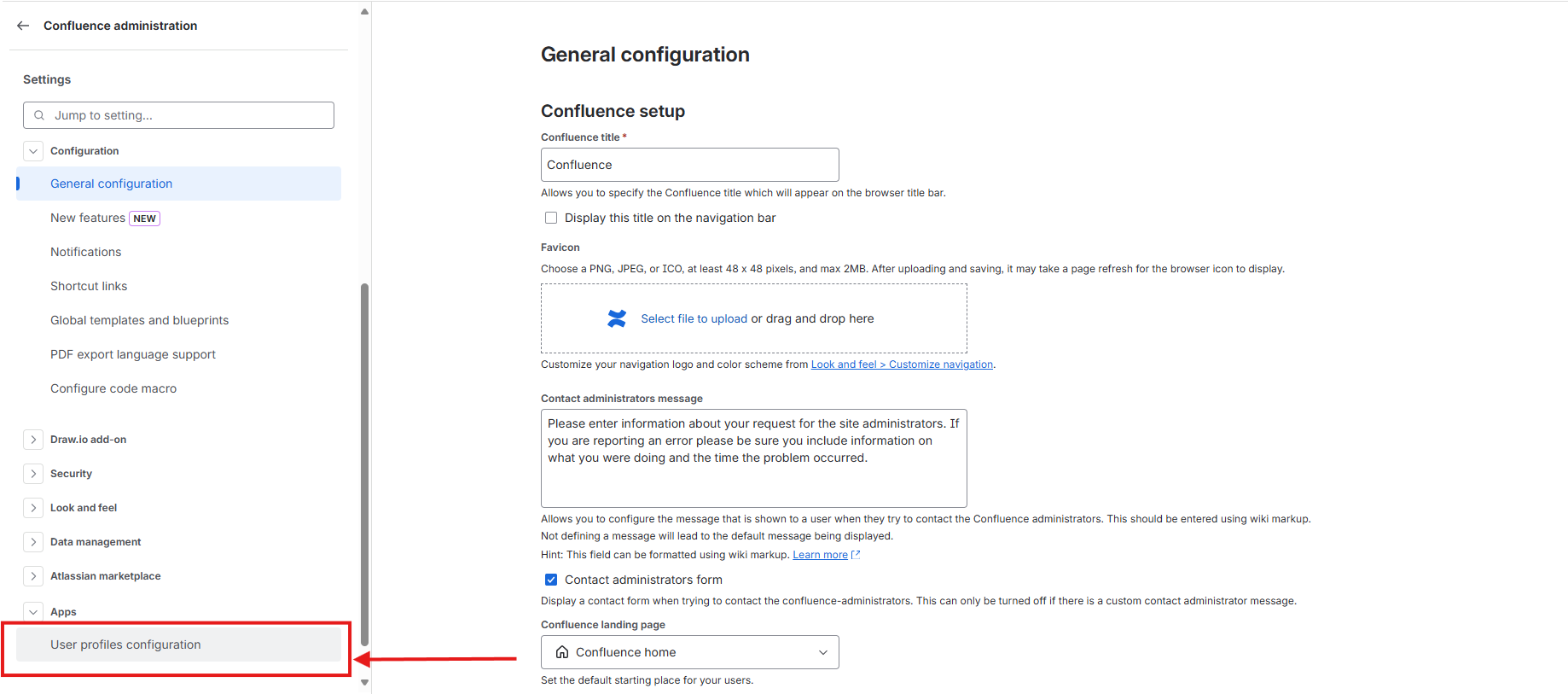
Image 1: Configure Microsoft 365 Access link in administration
Start the approval process
-
Follow the instructions on the page.
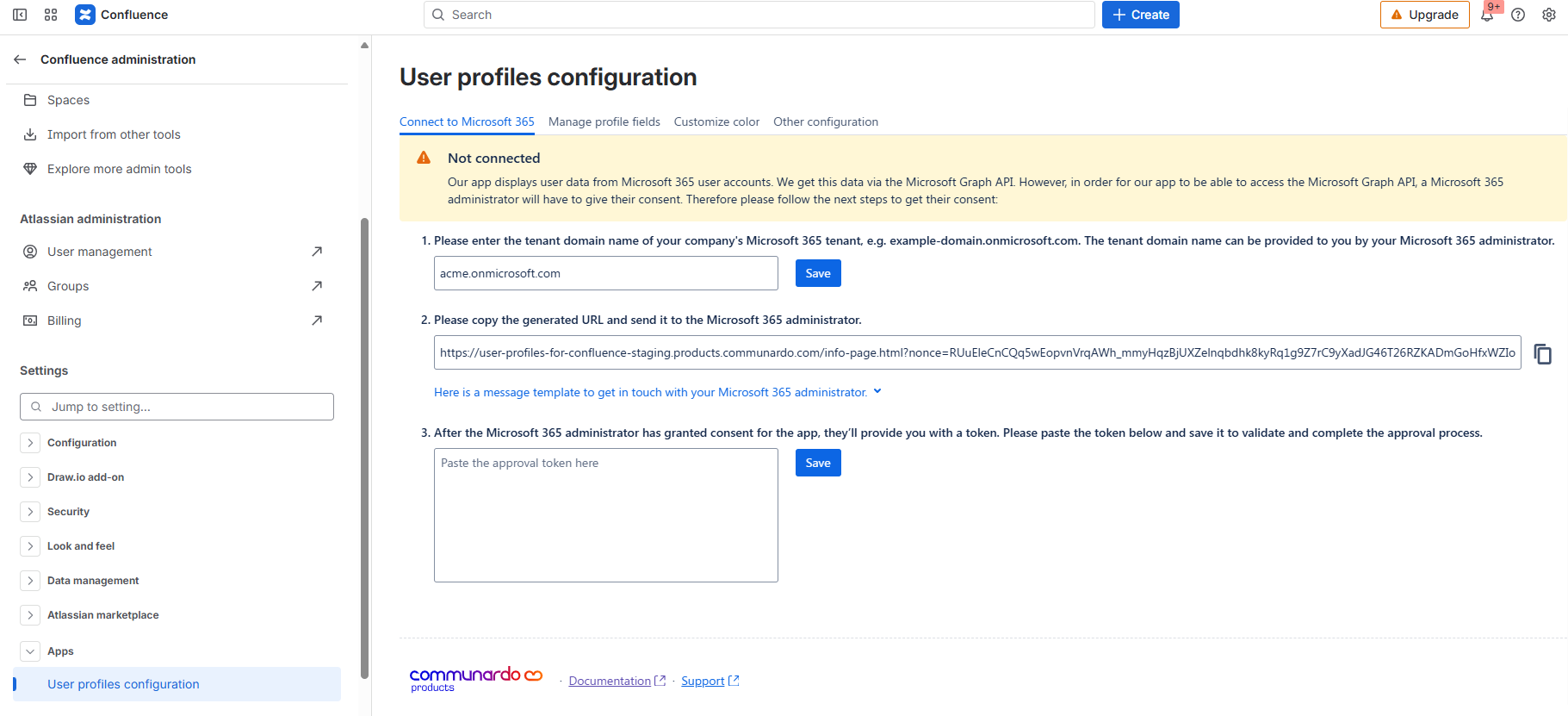
Image 2: Configure Microsoft 365 Access page with instructions
The Microsoft 365 administrator will be guided through the approval process.
Step 1 - Basic Information
Information about the Confluence system that is about to be connected to the Microsoft tenant is shown. Clicking the “Give consent” button will forward to Microsoft.
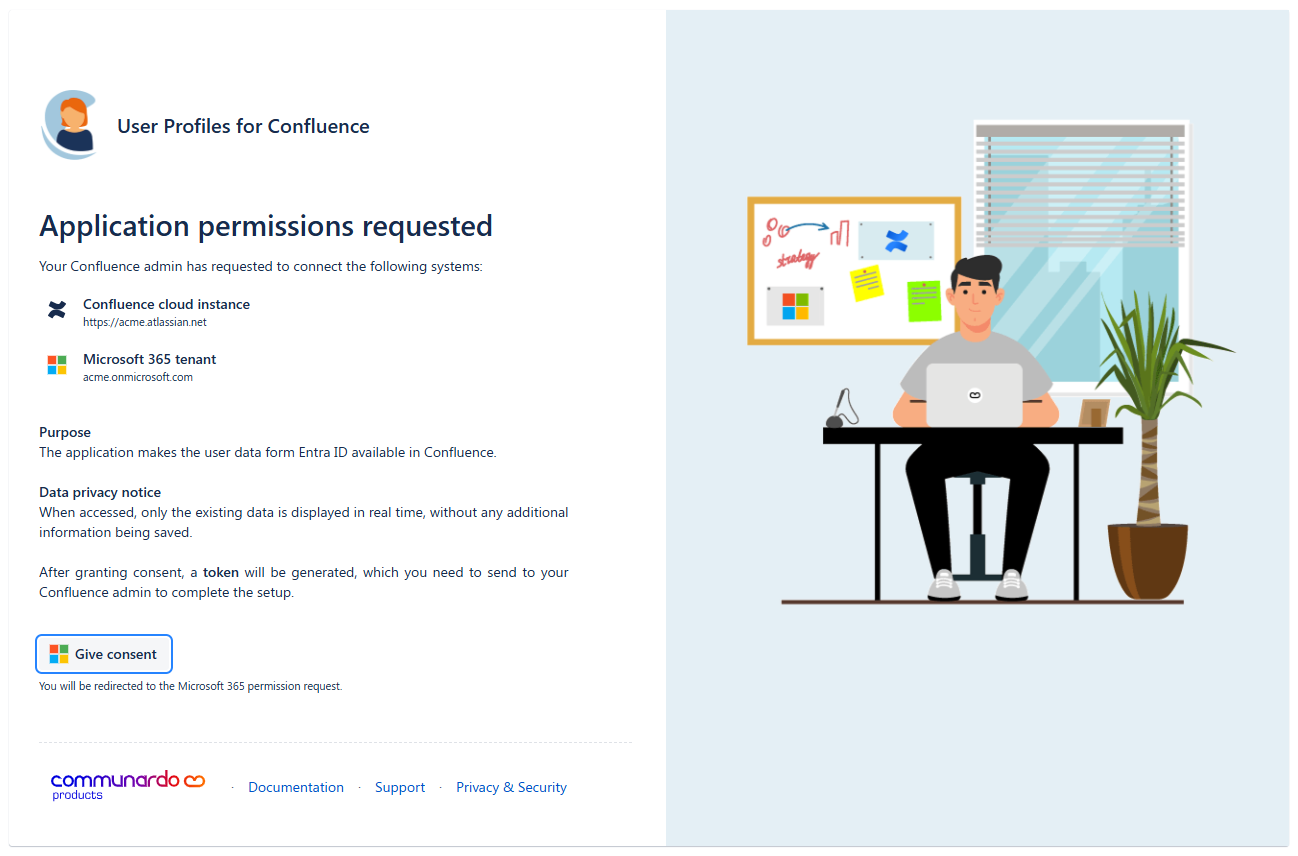
Step 2 - Give Consent in the Microsoft 365 tenant
Microsoft will show a login screen. A Microsoft 365 tenant administrator needs to login and give consent for the installation of the “User Profiles for Confluence” app.
Step 3 - Approval Check
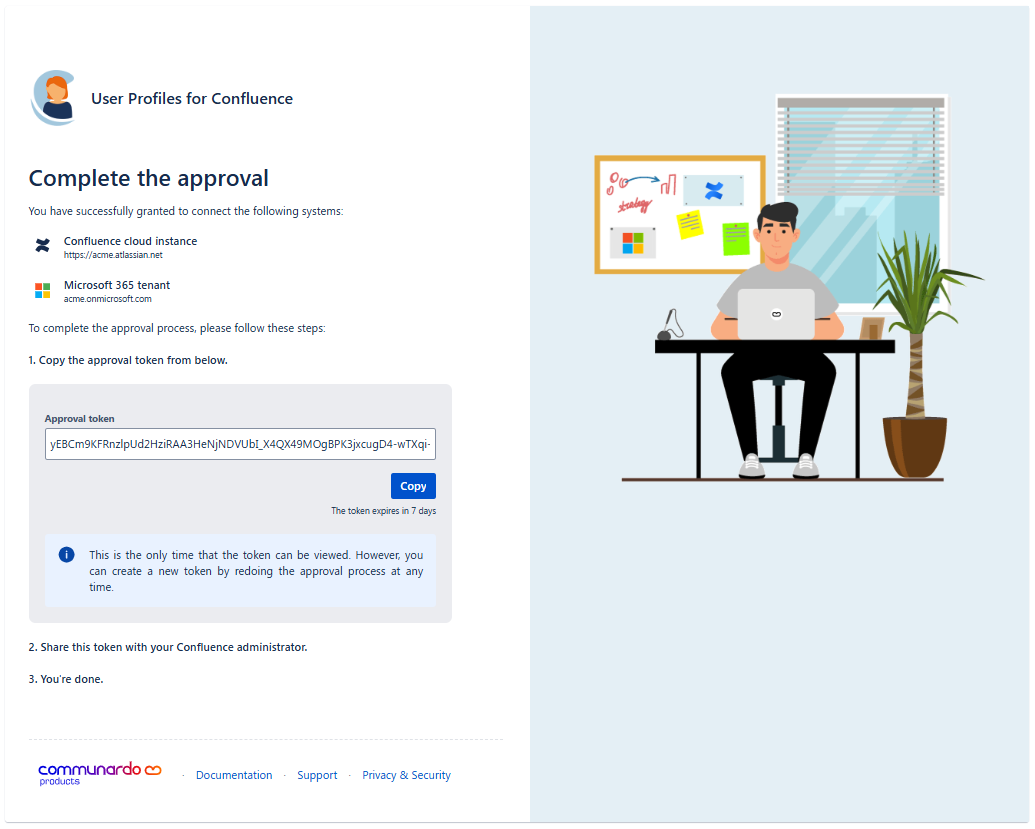
The Microsoft 365 administrator gets an information about the successful consent. An approval token has been created that needs to be shared with the Confluence site administrator.
Finalize Approval process
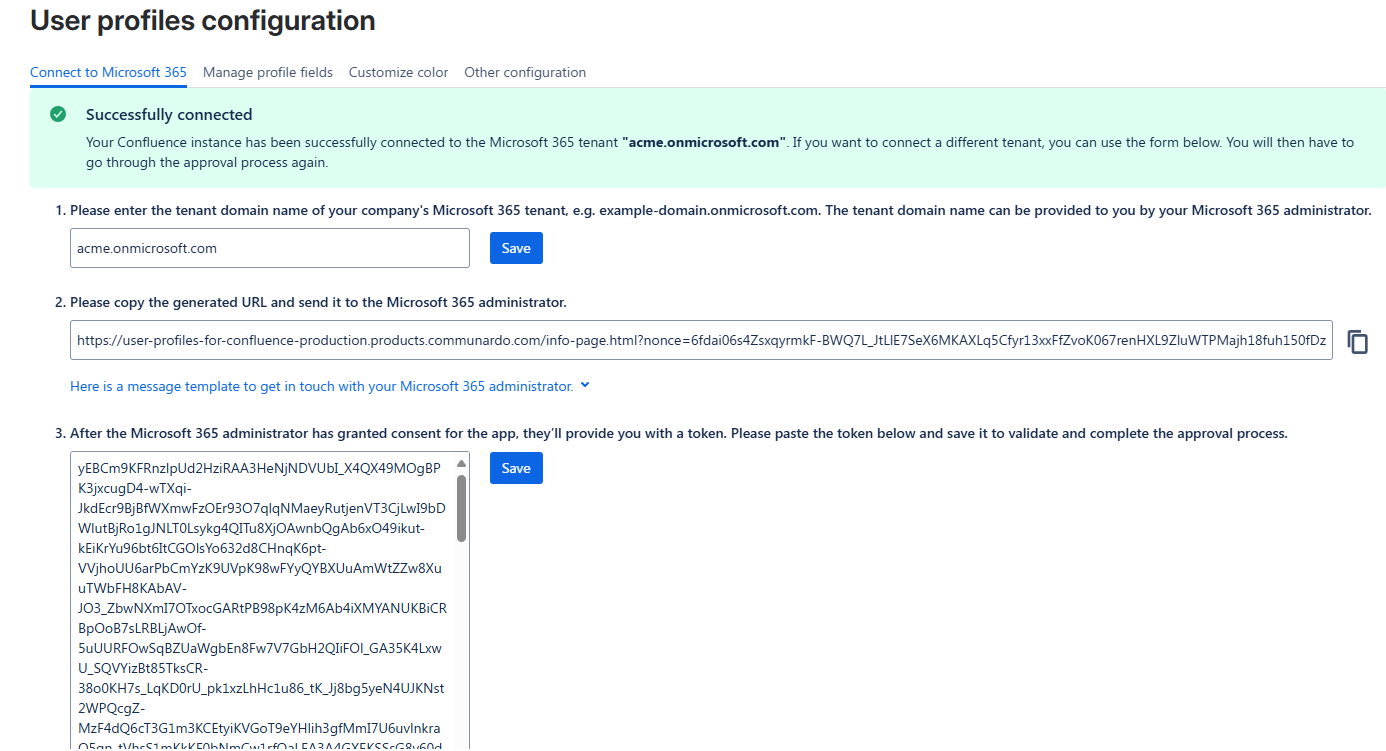
The Microsoft 365 administrator will provide the Confluence site administrator with a token that needs to be inserted into the configuration section. This completes the approval process.