
The Contact Person macro displays contact information of a Microsoft 365 user.
Adding the Contact Person macro to a page
You can add our Contact Person macro just as any other macro to a page in Confluence.
Consent required
In order for the Contact Person macro to show a user’s data from your Microsoft 365 tenant, the app has to be connected to your tenant, and your Microsoft 365 administrator has to give consent to our enterprise app. If this is not the case yet, the macro will show a warning instead:
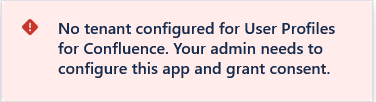
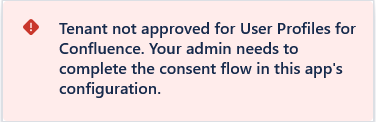
The Confluence administrator can initiate the connection to the Microsoft tenant following the instructions in the app configuration Configure Microsoft 365 Access
Selecting a Microsoft 365 user
Once consent is given, you can select a user by typing their first or last name. If you are unsure about the first or last name of a person, just start typing a few characters, and the macro will suggest relevant contacts.

Image 2: Microsoft 365 user picker
Configuring Displayed Profile Information
Optionally, you can customize the contact card's content. This allows you to define which contact-related information is most relevant to the company and should be displayed.
By default, all information is set to be displayed.
1. Access the "Card Content" tab
In the macro edit mode, navigate to this tab (or, alternatively, click on the appropriate link displayed on the "Contact person" tab):
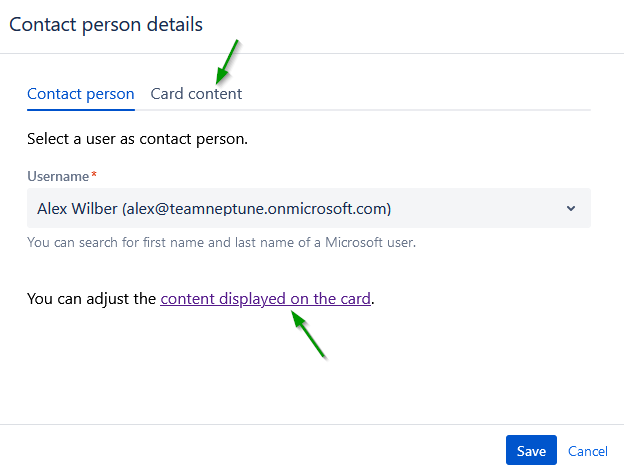
Image 3: Navigate to Card Content tab
2. Select which information should be displayed
Each user information has an associated toggle. Uncheck the “Use Default Configuration“ checkbox to enable the toggles. Click on the toggle of the information you want to hide or show:
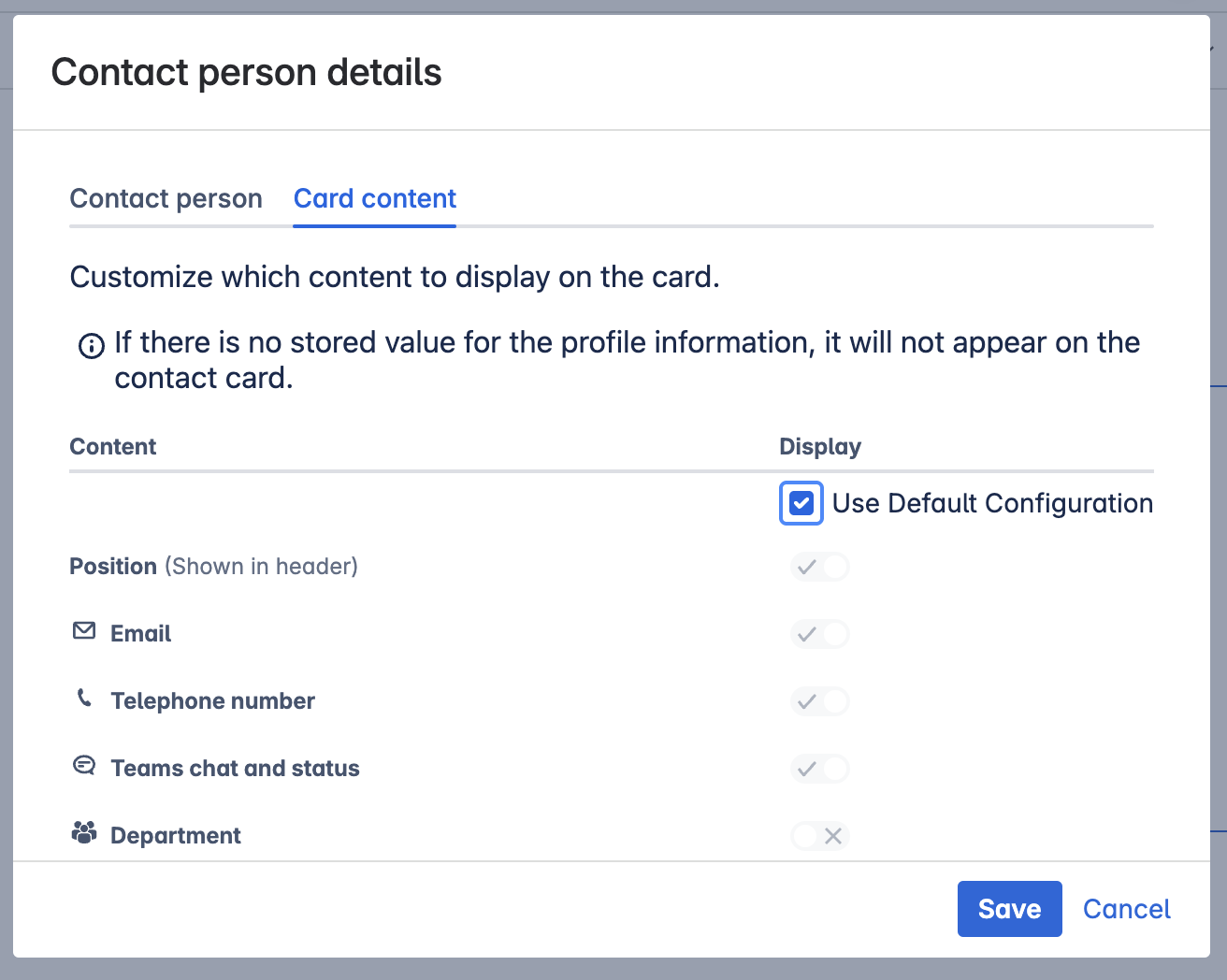
Image 4: Card Content Tab enabled Default Configuration
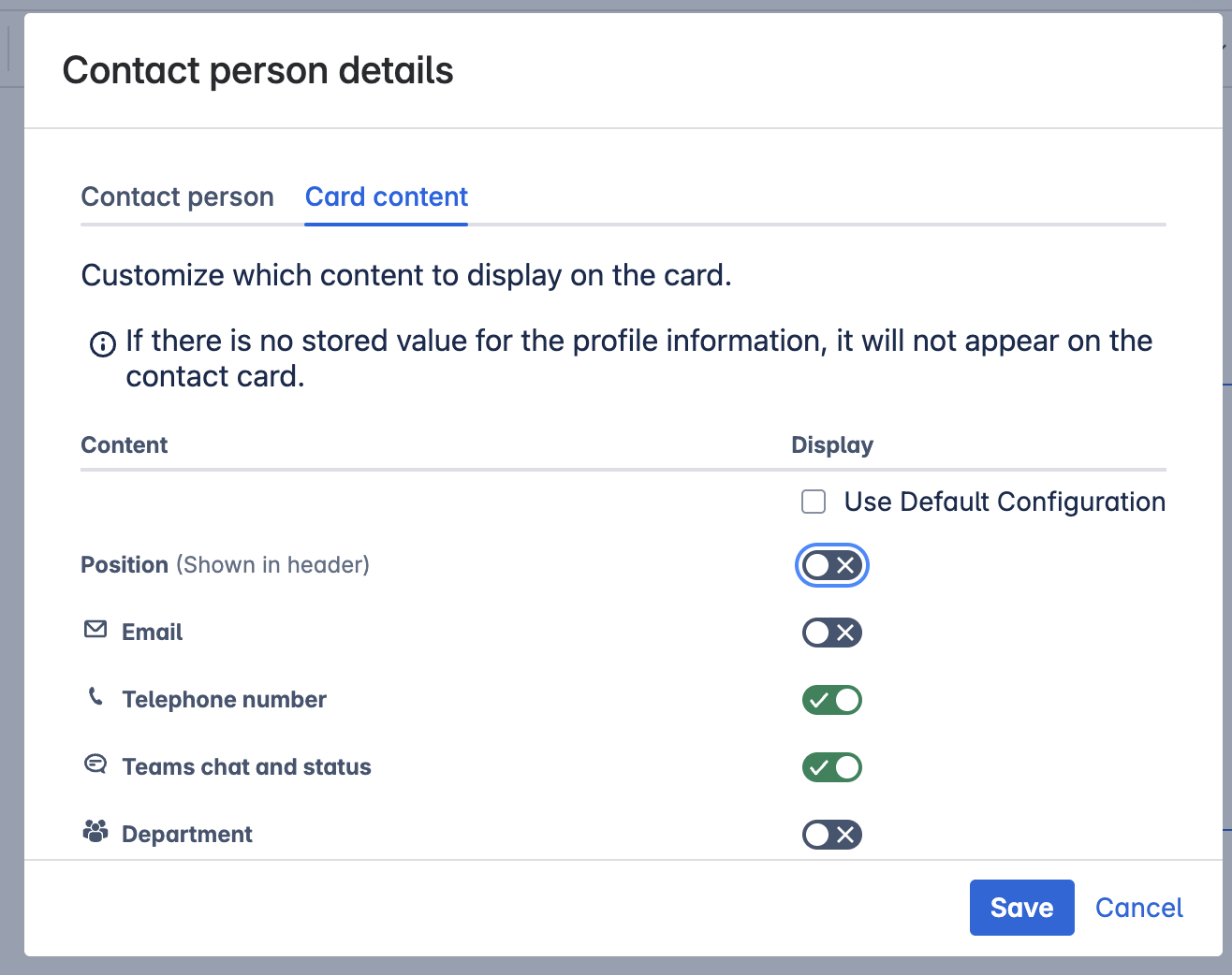
Image 5: Card Content tab disabled Default Configuration
Note: Display name and user image always remain visible.
3. Save and Preview
After adjustments, save your settings. This will confirm your configuration and display the customized macro on your Confluence page.
Modifications can be made anytime by editing the macro and accessing the "Card Content" tab.
Using the Contact Person macro
When viewing a page with the Contact Person macro, you see the information of the configured Microsoft 365 user like this:
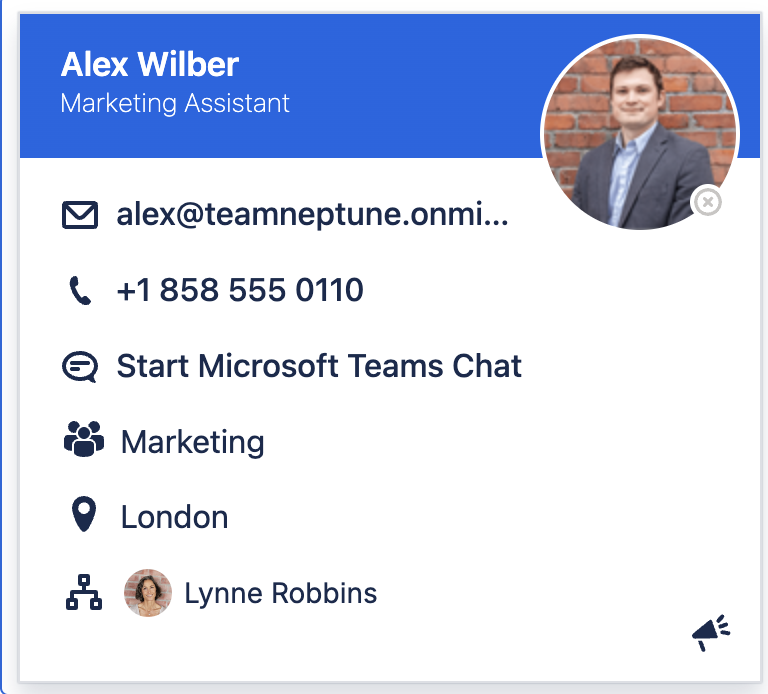
Image 6: Contact Person information
Available information
On the Contact Person macro you can see the following information:
|
Data |
Visible by default? |
Mapped Entra attribute |
|---|---|---|
|
Display name |
(always visible) |
displayName |
|
Position |
yes |
jobTitle |
|
User image |
(always visible) |
– |
|
presence status of the user |
yes |
|
|
|
yes |
|
|
Business phone(s) |
yes |
businessPhones |
|
Start a Microsoft Teams chat |
yes |
– |
|
Department |
no |
department |
|
Location |
no |
officeLocation |
|
City |
no |
city |
|
Manager |
no |
manager |
|
Employee ID |
no |
employeeId |