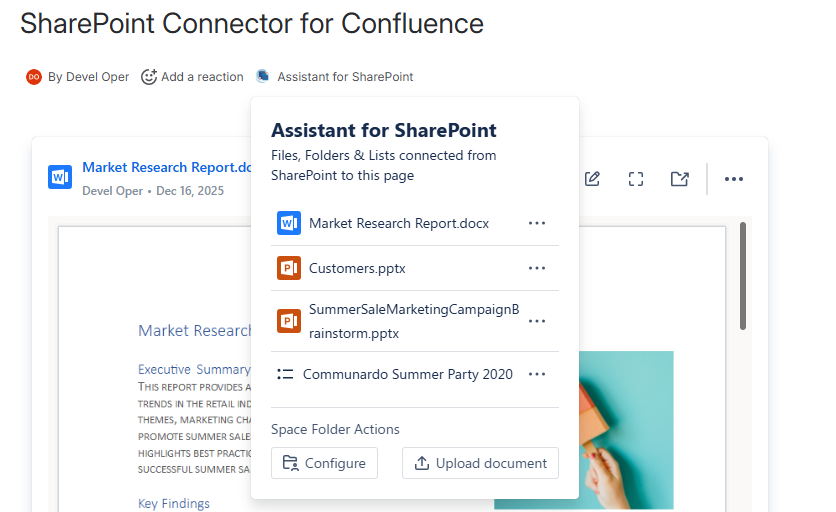
With the Assistant for SharePoint it is possible to have an overview of all files, folders and lists, which are connected to the Confluence page. The view is easily accessible from the items below the page title in Confluence.
What will be shown?
-
All content from all SharePoint Document macros that are included in the page will be listed aggregated in the byline dialog.
-
All SharePoint List macros in the page
Actions of listed SharePoint items
By clicking on the three dots menu on the right of each item you can perform several actions:
-
Edit
-
Allows you to open the document in edit mode in a new tab, where you can directly start editing
-
-
View
-
Opens the document in full screen to browse it’s content
-
-
Open
-
Opens the folder, which contains the SharePoint document
-
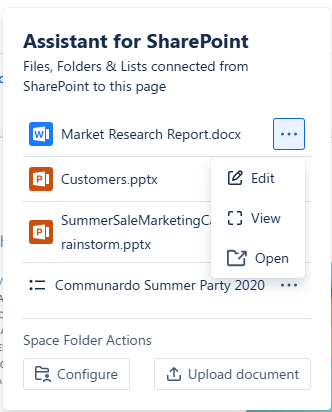
List items will currently only support the “Open” action
Space Folder actions
Configure button
By clicking on the configure button you are able to navigate to the Space Folders configuration, where you can configure folders which are related to the Confluence space.
Upload Document
The SharePoint Assistant also allows you to directly upload files to the configured folders in the Space Folders.
Clicking on the Upload Document button will bring up the upload screen, where you can choose one of the configured Space Folders.
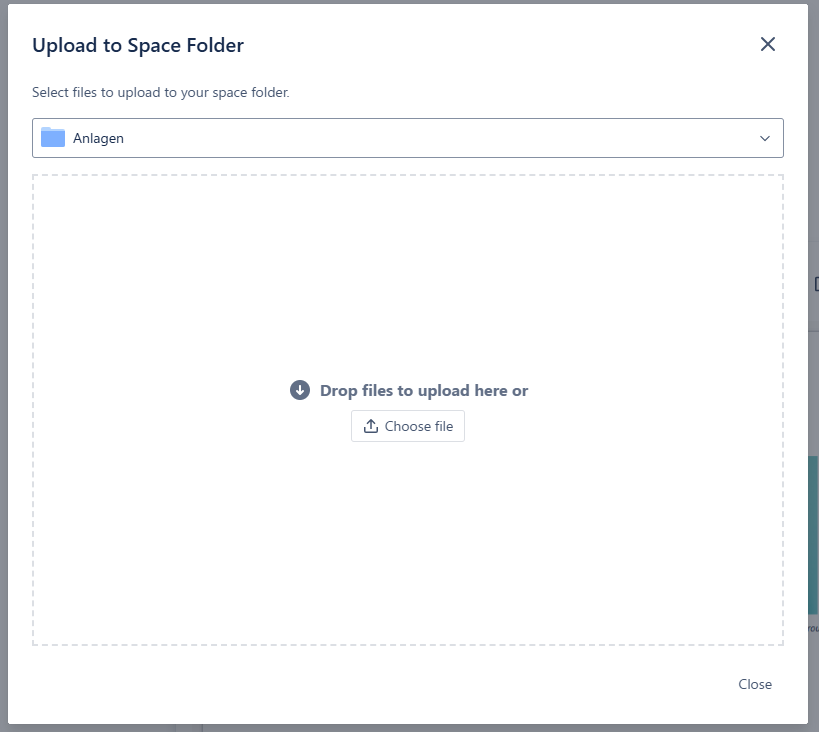
You can upload files either by opening the file chooser dialog or by simply dragging and dropping your files in the drop zone.
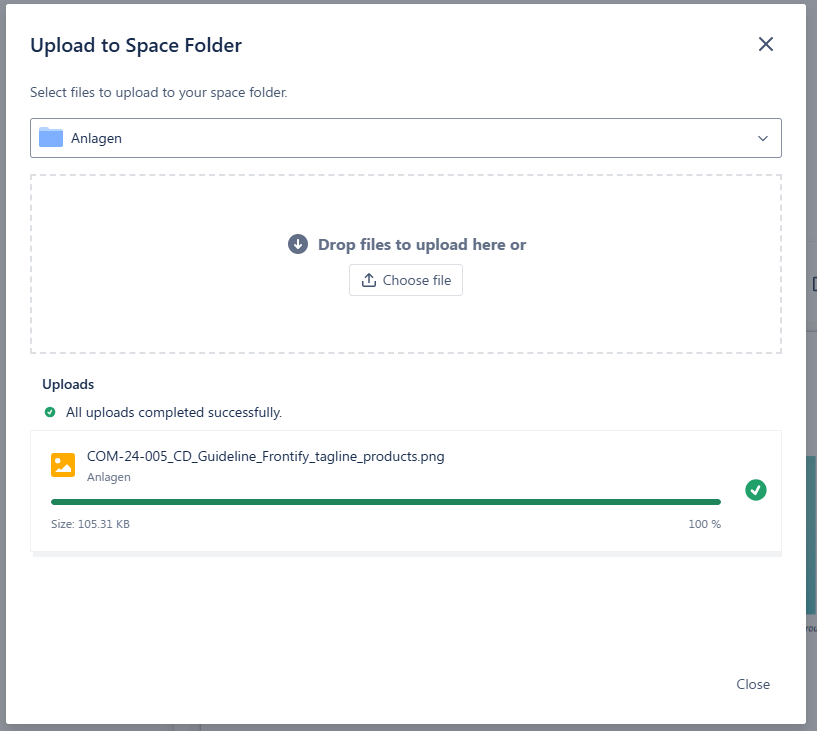
The status of the uploaded files will show below the drop zone. Uploaded files can now be used in the SharePoint Document macros to configure them in the page.
Create a Document
You can also create a new empty document inside one of your connected Space Folders.
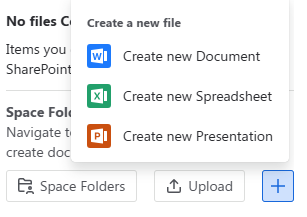
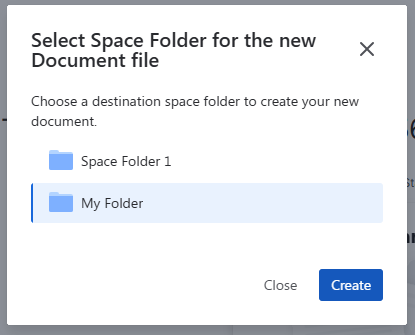
You can choose between three types of documents. If you only have one space folder connected, the new file will automatically be created inside that folder. Otherwise you can easily choose in a new popup.