
Prerequisite: It is required that you have finished the following installation guide to be able to add web parts in your SharePoint pages.
Copy Embed Code from Confluence
You can embed any Confluence page into SharePoint Online. To accomplish that, navigate to your Confluence page which you want to embed, click on more actions, Apps, and select “Embed into SharePoint”:
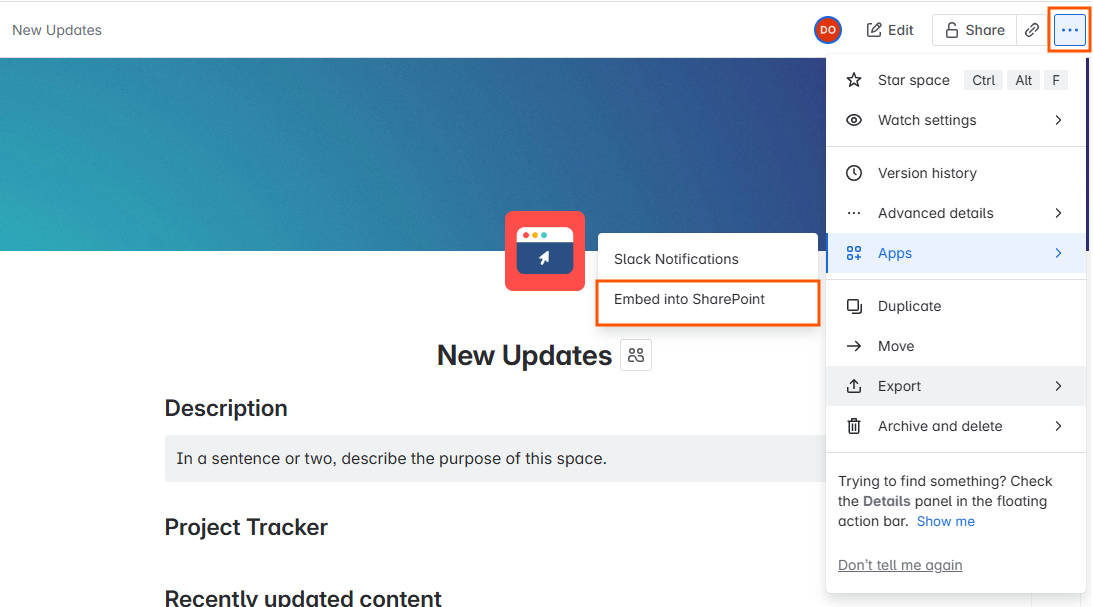
A dialog will open and you have two possibilities to copy “Confluence Page embed script”:
-
You can copy the embed script via the copy button:

Copy embed script
After that you should see a message that will communicate if the text was copied:
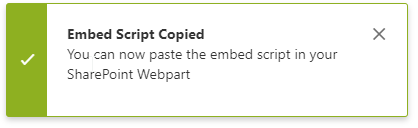
Message
2. You can copy the embed script manually. To do that, you have to select all generated text, right-click on in and select the “Copy” action:
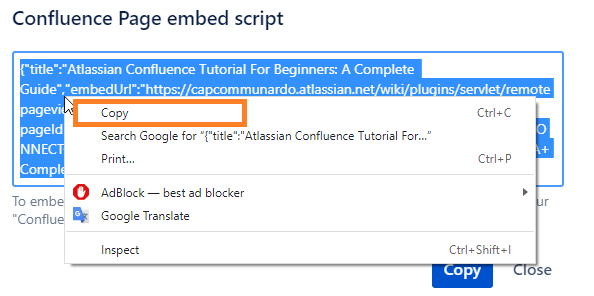
Copy embed script manually
Add SharePoint web part
1. Modern pages
Modern pages are supported in general by SharePoint Online and SharePoint Server 2019.
To insert a Confluence page in SharePoint, edit the page and click on the + symbol and choose "Confluence Page":
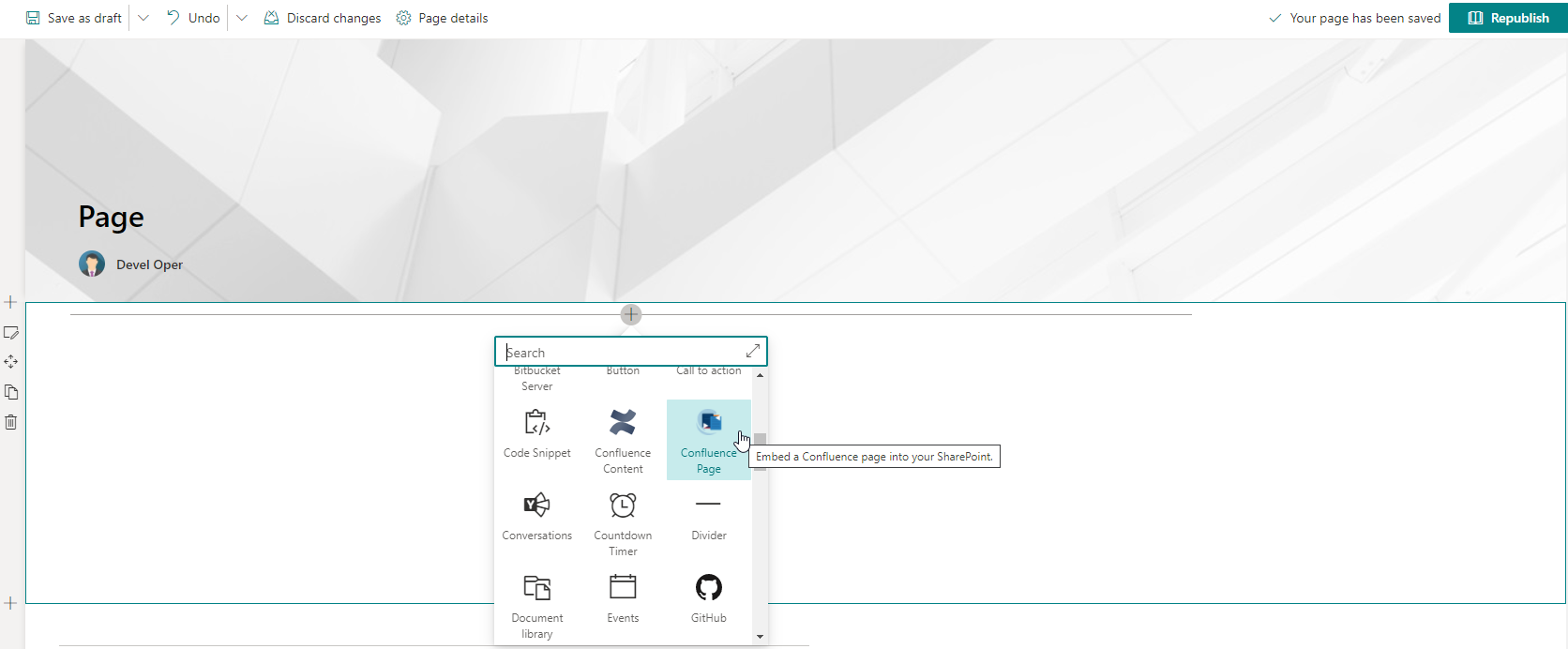
Image 1: Add Confluence Page web part on a modern page
Configure the web part
After inserting the web part, click on the “Edit web part” icon to see the Page config field.
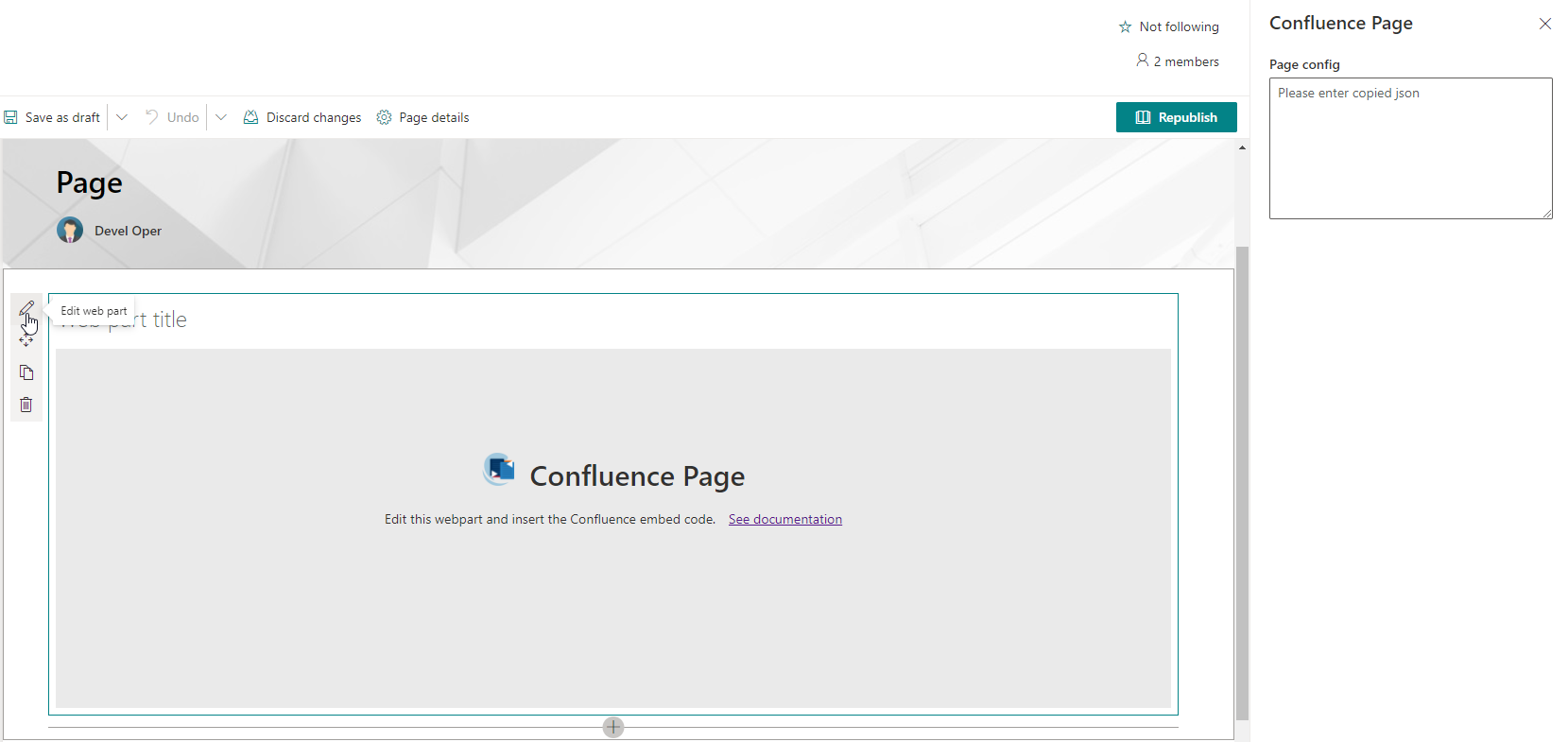
Image 2: Confluence Page properties
Paste Confluence Page JSON code (=embed script):
Paste the Confluence Page code from your clipboard to the web part “Page config” area.
If the code is correct, the Confluence Page will be rendered automatically.
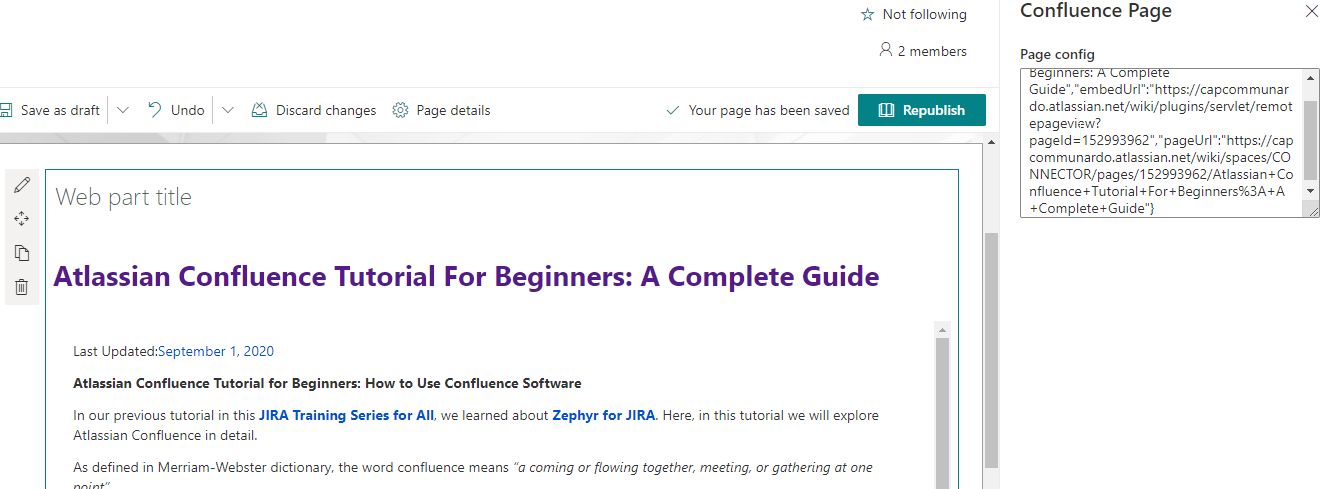
Image 3: Embedded Confluence Page
Save Configuration
You may preview or save your configuration at any time.
Finish the process by saving the SharePoint page.
Limitations
-
You can add up to 10 web parts on one SharePoint page
-
Dynamic content from Confluence Pages will not be rendered
-
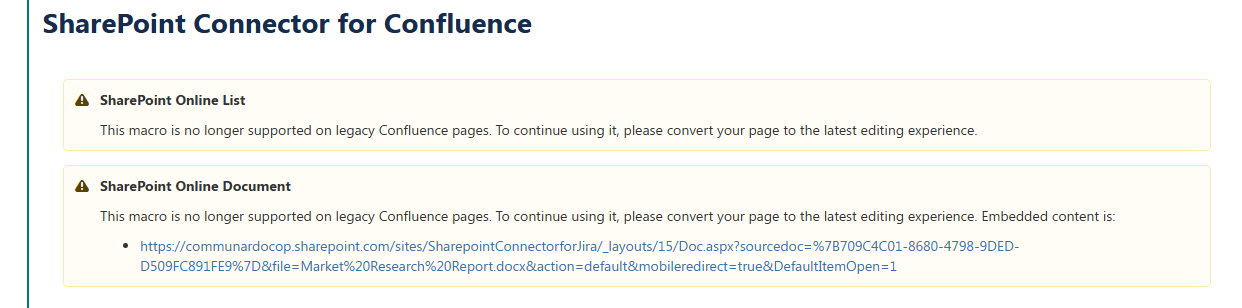
When you embed Confluence pages which contain SharePoint Connector for Confluence macros, then a warning message will appear that the macro is no longer supported.
-
-
This is introduced as part of our effort to notify customers to update their pages from the legacy editor into the new one in order to preview macros. Unfortunately in case of Confluence Pages embedded in SharePoint this behavior cannot be controlled and the message will display regardless if you are using the legacy or modern pages of Confluence.
-
-
Confluence Blog posts are not supported
Hint
-
Confluence Page not shown
If you do not see the Confluence Page body, then it means that you are not logged in to Confluence. Depending on your browser, you will see a message like in the screenshot below. Log in to Confluence to see the Confluence Page body.
Also make sure that your browser is accepting 3rd-party cookies. For more information check Prerequisites
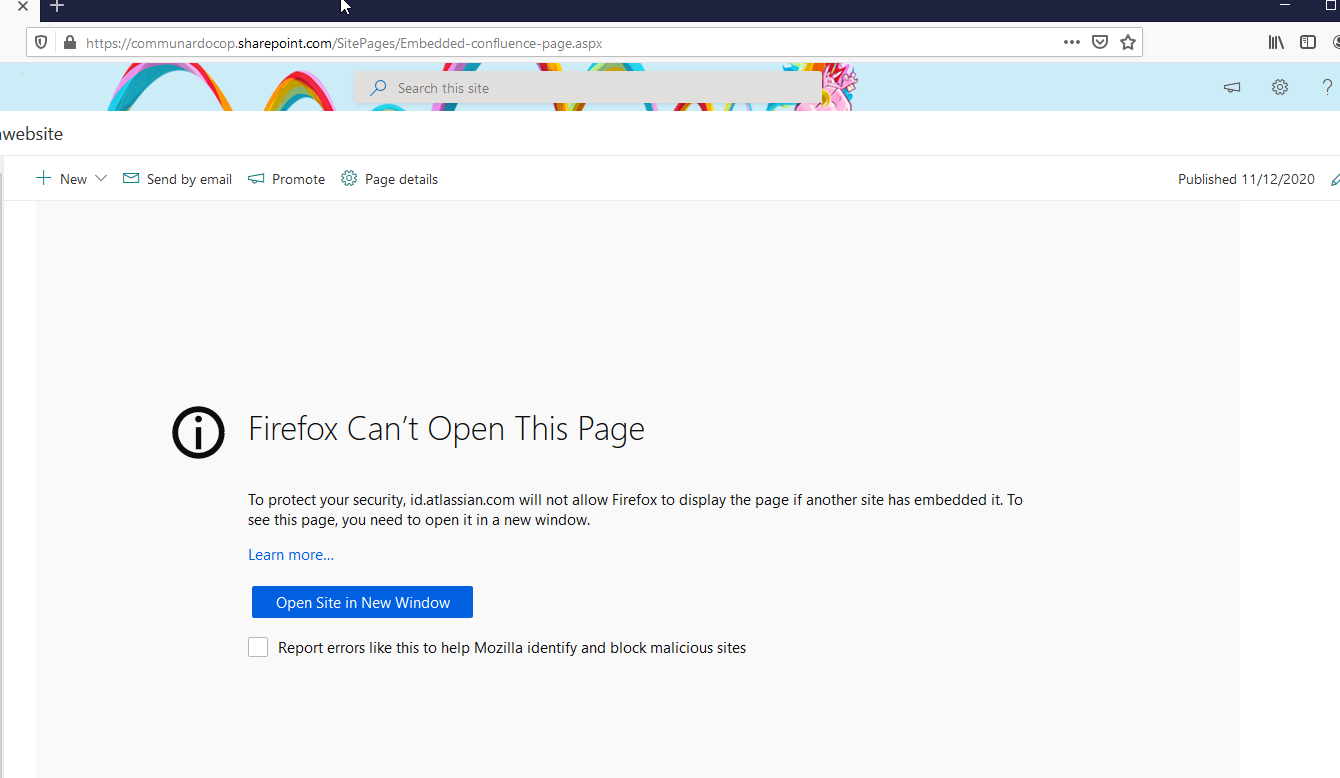
Not logged in into Confluence