
You can connect Folders to a Space in order to make them easily available to the users of that Space. Every folder connected in this section, can be directly accessed in each document macro editor when connecting a document to a page.
You can only perform this task if you are an administrator for the space or have the right permissions to view/edit the space settings.
In order to do so, you can follow these steps:
-
Open the “Space“ for which you want to access our app from
-
You can find the app on the left side panel under the Space apps section
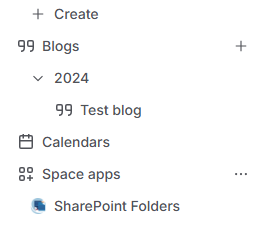
Space apps section -
At first the “No Connected Folders View“ will be displayed.
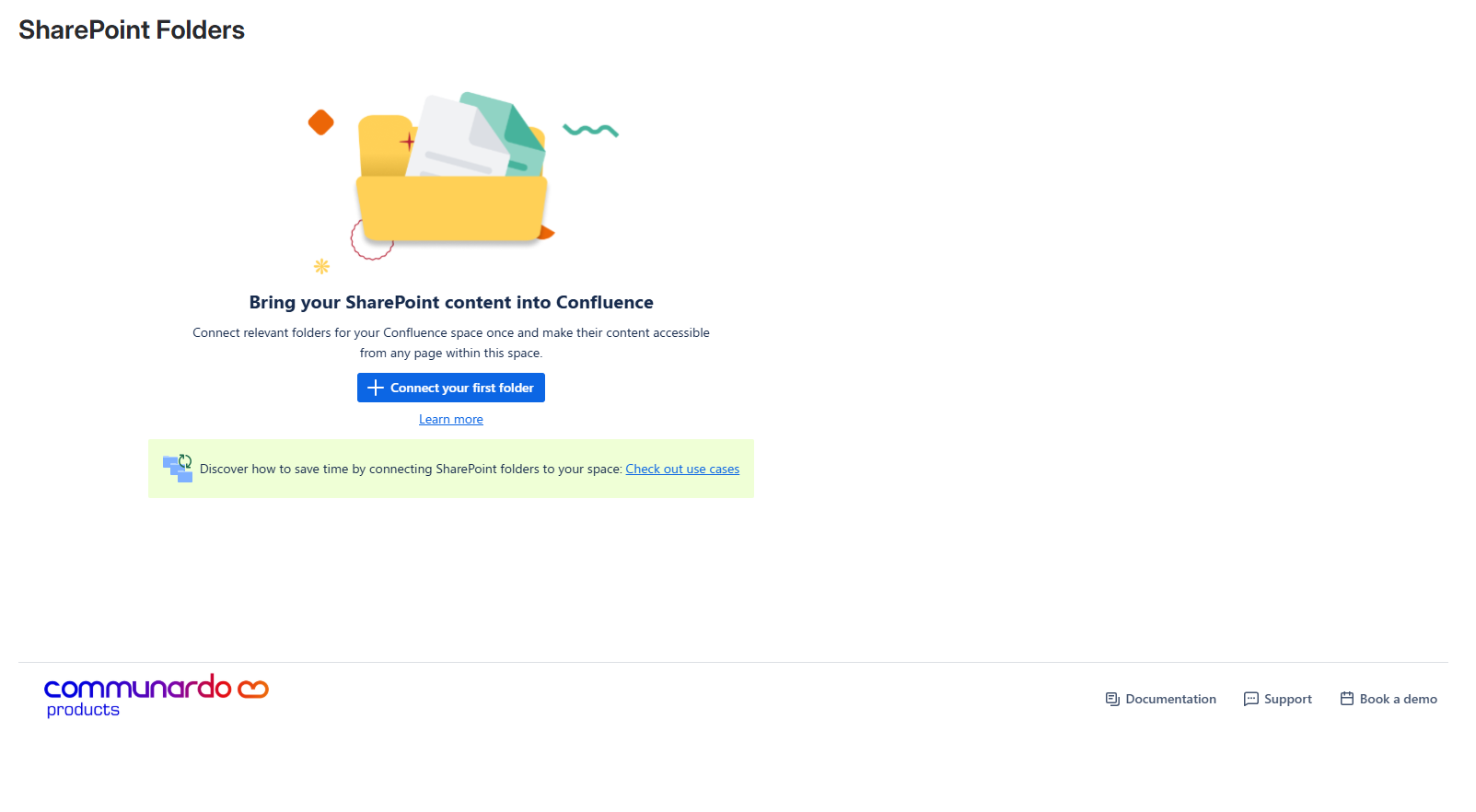
No Connected Folders View
-
You can start connecting folders by clicking on the “Connect your first folder“ button. A dialog (same as the dialog for adding documents on a page) will open where you can select the folders which you want to connect. You can refer to our guide for more information.
You can only connect folders and libraries to a Space.
-
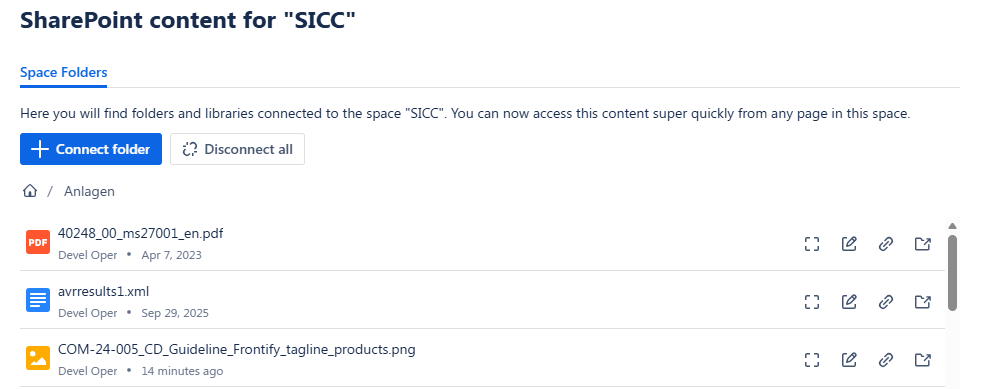
The connected items will be displayed on the same page.
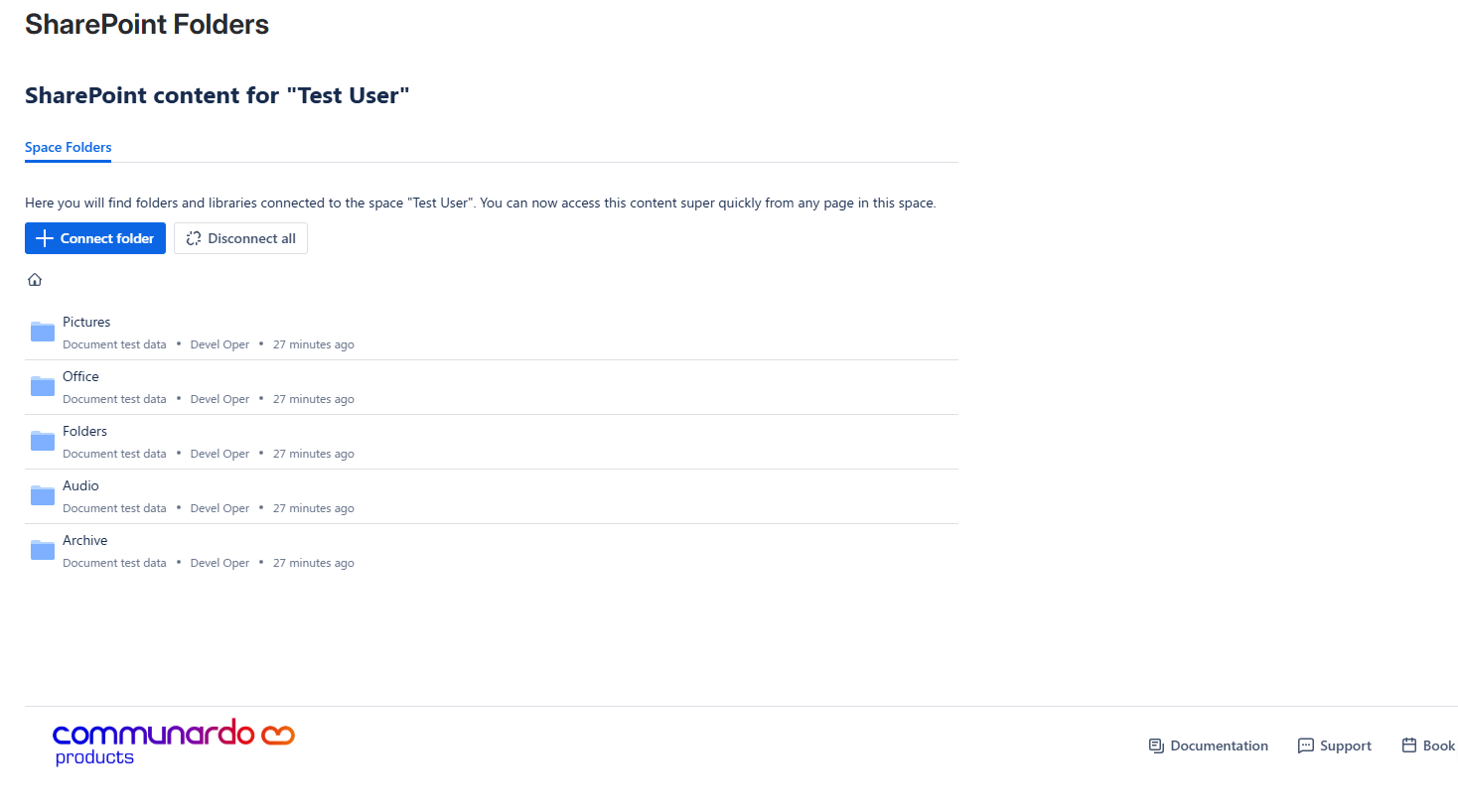
Connected Folders View -
The folder navigation follows the same established navigation pattern. You can read more here.
-
All folders connected for this space will be available for use
Actions
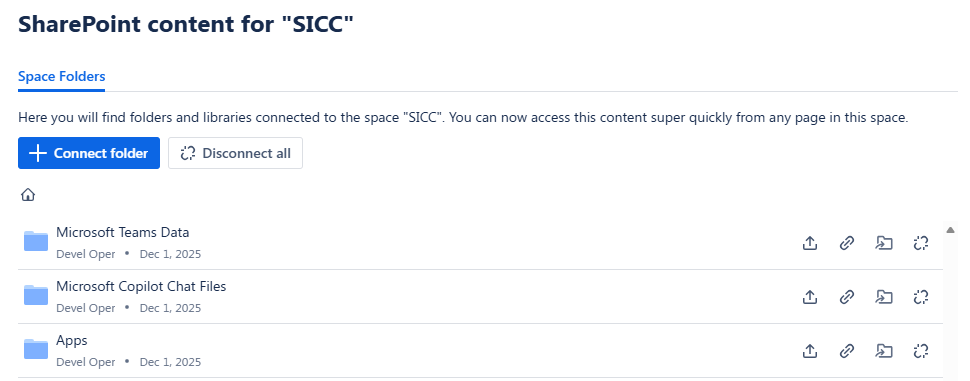
Actions for Folders
-
Upload
-
Allows uploading of a File to the specified folder
-
-
Copy Link
-
Copies the link to the Folder
-
-
Jump to SharePoint
-
Opens the folder in SharePoint
-
-
Disconnect
-
Disconnects the folder from the Space Folders.
-
The folder will not be displayed anymore in the macro editor's Space Folders section
-
-
Actions for Files
-
Full Screen
-
Opens the file in full screen to browse it’s content
-
-
Edit
-
Opens the file in Edit mode where you can directly edit in the browser
-
-
Copy Link
-
Copies the link to the file
-
-
Jump to Parent Folder
-
Opens the SharePoint folder which contains the file
-
Uploading to a Space folder
Once you click on the Upload button in one of the connected Space Folders, a popup will open that allows you to choose a file.
Following up once a file is chosen an Upload tab is added to the screen where it shows the upload progress of the files.
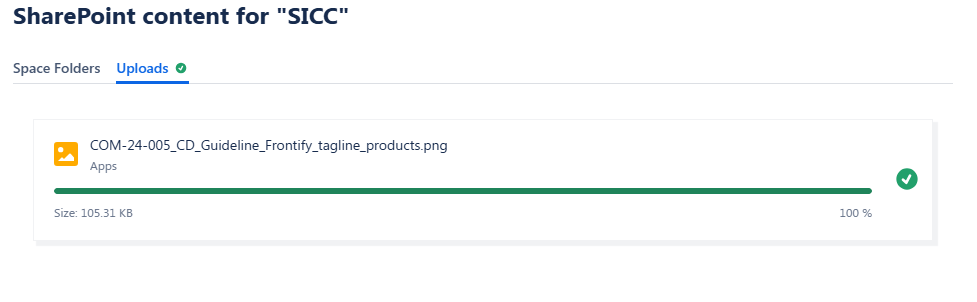
After the upload finishes the file will be available in the folder that was chosen.