
This guide explains how to configure and use the integration between Metadata for Confluence Cloud and Workflows for Confluence by AppFox. The integration enables users to dynamically assign workflow approvers based on Metadata fields, allowing for automation and consistency in content review processes.
🔍 Use Cases
1. Process Management
Assign responsibilities such as Process Owner, Reviewer, or Compliance Manager directly via Metadata fields. When workflows are applied to Confluence pages, the assigned users are automatically set as approvers, ensuring the right people are always involved.
Example:
-
A Confluence page documents a standard operating procedure.
-
The page has Metadata with a user field: Process Owner.
-
The workflow approval step automatically assigns the Process Owner as the approver.
2. Knowledge Management
Ensure that updates to critical knowledge base content are reviewed by the correct subject-matter expert.
Example:
-
A page has Metadata indicating the Content Owner.
-
Any updates to the page require approval from that user via an approval workflow.
⚙️ How the Integration Works
With this integration, a Metadata field of type User can be used as the source for dynamically assigning approvers in AppFox workflows.
When the workflow runs:
-
It reads the page’s assigned Content Category and corresponding Metadata user field.
-
It extracts the user(s) stored in that field.
-
It assigns them automatically as approvers in the relevant workflow step.
✅ Prerequisites
To use this integration, you need:
-
Metadata for Confluence Cloud app installed.
-
Workflows for Confluence (AppFox) app installed.
-
At least one Content Category with a Metadata field of type User, created by an admin.
-
Confluence pages that have this Content Category assigned and have a value for the user field.
-
At least one Approval Workflow created.
For help with creating Metadata Content Categories and fields, refer to the Metadata for Confluence documentation.
For assigning Metadata to pages, also refer to the Metadata documentation.
For creating Approval workflows, consult the Workflows for Confluence documentation or contact the AppFox team.
🛠️ Integration Technical Setup
Let’s assume the Metadata Content Category “Process” has been created and includes a User type Metadata field named “Process Owner”, and this Metadata has been assigned to several process pages in Confluence.
The documentation below is prepared using Google Chrome Developer Tools. The solution will work similarly in other browsers. If you use a different browser, you can adapt accordingly.
Step 1: Retrieve Content Category and Metadata User field IDs (for Workflow Configuration)
To configure the approval workflow, you need the Content Category ID and ID of your Metadata User field.
How to find them:
-
Open one of the Confluence pages with the assigned Metadata.
-
Open your browser’s Developer Tools → Network tab.
-
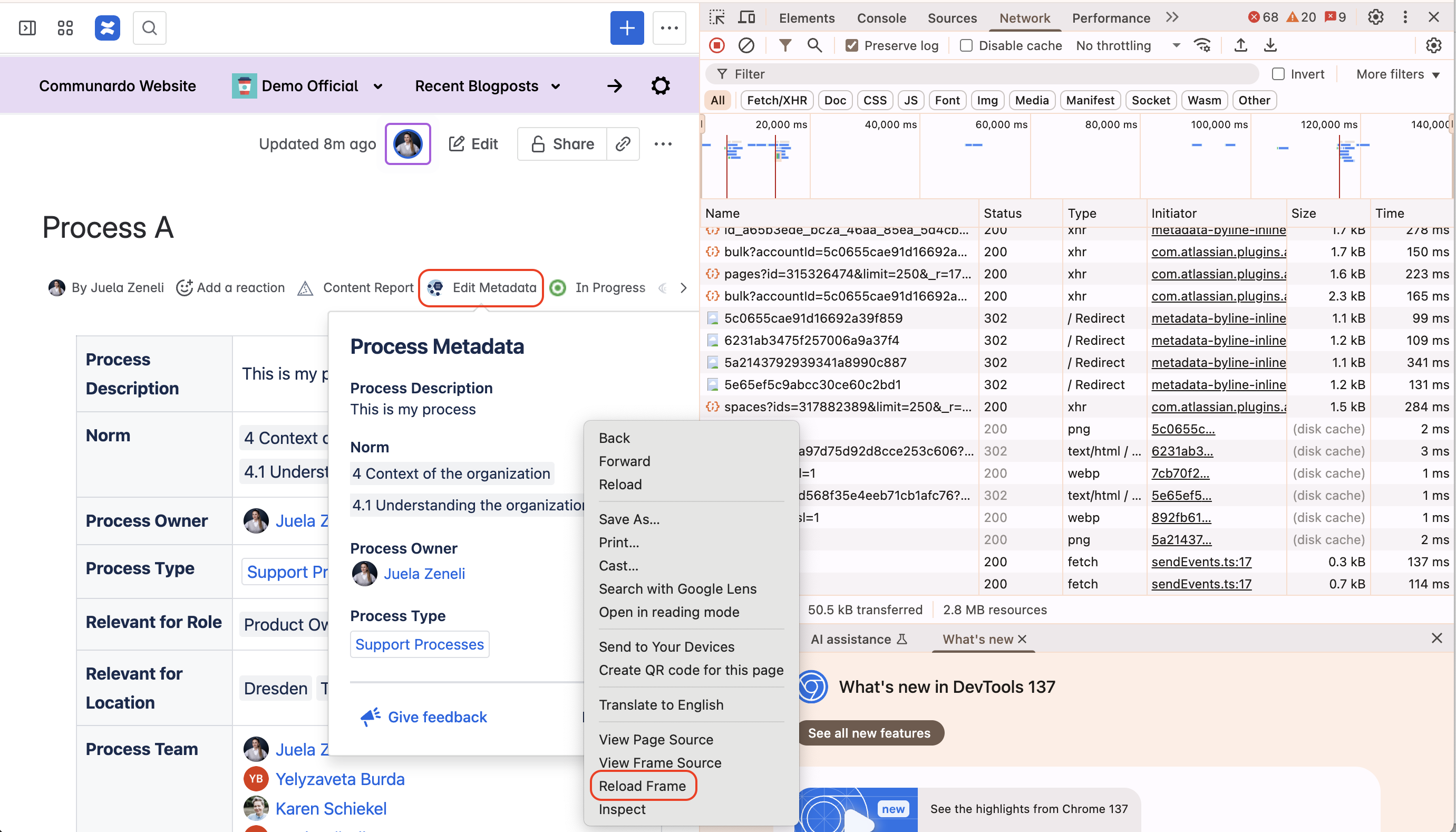
While having the network tab open, open ‘Edit Metadata’ on the Confluence page, right click inside the ‘Edit Metadata’ dialog and click ‘Reload Frame’ (as shown below).
-
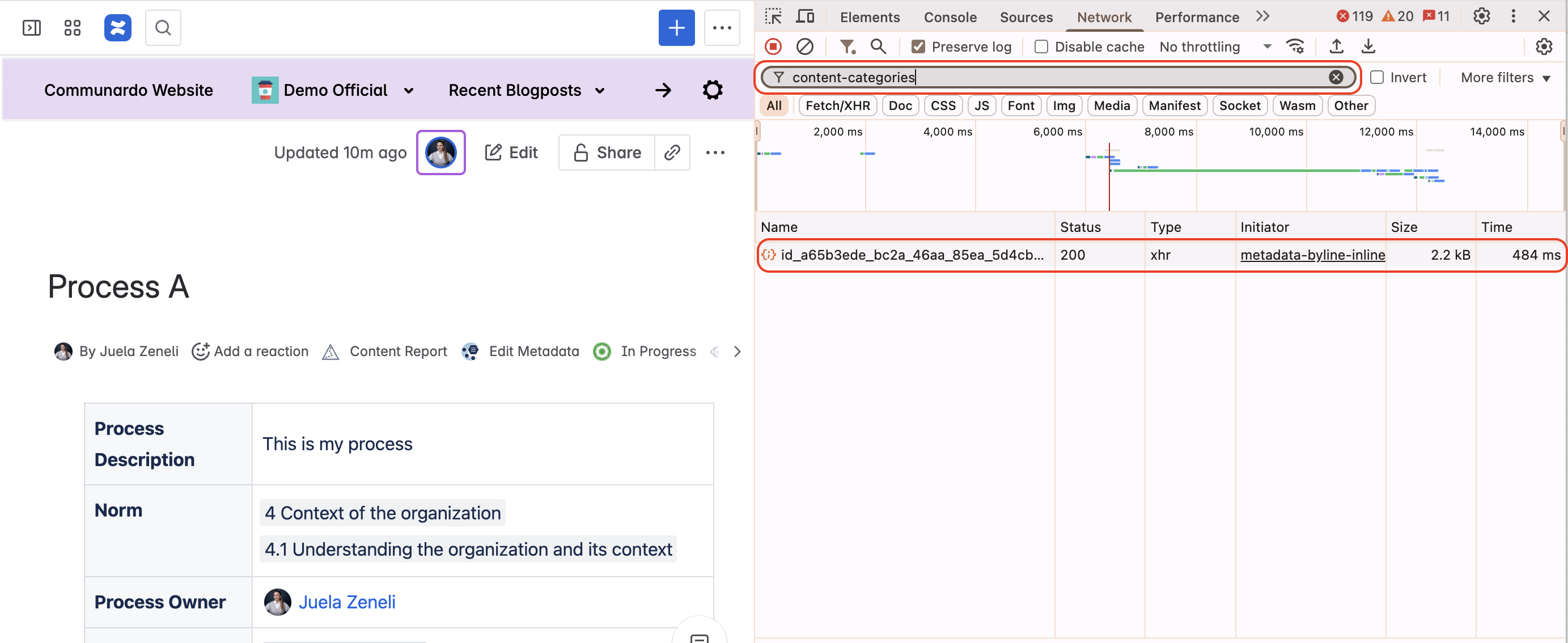
Search for a request containing
content-categories.
-
Click in the response JSON and find:
-
The
idof the Content Category -
The
idof the Metadata field (should be of typeuser)
-
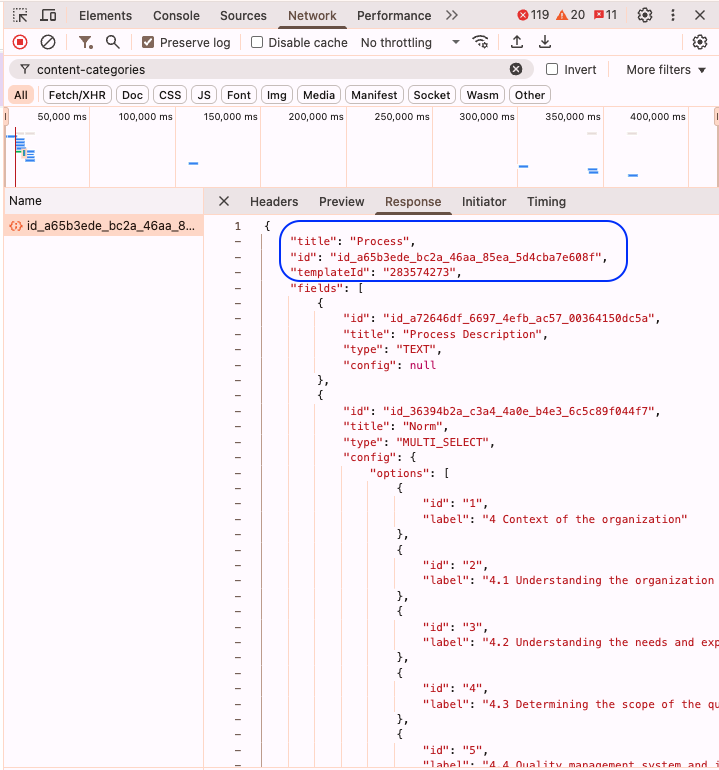
The id of Content Category Process is “id_a65b3ede_bc2a_46aa_85ea_5d4cba7e608f”
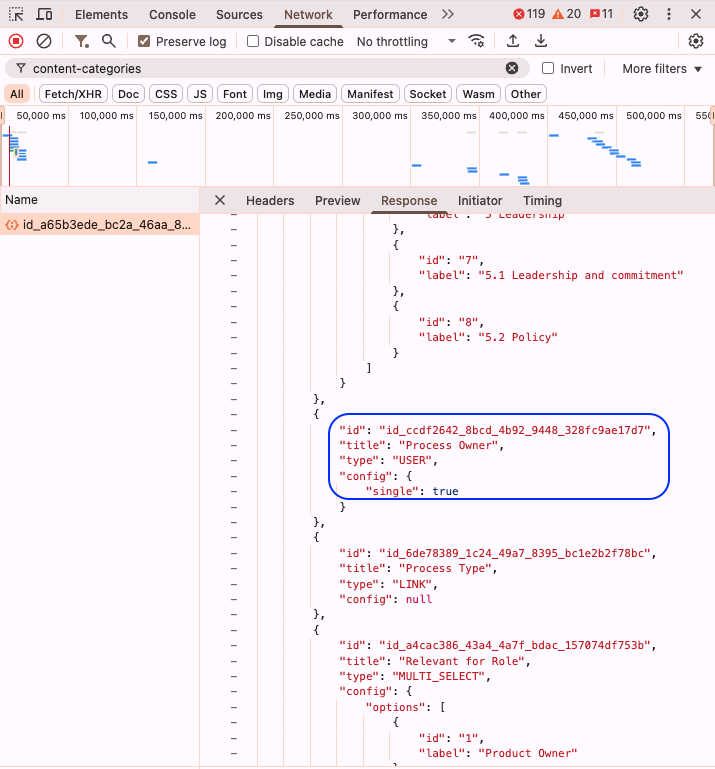
The id of Metadata field “Process Owner” is “id_ccdf2642_8bcd_4b92_9448_328fc9ae17d7”
Now that you’ve found the ID of the Content Category and the Metadata field you want to use as the approver, you can add these IDs to the workflow, as described in Step 2 below.
If you want to see the whole step 1 process please check the video below:
Step 2: Add ID’s in the Workflow
-
Navigate to the Workflows Editor in the Workflows for Confluence app.
-
Select the workflow you want to edit.
-
Click on the Approval Node where you want metadata approvers to be added.
-
Scroll down to Advanced Configuration.
-
This section is visible only if Metadata app is installed.
-
-
Add Approvers from Metadata app:
-
Category ID: Paste the category ID
-
Field ID: Paste the field ID
-
Description: Give the field a friendly name (e.g. "Process Owner" as the original Metadata field name) - you will still be able to hover over the field once added to view the original IDs.
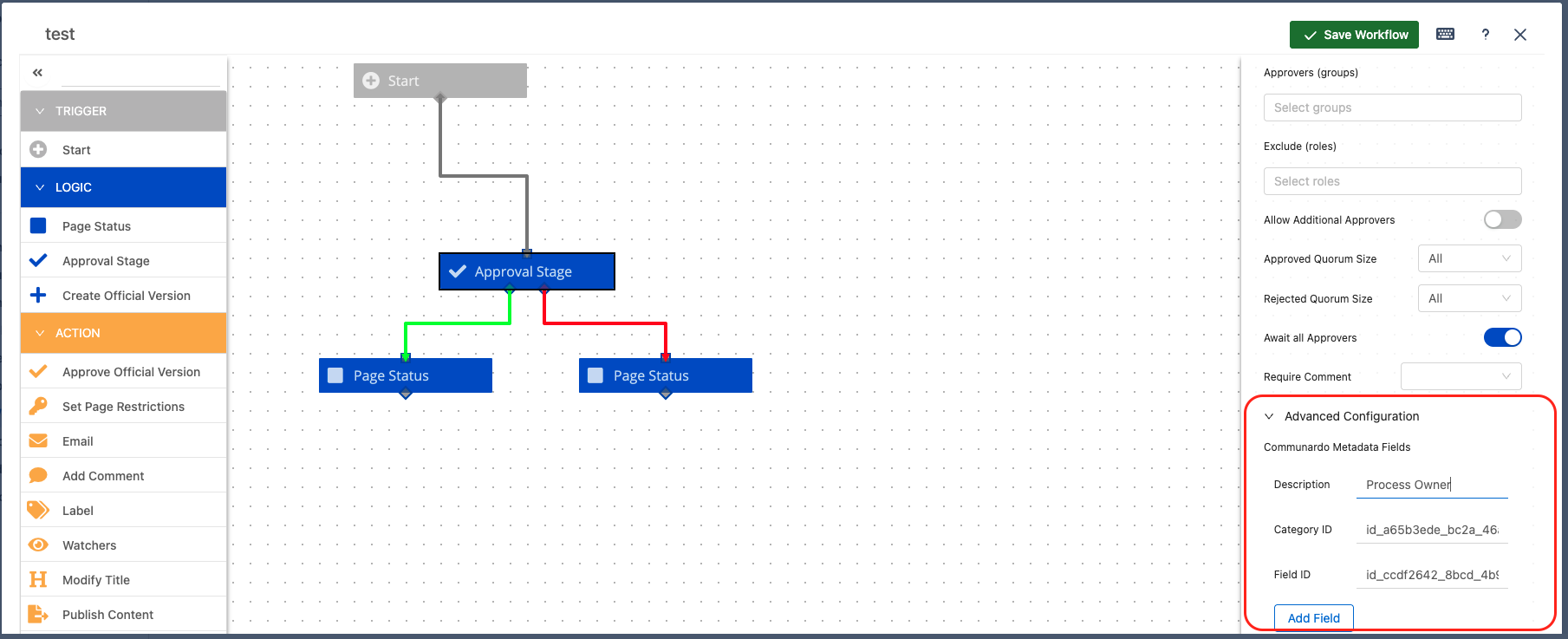
-
Repeat for each field you want to use for approvals.
-
Save the workflow.
If you want to see the whole step 2 process please check the video below:
As soon as this workflow is applied to a page that has The Process Metadata assigned, Process Owner of that page will automatically be assigned as the approver of the page.
This is the first version of the integration and may require some familiarity with the setup process. Your feedback is highly valuable — please let us know how it works for you so we can continue to improve it in the future. 💡
䷻ Limitations
The Metadata User Field configured in the Workflow must contain a valid value.
After the workflow is applied to the page, it stores as approver the user selected on the pre-configured Metadata field. If you change the value of such Metadata field after the workflow is applied, the changes would not be reflected. The initial user will still remain as the approver.
Need help?
If you have any questions or need support with the integration, don’t hesitate to raise a support request.