Preconditions
You have to create a process before creating a workspace otherwise you are unable to use this blueprint.
Navigate directly to the spot where you want to create the new workspace.
Start Creating a Workspace
Click on the three dots next to the create button.
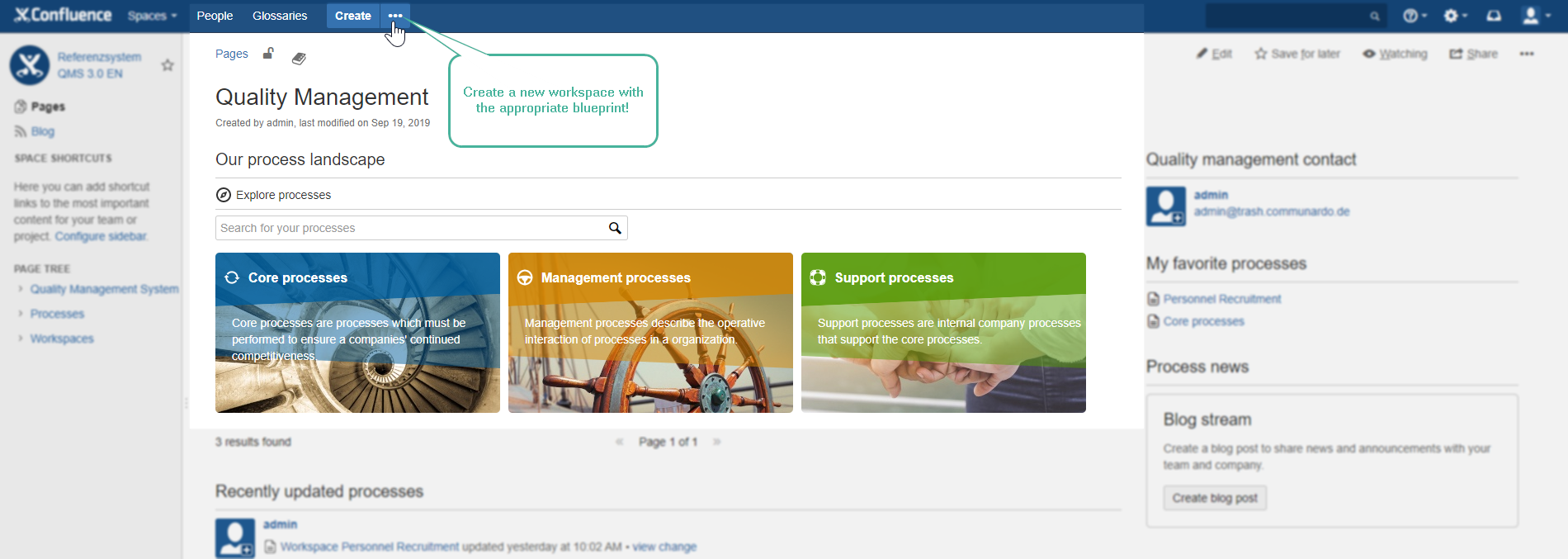
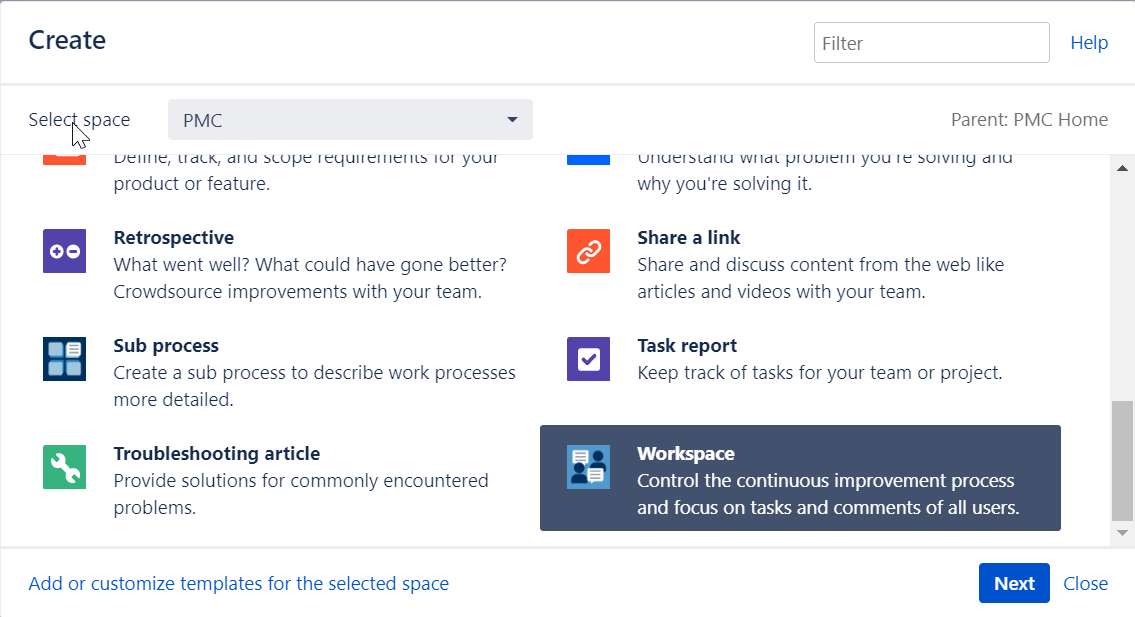
Select the blueprint "Workspace". Click on the "Next" button to define your new workspace.
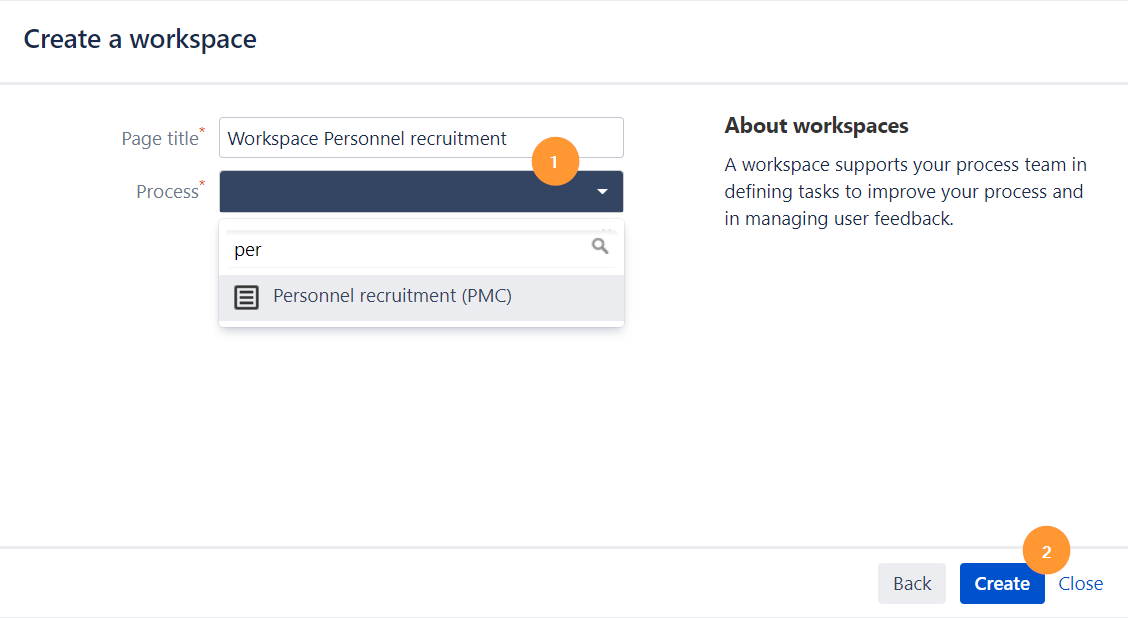
Enter a page title and select the process for which you want to create this workspace.
Click on the "Create" button to end up with defining your new workspace.
Check your entered Metadata on your page.
User information: Modify metadata
Modify its metadata at any time. The definition of each blueprint is realized by the app Metadata for Confluence.
For more detailed information navigate to View and Edit Metadata (v 3.0).
Fill your new page with more detailed descriptions about your workspace e.g. add members to your process team.
Click the "Publish" button.
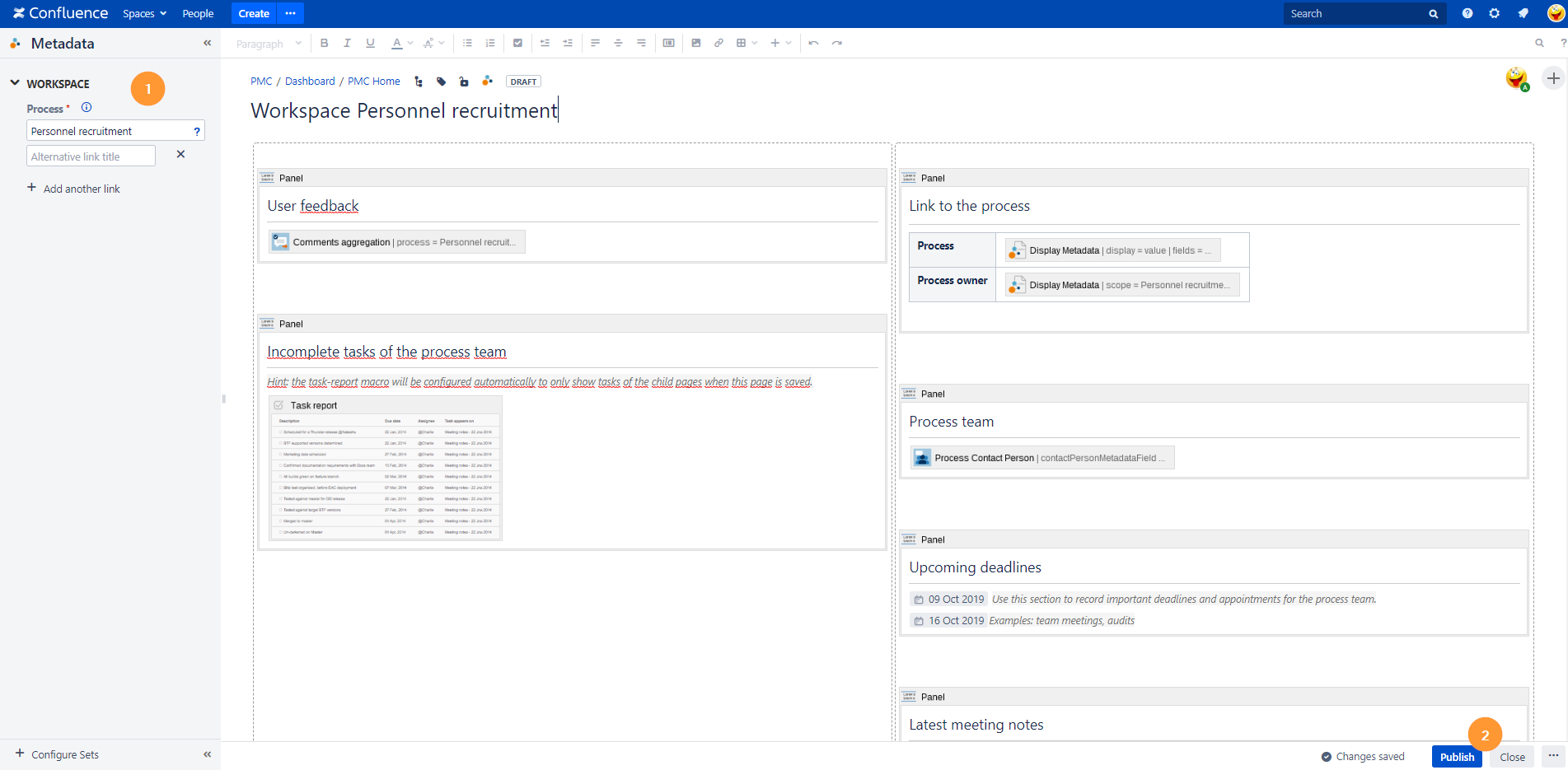
Your workspace has been published now.
Start Creating Meeting Notes
Preconditions
-
You have to create a process and process type before creating a meeting note otherwise you are unable to use this blueprint.
-
Navigate directly to the spot where you want to create a meeting note.
-
You can add a meeting note to a process type, process, sub process or workspace.
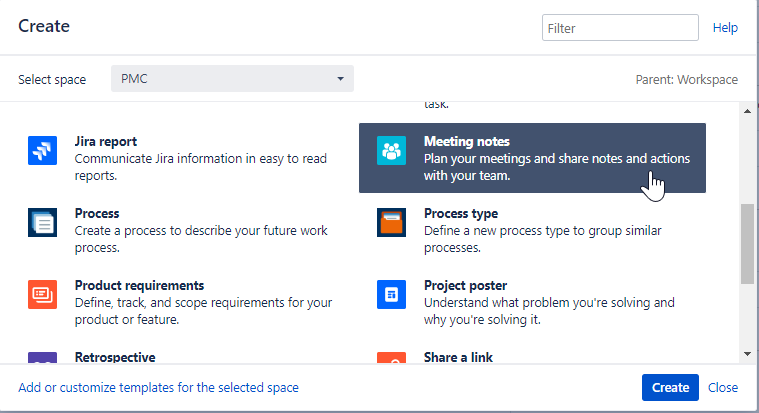
Select the Blueprint "Meeting notes".
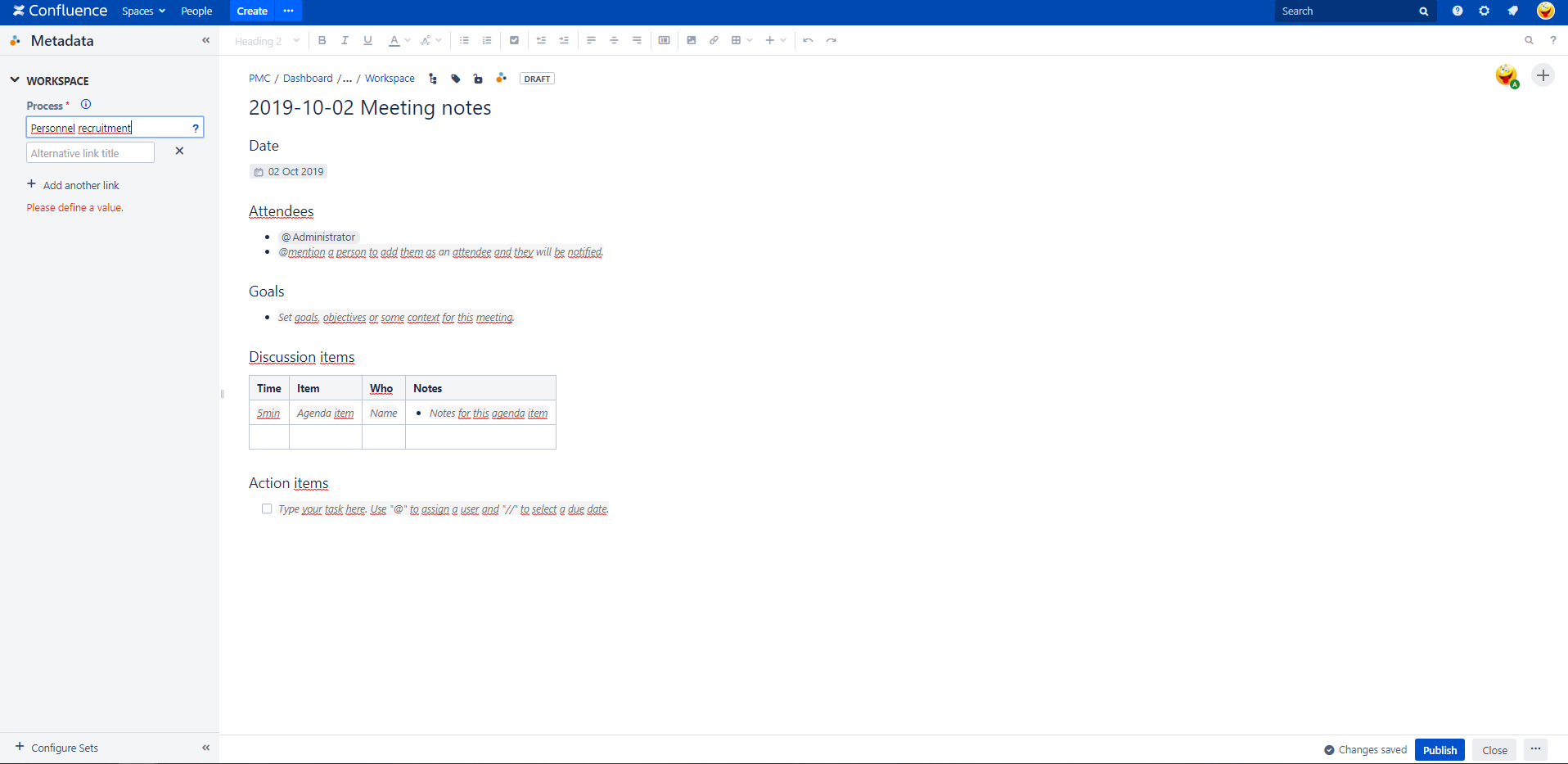
Enter the name of an existing process to link your meeting notes to it.
Click the "Publish" button.
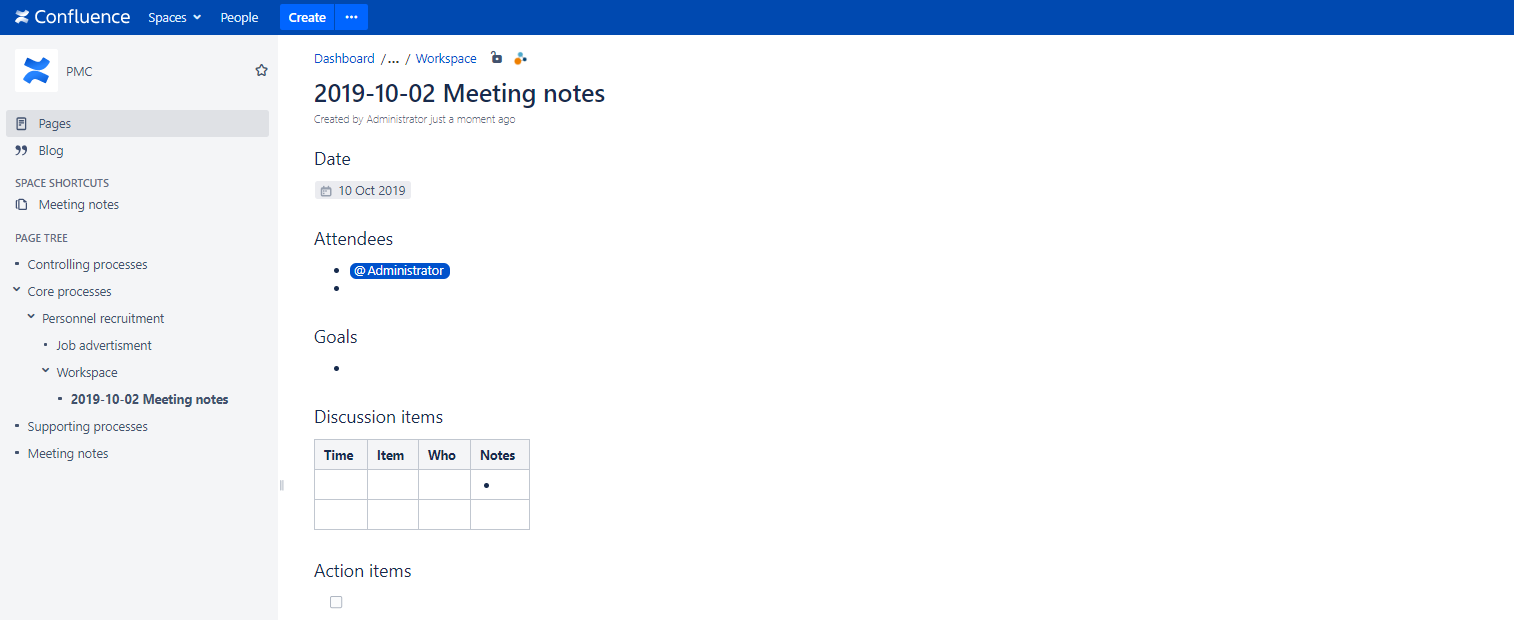
The meeting notes has been published within your workspace and process now.
User Information
If you like to a create a new meeting note button by using the "Create from template" macro please navigate to the chapter Embed Create from Template Buttons.