
What is the Macro Used for?
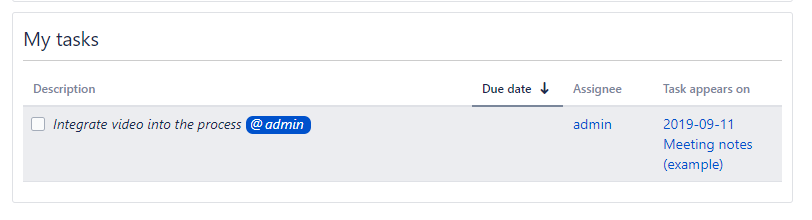
The macro is used to show a report of tasks in the current space which are assigned to the current user.
Add Macro
Read the steps to learn and use the macro. The chapters are divided based on the use cases of the macro.
User information
Switch to the edit mode of your page to insert the macro into the page. To do this, simply type "e" or click the "Edit" button.

Navigate to a position within your page where you like to insert the macro.
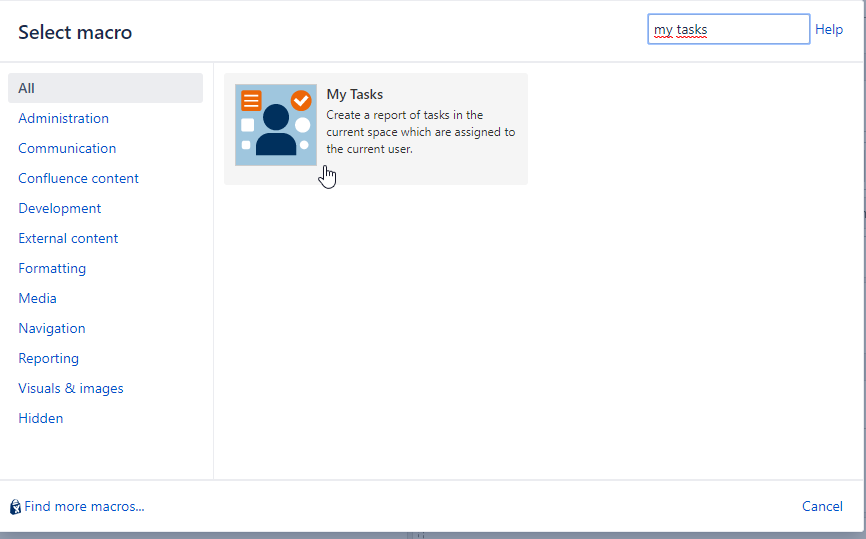
Click either on the + button in the menu navigation bar and select the macro.

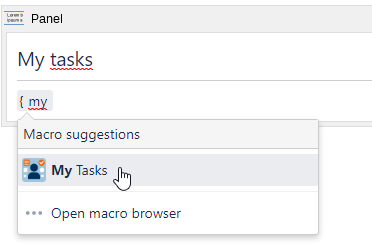
OR add the macro by typing the curly bracket and the name of the macro { my task.
For configuring your macro, click on the macro again and then the "Edit" button.
Independently which way you go, the edit mode is displayed the same.
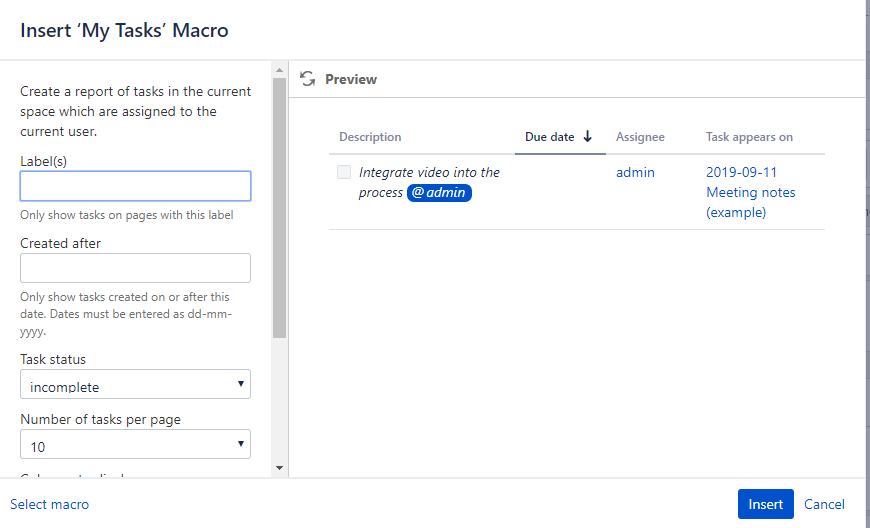
Select the required parameters and save your changes.
You have successfully added the macro to your page.
All tasks associated with you (@current user) are listed in the table. 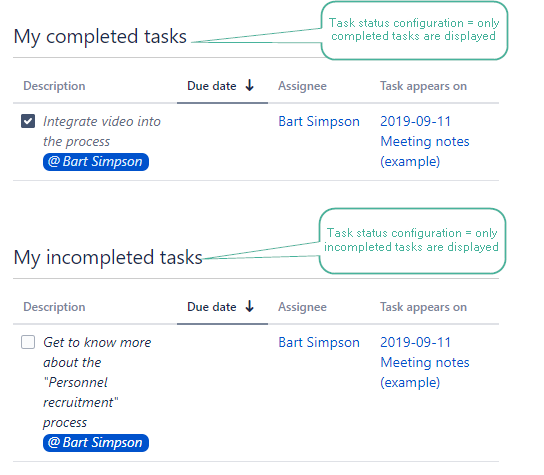
Configure Macro Parameters
You can configure the macro with the following parameters.
For configuring the macro switch to the edit mode of your page, select the macro and then click "Edit".
|
Parameter |
Default |
|
Description |
|---|---|---|---|
|
Label(s) |
empty |
optional |
Only show tasks on pages with this label. |
|
Created after |
empty |
optional |
Only show tasks created on or after this date. Dates must be entered as dd-mm-yyyy. |
|
Task status |
incomplete |
optional |
You can display your tasks via task status: complete or incomplete. If you select a task as completed, it disappears from the page (setting: only incomplete tasks are displayed). |
|
Number of tasks per page |
10 |
optional |
Number of comments displayed in the view. |
|
Columns to display |
description, due date, assignee & location are selected |
optional |
You can display your tasks by using the following allowed columns: description, due date, assignee, location, complete date and labels. |
|
Sort by |
due date |
optional |
You can sort the results due date, assignee or page title. |
|
Reverse sort |
|
optional |
You can sort the results in reverse order. |