
Initialize and Restore
The "Initialize and restore" administration page allows you to prepare everything so that you can create your process management system from scratch. Additionally, you can also use this page to create a demo space with predefined content or repair the process management system after deleting a required Metadata set or field by accident.
To open this page
-
Log in to your Confluence as a system administrator.
-
Navigate to the "Confluence Administration".
-
Click on "Initialize and restore" in the left navigation bar.
Get Started
To prepare the blueprints of the Process Management app and create the required Metadata fields and sets, you have to initialize the process management system.
To start this operation
-
Select the language in which the Metadata fields and sets should be created.
-
Click on the "Start" button.
-
If you like you can also create a demo space right away or do it at a later time.
-
For more detailed information on the demo space have a look at the next section.
-
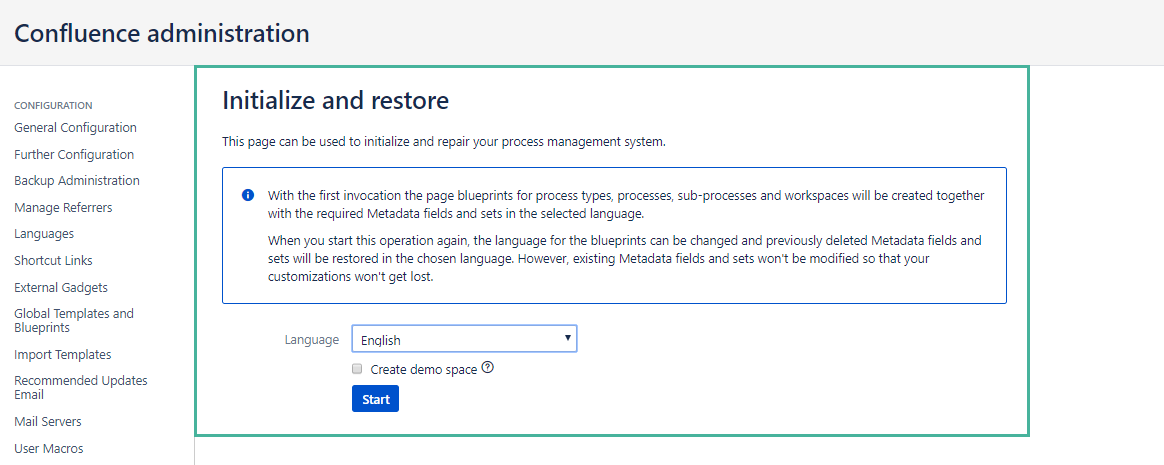
User information: Selected Language
The Metadata sets and fields are created in the language that was selected when you submitted the form for the first time.
If you want to change the language of the sets and fields later on you will have to remove them and submit this form with the desired language again.
Create Demo Space
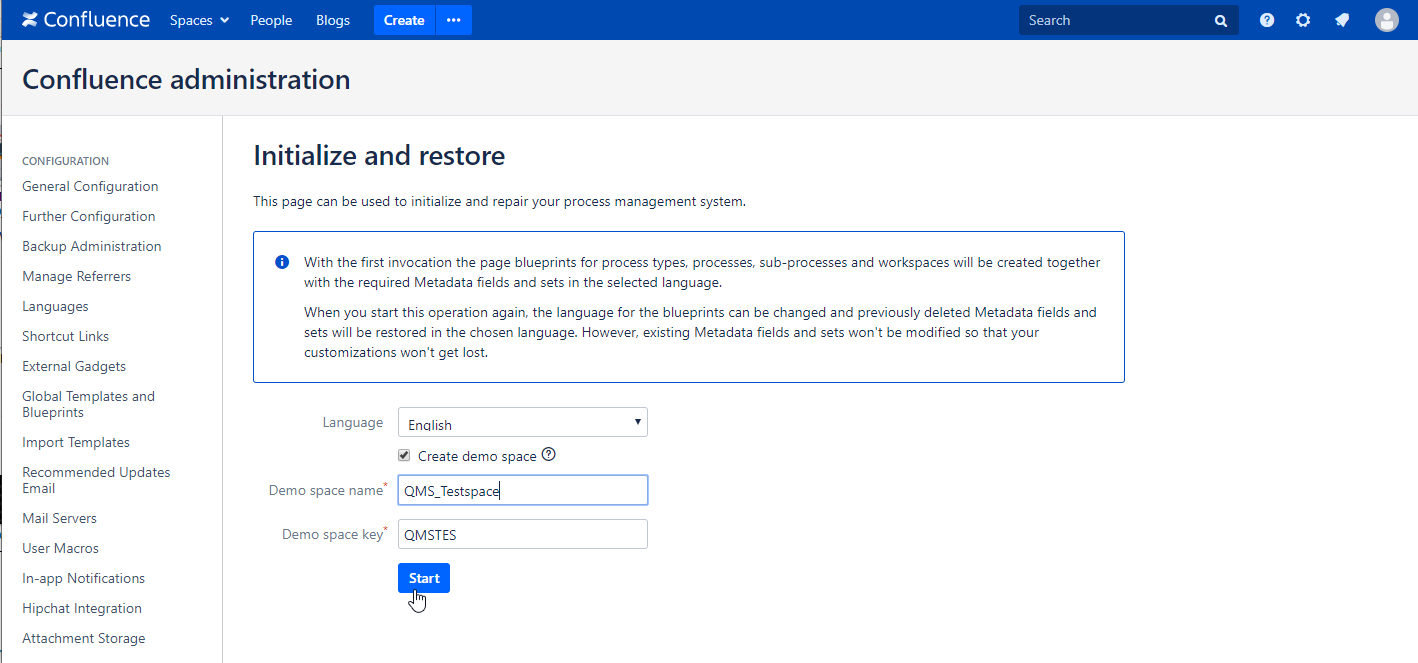
The demo space provides you a pre-designed process management system with process types, an example process and sub processes. It also showcases how the macros of the Process Management app can be used.
To create a demo space
-
select the language in which the content of the space should be created
-
enter a name for the space
-
click on the "Start" button.
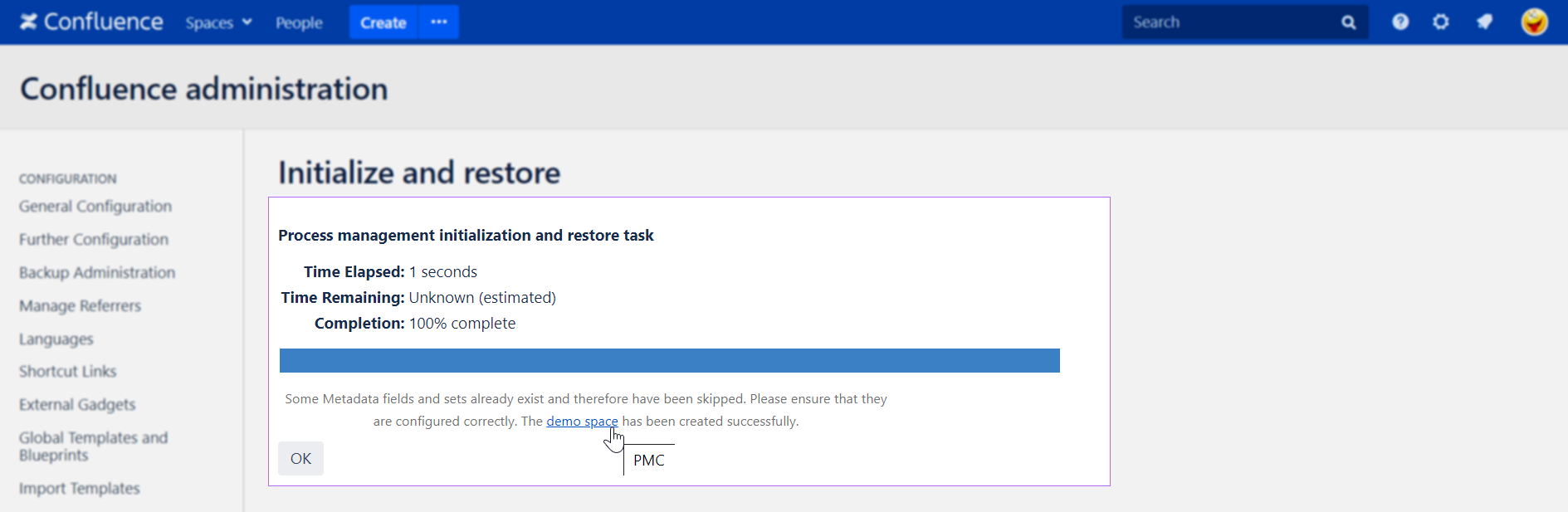
After the task has completed successfully you can go directly to the new space by clicking on the "demo space" link.
Restore your System
If you have deleted one of the Process Management Metadata fields or sets, you can use the "Initialize and restore" administration page to restore it.
For this, all you have to do is click on the "Start" button. The deleted fields or sets will be recreated in the selected language.
User information
In case you have customized the other Process Management Metadata sets or fields, for instance by renaming them or removing fields from sets, these changes won't be reverted by this operation so that your modifications won't get lost.
Global Metadata Sets and Fields
The Process Management app uses features of Metadata for Confluence and provides a selection of predefined global Metadata sets and fields. These sets are directly connected to the page blueprints of the Process Management app. This means that every blueprint is associated with one of the sets and shows the fields in the blueprint wizard.
To customize these forms you can modify the Metadata sets and fields as described in the next section.
Edit Process Management Metadata Sets and Fields
In the Confluence administration of the Metadata app you can see the imported sets and fields.
Those provided by the Process Management app are easily recognizable by their key which contains the string "communardoqms".
For example the Metadata set for the "Process type" has the key "global.metadataset.communardoqmsprocesstype".
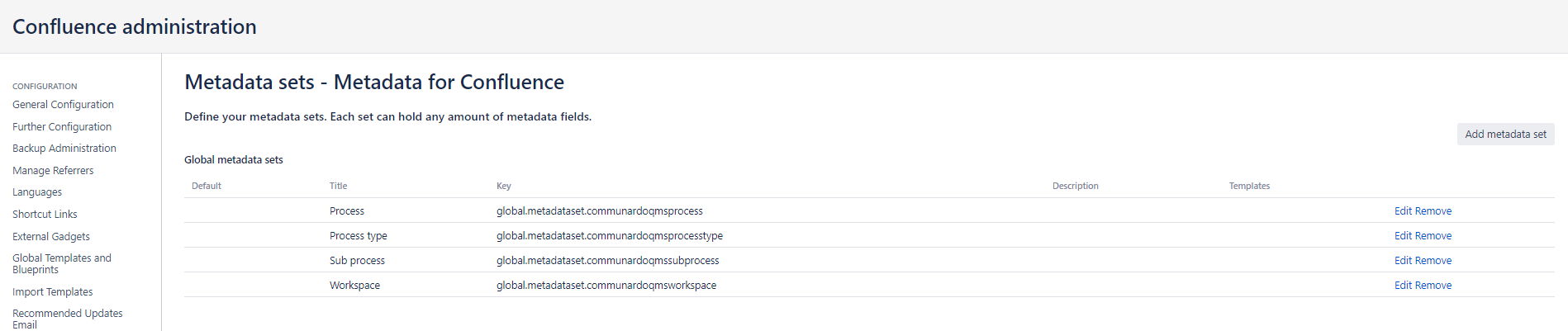
To find the correct Metadata set of a blueprint, refer to the following table. The fields belonging to a set can be found by opening the edit view of the set.
|
Blueprint name |
Metadata set key |
|---|---|
|
Process type |
global.metadataset.communardoqmsprocesstype |
|
Process |
global.metadataset.communardoqmsprocess |
|
Sub process |
global.metadataset.communardoqmssubprocess |
|
Workspace |
global.metadataset.communardoqmsworkspace |
Example
The Process blueprint allows you to select a location for which this process is relevant for. If you want to change the default options to the actual locations of your company, you can edit the global Metadata field "Relevant for". For this purpose
-
navigate to the Confluence administration
-
click on the "Metadata fields" entry in the navigation sidebar
-
look for the Metadata field with key "global.metadatafield.communardoqmsrelevantforlocation" and click on "Edit"
Now you can modify the options of this Metadata field. If you need additional help for editing Metadata fields or sets, please refer to the Metadata documentation.
Attention
If you delete one of the Process Management Metadata sets, the associated blueprint won't be available anymore.