
What is the Macro Used for?
The macro is used to show the contact persons of a process or sub process, like the process owner or the process team.
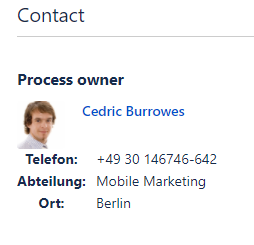
User information
For recommendation you may insert the "Contact Person" macro into the macro "No Print". However, if you ever want to export your page (to PDF, etc.), the full User profile should not be exported or rendered visible.
Add Macro
Read the steps to learn and use the macro.
User information
Switch to the edit mode of your page to insert the macro into the page. To do this, simply type "e" or click the "Edit" button.

Navigate to a position within your page where you like to insert the macro.
Click either on the + button in the menu navigation bar and select the macro, or

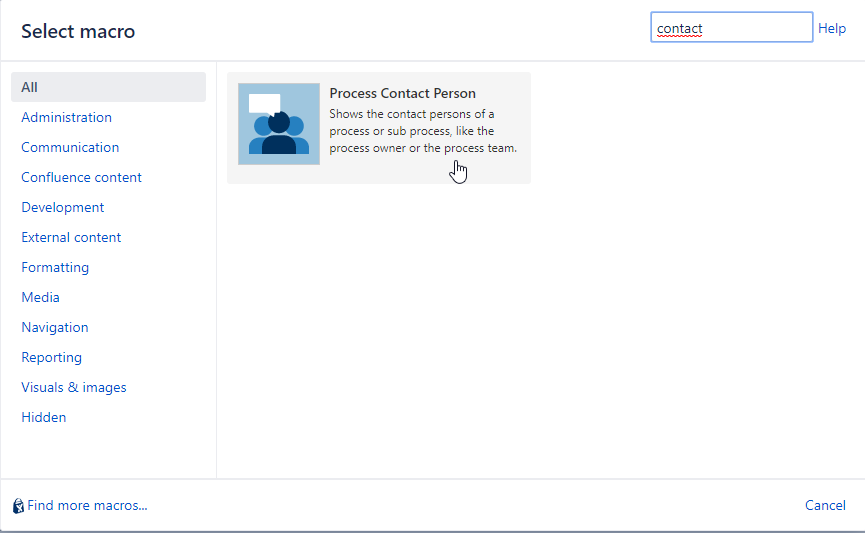
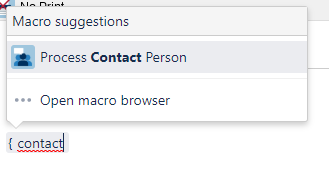
Add the macro by typing the curly bracket and the name of the macro { Contact Person.
For configuring your macro, click on the macro again and then the "Edit- button". Independently which way you go, the edit mode is displayed the same.
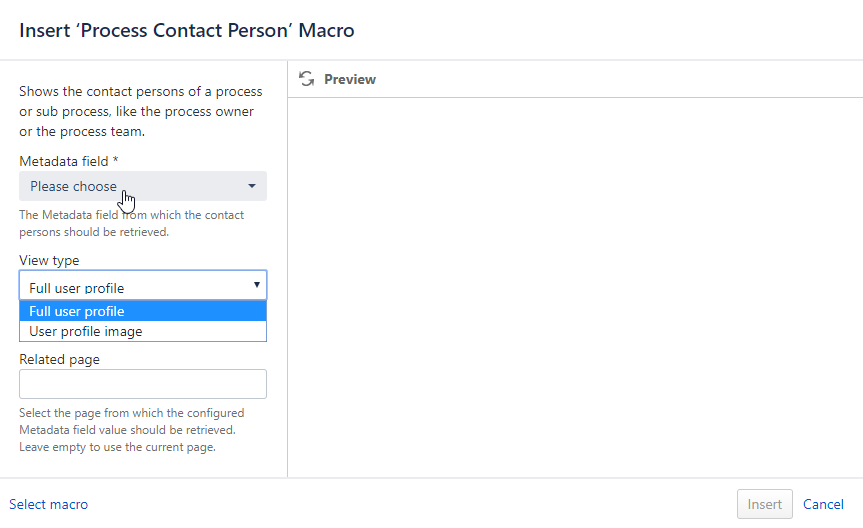 Configure Macro Parameters
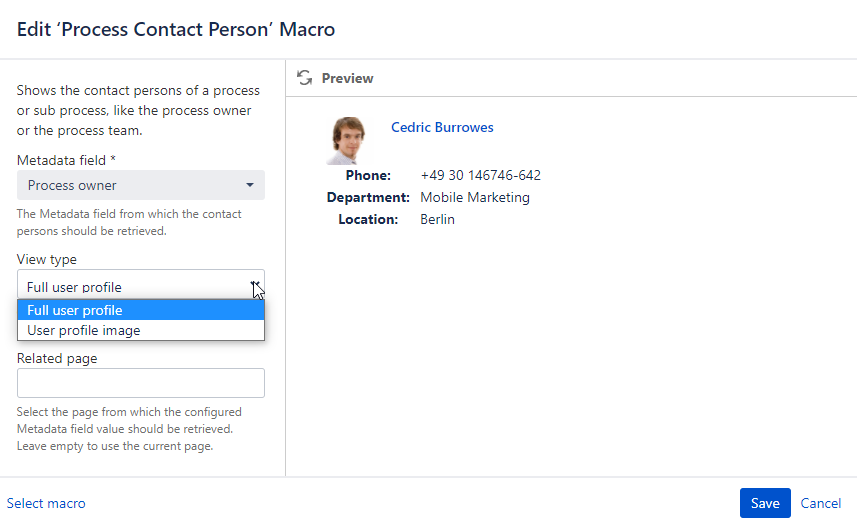
You can configure the macro with the following parameters.
For configuring the macro switch to the edit mode of your page, select the macro and then click "Edit".
|
Parameter |
Default |
|
Description |
|---|---|---|---|
|
Metadata field |
Please choose |
*obligatory |
Choose the Metadata field from which the contact persons should be retrieved. |
|
View type |
|
optional |
Choose how the contact persons should be rendered, whether as "Full user profile" or "User profile image". |
|
Related page |
activated |
optional |
Select the page from which the configured Metadata field value should be retrieved. Leave empty to use the current page. |