
Required permissions
In order for the Jira integration to work correctly the app has to be able to access SharePoint content in the context of the current user. Therefore the app will request the following permissions:
|
Permission |
Type |
Description |
Admin consent required |
Why we need it? |
|---|---|---|---|---|
|
Microsoft Graph |
|
|||
|
Delegated |
Allows users to sign-in to the app, and allows the app to read the profile of signed-in users. It also allows the app to read basic company information of signed-in users. |
No |
Perform login to our app |
|
Delegated |
Allows the app to read a basic set of profile properties of other users in your organization on behalf of the signed-in user. This includes display name, first and last name, email address, open extensions and photo. Also allows the app to read the full profile of the signed-in user. |
No |
Show user information in lists and document libraries |
|
Delegated |
Allows the app to edit or delete documents and list items in all site collections on behalf of the signed-in user. |
No |
Access the API to show content that the user is allowed to view |
|
Atlassian |
|
|||
|
|
View user information in Jira that the user has access to, including usernames, email addresses, and avatars. |
No |
To display user information in various parts of the app |
|
|
Read Jira project and issue data, search for issues and objects associated with issues like attachments and worklogs. |
No |
Needed for reading Connected Items information in Jira issues |
|
|
Create and edit issues in Jira, post comments as the user, create worklogs, and delete issues. |
No |
Needed for storing Connected Items information in Jira issues |
|
|
Create and edit project settings and create new project-level objects (for example, versions and components). |
No |
Needed for storing and reading Connected Folders information in Jira projects |
Please also have a look at the official permission reference from Microsoft or Atlassian to get detailed information about the permission handling.
Consent to the app
When you use the app for the first time or the required permissions of the app have changed a dialog will be shown where you can see all delegated permissions that the app requires to work.
You have to grant these permissions in order to get the app working.
You are able to remove these permissions at any time!
If your current user is an administrator you will see the additional checkbox "Consent on behalf of your organization".
Checking this will consent to the app for every user that is part of your organization. In this case the individual users don't have to grant the permissions on their own.
Remove app consent
Atlassian
If you want to remove app permissions for the current user in Atlassian, follow these steps:
-
Navigate to your profile and go to Connected apps.
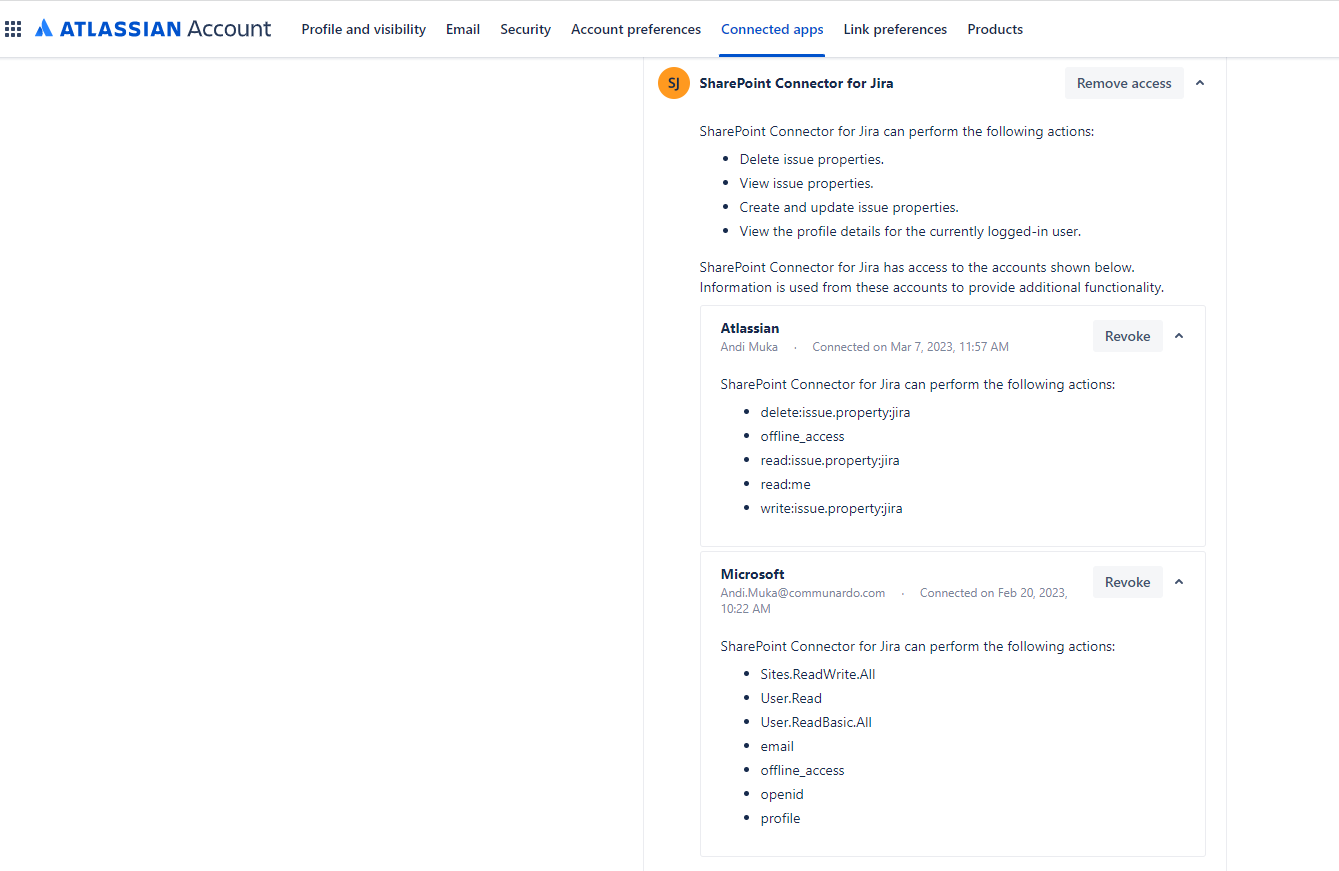
2. Click on Remove access (this will completely remove access for the app).
Alternatively, you can click on the Revoke button of the corresponding system (Atlassian or Microsoft), which will remove access for the respective system.
Microsoft
If you want to remove the app permissions for your current user, follow these steps:
-
Navigate to https://myapps.microsoft.com using a browser of your choice.
-
Search for the app "SharePoint Connector for Jira".
-
Remove the app using the context menu.
The full guide can be found in the official Microsoft documentation: Edit or revoke application permissions in the My Apps portal