You can connect Folders to a Project in order to make them easily available to the users of that Project. Every folder connected in this section, can be directly accessed in each issue via the connector (read more here).
You can only perform this task if you are an administrator for the project or have the right permissions to view/edit the project settings.
In order to do so, you can follow these steps
-
Open the “Project Settings” page from the side panel or in the context menu of your project
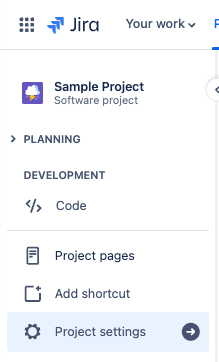
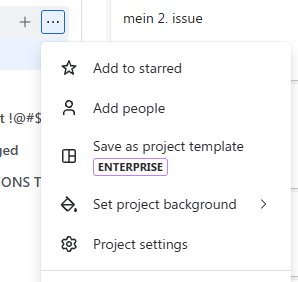
-
In the new side panel, open the Apps sub menu and click on “SharePoint Connector for Jira”
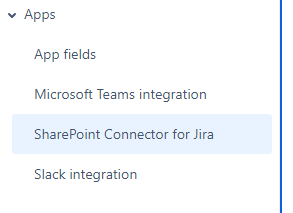
Settings sub menu
-
You will see our connector for Project page
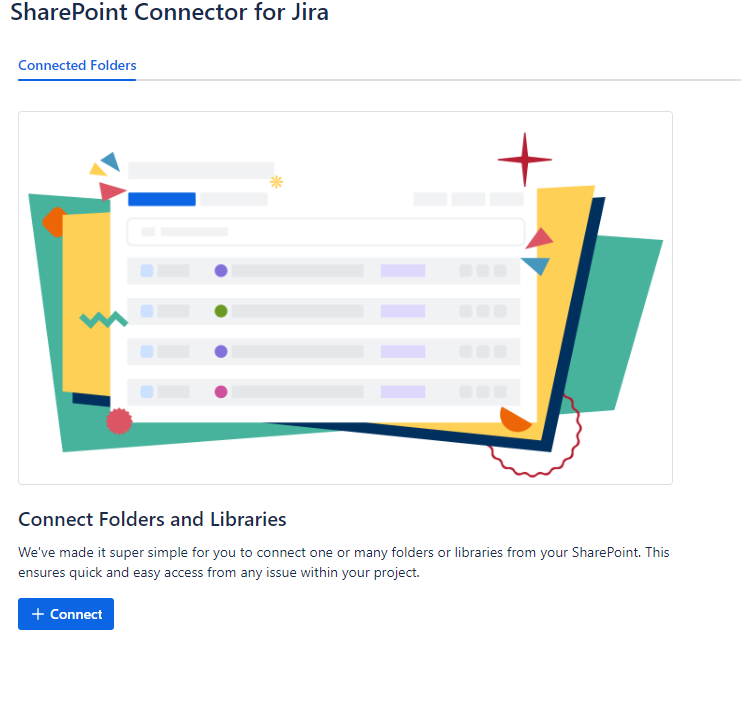
Empty Connected Folders
-
Click on the “Connect” button, a dialog will open where you can search for any folder or library that you want to assign to a project.
The dialog will work in the same way as the Issue one, so you can refer to our guide for more information.
You can only connect folders and libraries to a Jira Project
The connected items will be displayed in the same page.

You can use actions and navigate inside folders and libraries. This works similarly to the issue panel.
Auto-connect to work items
You can configure folders to be automatically connected to a specific work item type.
In order to do that, you can use the toggle on the folder you want to auto-connect and select which type of work items to enable the connection for.
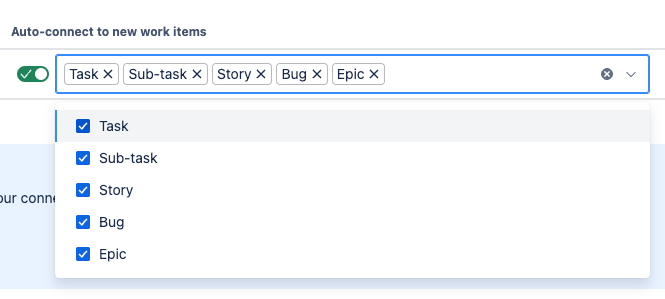
After that, if any work item of the selected type is created, the correspondent folder will be automatically connected.
Keep in mind that in order to see the automatically connected folder, you have to open the SharePoint Files panel in the app action menu in the newly created item.