
The update can only be done by a SharePoint Administrator
Check for an Available Update
Open the SharePoint Connector for Jira. If a new version is available, you will see a notification banner at the top. Additionally, in the About section of the property pane, you’ll find the currently installed version and a notification if an update is available.
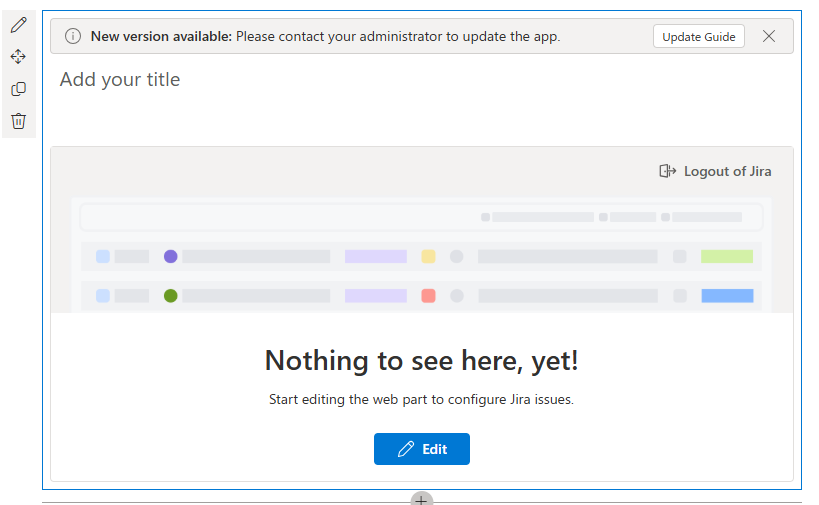
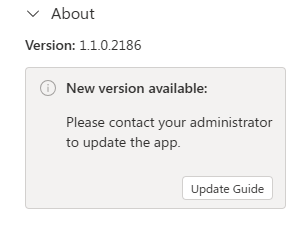
Before proceeding, identify whether the app was installed using the Tenant App Catalog or a Site Collection App Catalog.
If the App was deployed to all site collections via the App Catalog:
-
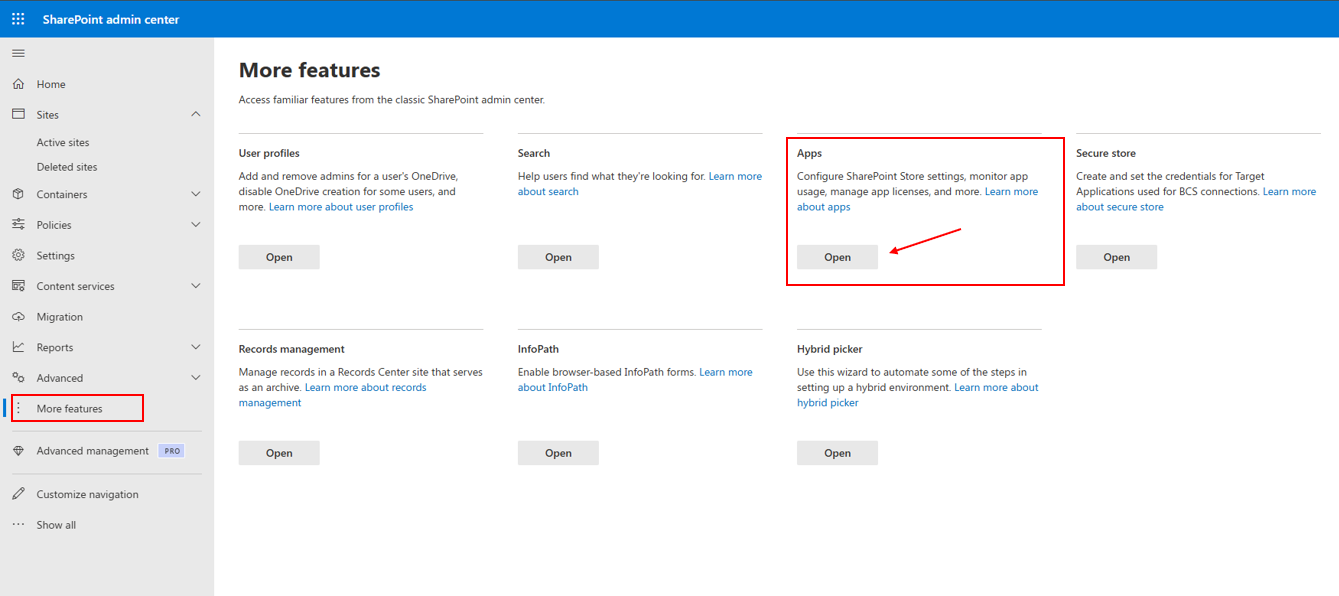
Go to your SharePoint Admin Center.
-
Select More features from the left-hand menu, then click Open under the Apps section.
-
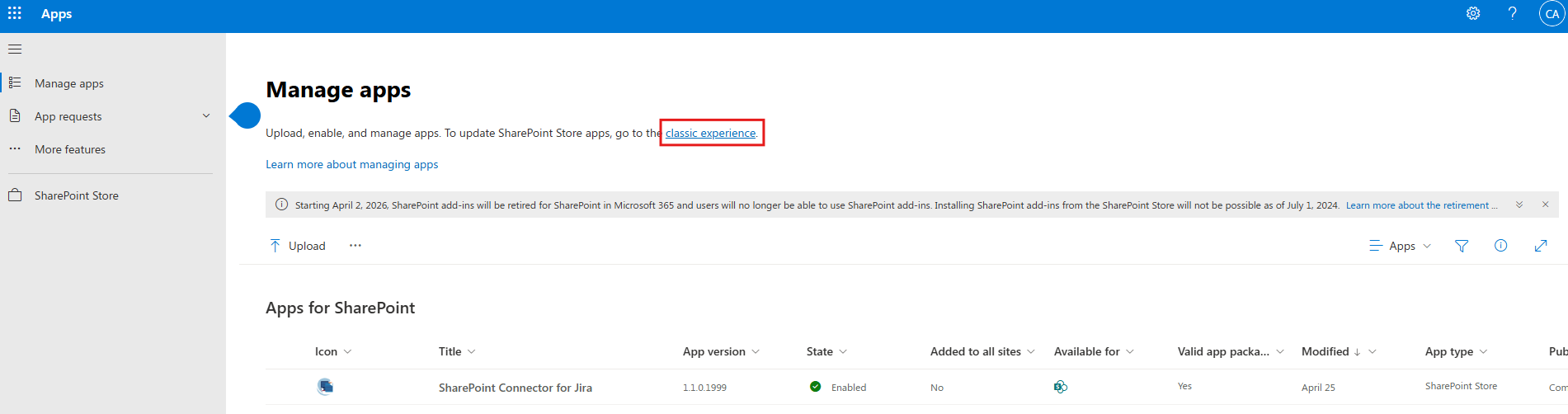
Switch the App Catalog to classic experience
-
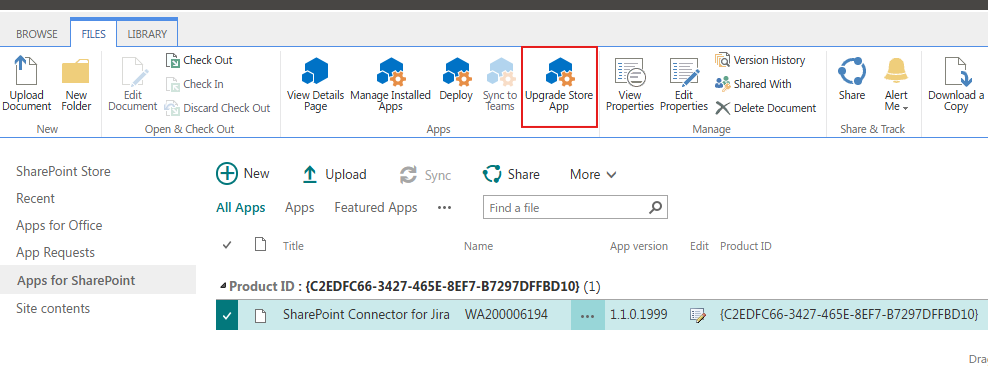
Select the app and click on Upgrade Store App
-
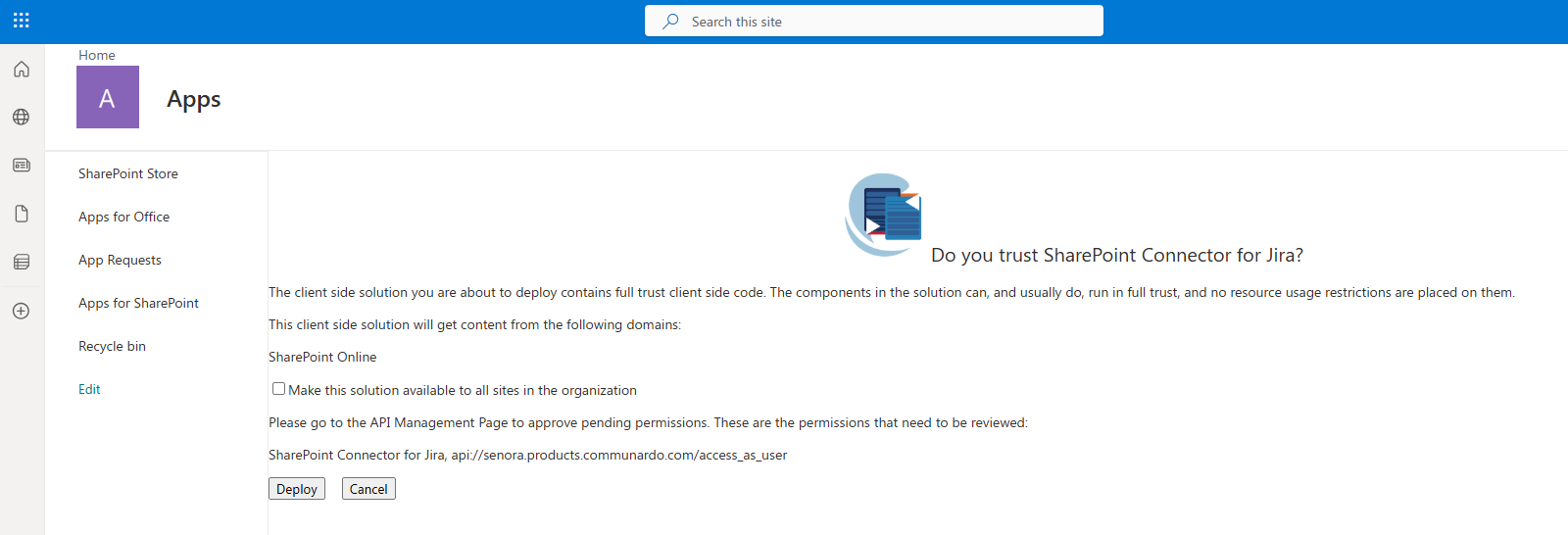
On the next screen click on Make this solution available to all sites in the organization and click on deploy
-
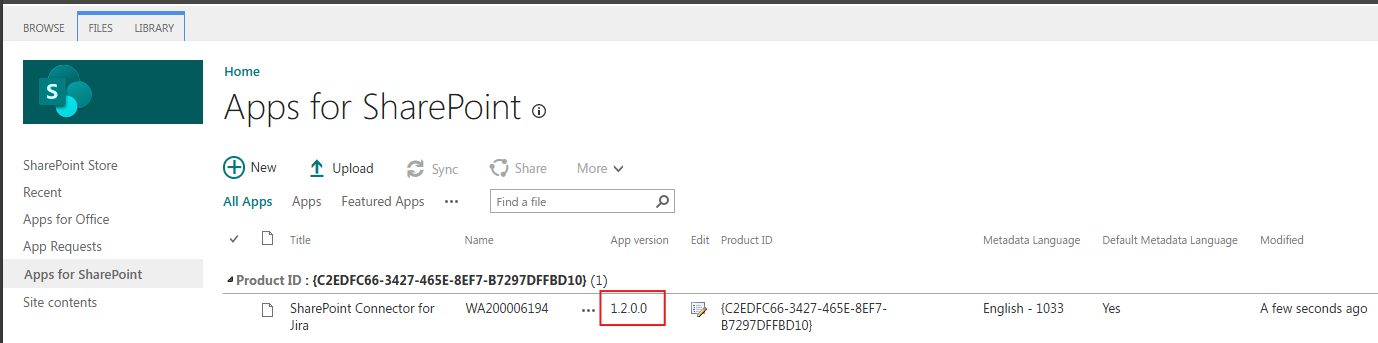
After clicking deploy you should be redirected to the App Catalog where the new version of the app should be listed.
If the App Was Installed only to a specific Site Collection:
Additionally to the above steps you Should also perform the following:
-
Navigate a Site Collection in which the App was installed
-
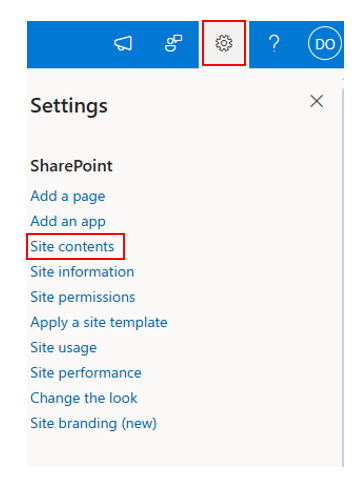
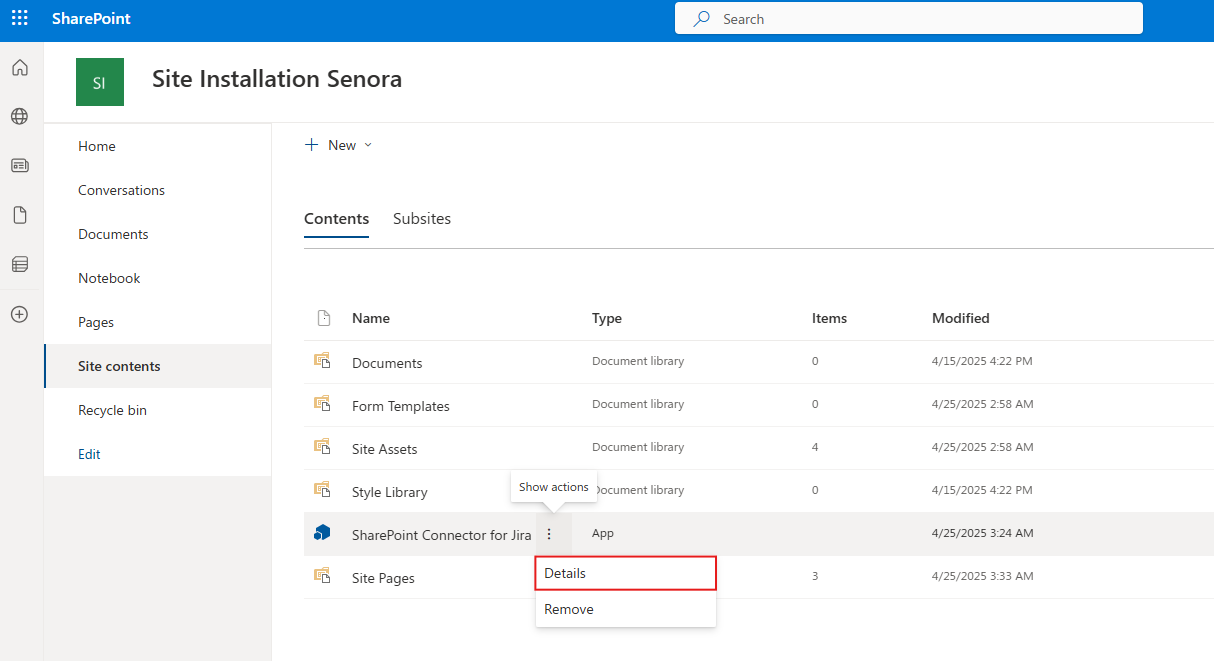
Go to Site Contents.
-
In the library, select the app and click Details from the dropdown menu.
-
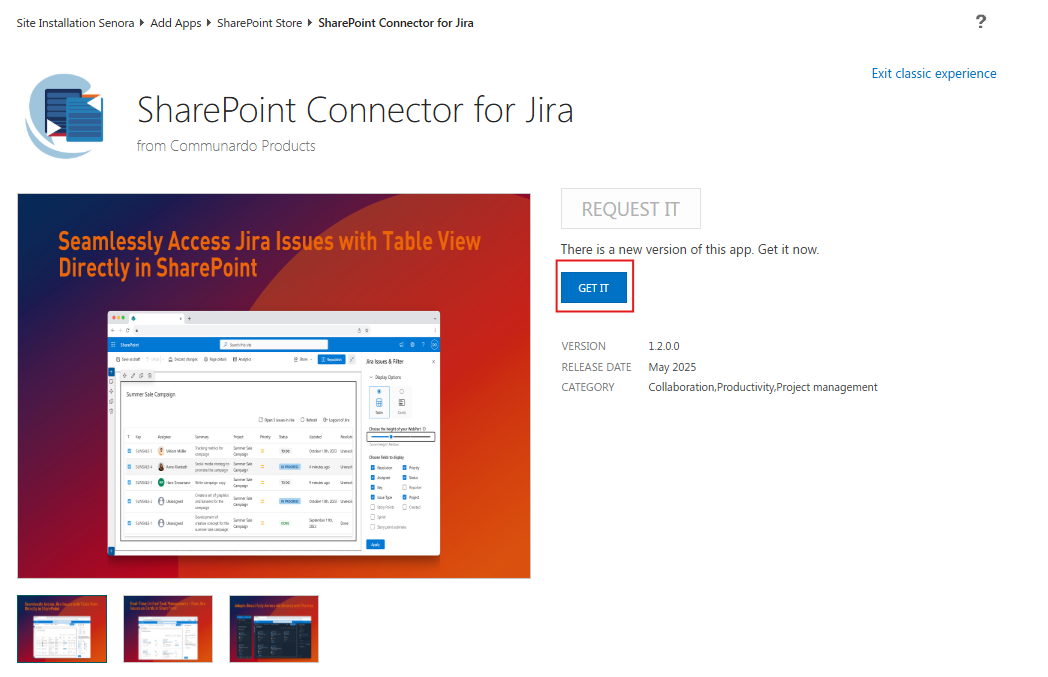
On the Details page, click GET IT to apply the update.
-
The update will take a few minutes to complete
-
Do this for all Site Collections where you have installed the app