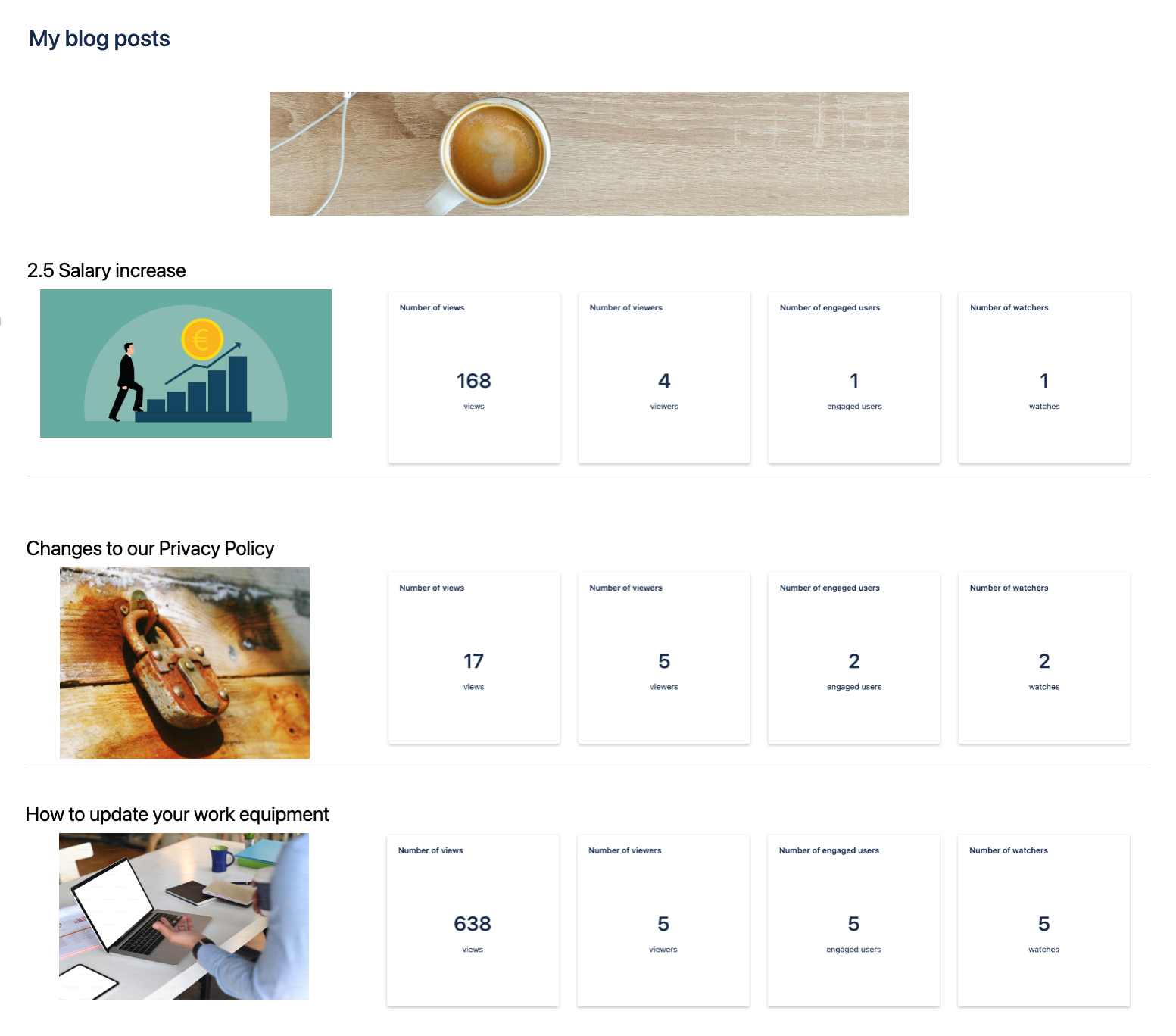
Tiles option
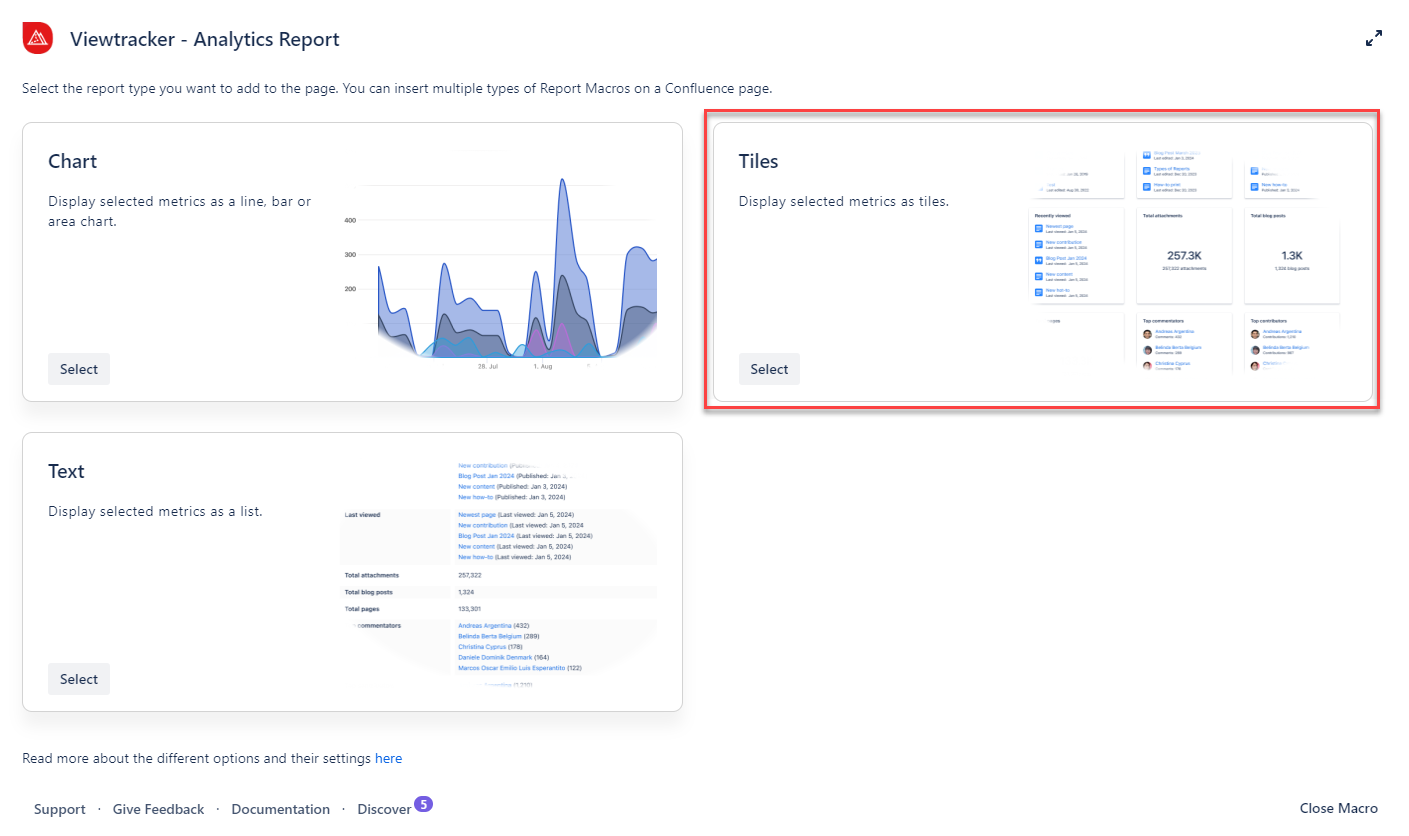
How to use the tiles option?
-
Insert the Analytics Report macro on a page.
-
Click “Tiles” within the Analytics Report.
-
In the field “Content,” you can pick between a space or a page.
-
You can also type in the specific name of the space or page.
-
-
Adapt the general settings (see below).
-
Use the preview to check if everything looks as expected.
-
Tap “Save” and publish the page.
Result: The selected page or space metrics are displayed as a tiles.
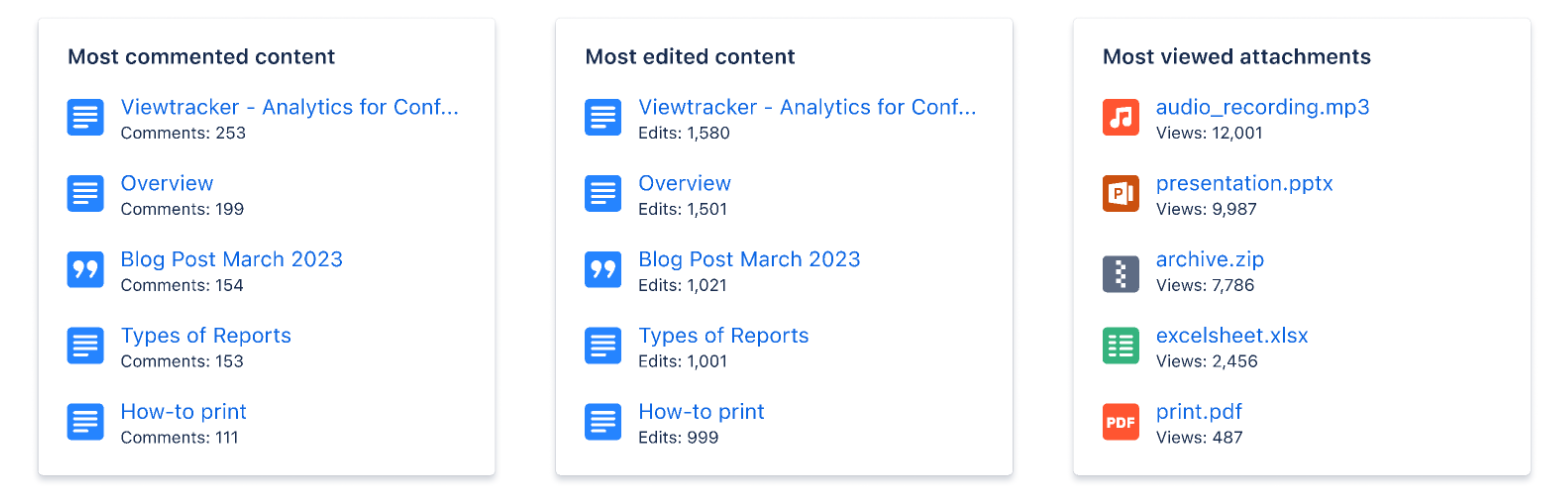
The general settings of this option
-
Content - You can select a space, a page, or a blog post. You can further refine the selection using CQL when choosing a space.
-
Metrics - These are the same as those in the Viewtracker Reports (see the expansion below).
-
Date Range - Two types of date ranges can be set:
-
Relative: The default setting. It will continually update itself to the previous day.
-
Fixed: You can manually specify the start and end date of the report.
-
-
Display - Change the order of the tiles by dragging and dropping the existing metrics.

Examples of tiles


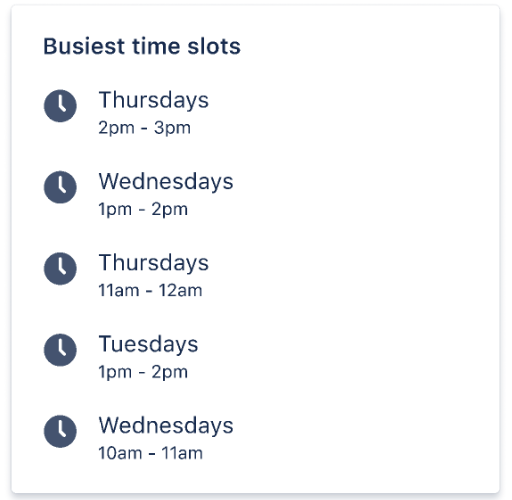
Examples Use Cases
Example 1: Personalized Landing Hub
Would you like to personalize a landing hub for each team and display all the latest news and discussions surrounding this content?
With the tiles option, you can create eye-catching tiles to display key information about the current space.

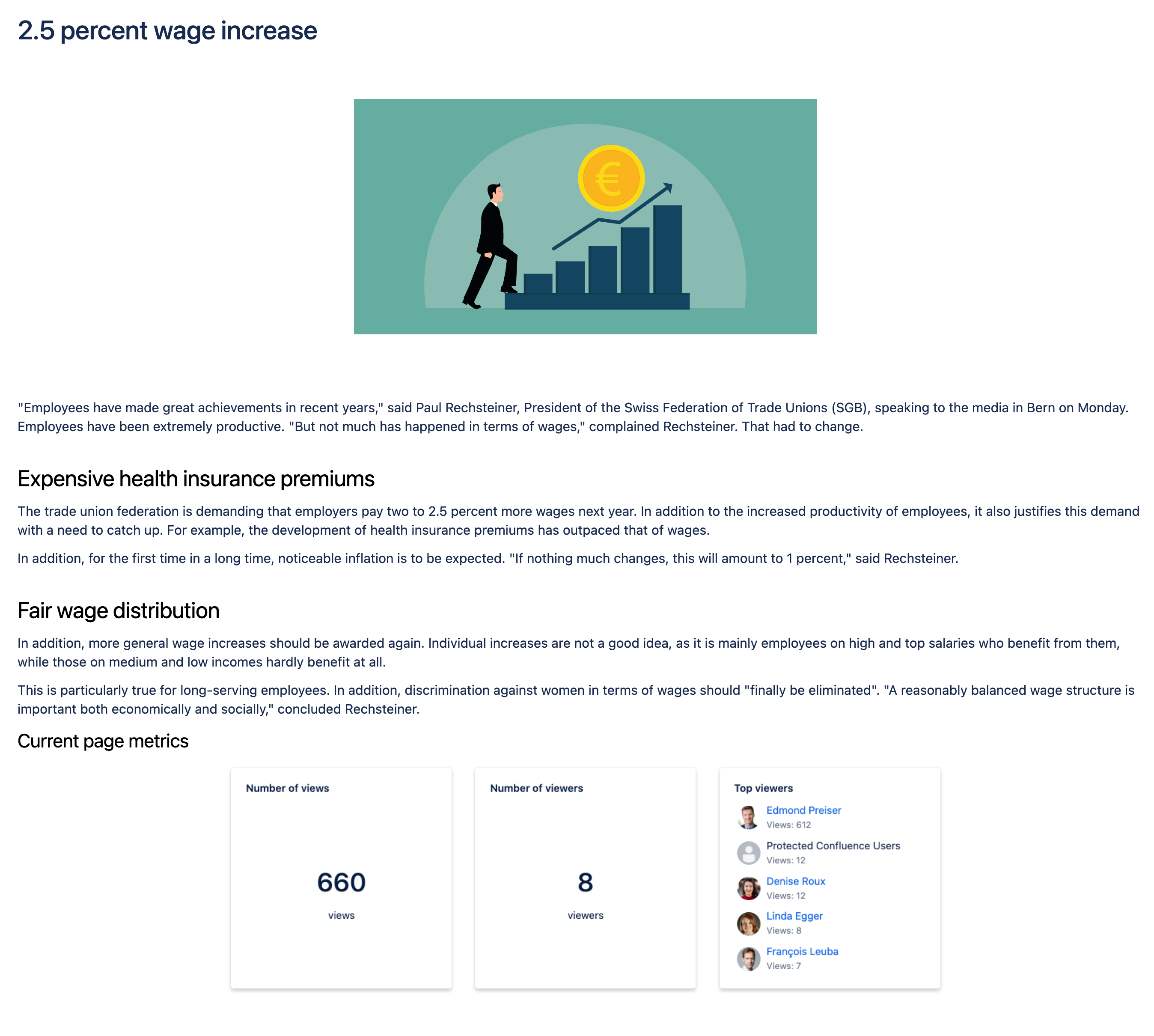
Example 2: Displaying the metrics surrounding important news
Do you need to release important news? You can enrich them with relevant lists and key figures.
List relevant content or user lists in tiles surrounding specific topics and news.
Example 3: Compare the performance of different blog posts or news
Would you like to compare the performance of the most important blog posts for the same duration from the publication date?
With the tiles macro, you can display your desired critical figures for the respective time window since publication.